
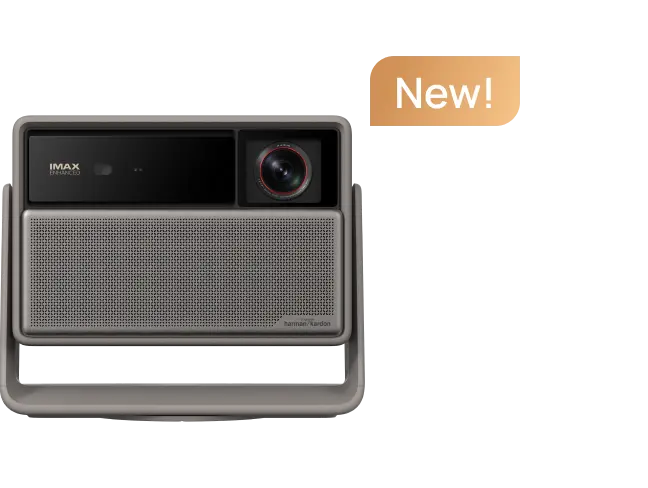
















Voice control transforms your smart projector into a true hands-free entertainment hub. With Google Assistant integrated into many modern Google TV projectors, you can launch content, adjust settings, control volume, and even manage connected smart home devices using simple voice commands—provided your setup meets the necessary account, app, and network requirements. For more on this topic, see How to Set Up a Karaoke Night at Home Using a Projector for Lyrics ....
Why Voice Control Matters for Modern Home Theaters
Juggling remotes during movie night can break immersion. Smart projectors with Google Assistant support address this by letting you search for movies, start playback, change inputs, or adjust volume without getting up. This is especially useful in larger living rooms or for families where the remote often goes missing. However, success depends heavily on proper setup, compatible hardware, and realistic expectations about what voice commands can and cannot do. For more on this topic, see The Role of AI in Real-Time Image Upscaling for Projectors.
Many XGIMI projectors, including those running Google TV, offer seamless integration with Google Assistant. This guide covers setup steps, practical commands, smart home extensions, and troubleshooting tips to help you maximize the feature. For more on this topic, see Troubleshooting Common Projector Issues: A Comprehensive 2026 Guide.

Prerequisites for Google Assistant on Your Projector
Before voice commands work reliably, several pieces must align. You will need a Google account, a stable Wi-Fi network, and the Google Home app installed on a smartphone or tablet. Some models require linking the projector through the Google Home app or enabling specific smart-home modes.
According to Google's official guidance, Google Assistant can control linked smart home devices once they are set up in the Google Home app, and Google recommends organizing devices with nicknames and rooms for easier voice control. The same principle applies when extending control to your projector and connected entertainment gear.
Voice Match and Assistant settings in the Google Home app may also be required for reliable recognition, especially in noisy environments or shared households. Supported devices respond to wake phrases that begin with "Hey Google" or "OK Google," as explained in Google's voice control documentation.
Compatibility note: Not every projector has built-in microphones for direct voice input. Many rely on the included remote (which often has a microphone) or a paired mobile app. Check your specific model's manual to confirm how voice input is handled.
Step-by-Step Setup Guide
-
Connect to Wi-Fi and sign in: Ensure your projector is connected to the same Wi-Fi network as your phone. Sign in with your Google account during the initial Google TV setup.
-
Install and configure the Google Home app: Download the app from your device's app store. Follow the prompts to add your projector if it appears as a compatible device.
-
Enable Google Assistant: In the projector's settings or the Google Home app, locate the Assistant or Voice section and turn it on. You may need to complete Voice Match training for better accuracy.
-
Link smart home devices (optional but recommended): Add lights, speakers, or other Matter-enabled devices to the Google Home app. This allows the projector ecosystem to serve as a central control point.
-
Test basic commands: Say "Hey Google, what's the weather?" or a projector-specific command to verify recognition.
Setup flows can vary by model and firmware. Some projectors require a dedicated smart-home power mode or additional account registration. If voice commands fail after basic setup, revisit permissions and ensure the projector has the latest system update. For more on this topic, see How to Choose the Right Power Adapter for Your Imported Projector.
Essential Voice Commands for Projectors
Once set up, try these practical commands. Results depend on installed apps, linked services (like Netflix or YouTube), and your Google account's content library.
- Content search and launching: "Hey Google, play [movie title] on Netflix" or "Hey Google, open YouTube."
- Playback control: "Hey Google, pause," "Hey Google, resume," "Hey Google, next episode."
- Volume and settings: "Hey Google, turn up the volume," "Hey Google, set brightness to 70%," "Hey Google, switch to HDMI 1."
- Projector-specific actions: "Hey Google, turn on the projector" (if supported by your model) or "Hey Google, adjust focus."

Here is an illustrative overview of common command categories:
Essential Voice Commands for Projector Control
Illustrative chart of common Google Assistant command categories for projector use. The values are heuristic labels only, not measured frequencies or performance scores.
View chart data
| Category | Example Command Fit |
|---|---|
| Projector Control | 4.0 |
| Content Search | 4.0 |
| Playback | 4.0 |
| Volume | 4.0 |
| Smart Home Actions | 4.0 |
Illustrative mapping based on the article's writer evidence and examples: wake words such as 'Hey Google' or 'OK Google', Google Home app smart home control, and sample commands like 'Hey Google, play Netflix', 'Hey Google, turn up the volume', and 'Hey Google, dim the lights'. No real statistics are used.
This chart uses illustrative values to show that commands exist across categories. Actual success varies by model, app availability, and network stability.
Integrating with Smart Home Devices
Your projector can become part of a larger smart home ecosystem. After linking devices in the Google Home app, try commands like:
- "Hey Google, dim the living room lights."
- "Hey Google, turn off the speakers."
- "Hey Google, start movie mode" (if you have created a routine that includes the projector and lights).
Google Home supports control of linked smart devices through voice after setup. Matter-enabled devices are particularly straightforward to manage in the same app, making interoperability easier in 2026 smart homes.
Organize devices into rooms and assign nicknames for smoother voice interactions. This reduces friction during movie nights when you want to adjust lighting without hunting for multiple remotes.
Common Myths and Realistic Expectations
Several misconceptions surround projector voice control:
- Myth: Every smart projector has built-in far-field microphones for direct voice commands. Reality: Many rely on the remote's microphone or a mobile app.
- Myth: Voice control completely replaces the remote. Reality: Complex menu navigation, app logins, or troubleshooting often still require the remote.
- Myth: Setup is always instant and universal. Reality: It requires compatible Google accounts, Wi-Fi, app permissions, and sometimes firmware updates.
Voice control works best in quieter environments and for straightforward tasks. Recognition accuracy can drop with accents, background noise, or certain regional dialects.
Troubleshooting Voice Control Issues
- Commands not recognized: Confirm the wake phrase, check microphone on the remote, and retrain Voice Match.
- No response from smart home devices: Verify they are correctly added to the Google Home app and powered on.
- Delayed or inconsistent performance: Ensure strong Wi-Fi signal near the projector. Restart both the projector and router.
- Region or account limitations: Some features are unavailable in certain countries or require specific Google service subscriptions.
If issues persist, consult your projector's support resources or the Google Home app's troubleshooting section.
How to Choose the Right XGIMI Projector for Voice Control
When selecting a projector, prioritize models with Google TV for the most integrated Assistant experience. Consider these checkpoints:
- Does the model include a voice-enabled remote?
- Is Netflix officially licensed and pre-installed?
- How easy is Google Home app pairing?
- Battery-powered portable options for flexible placement vs fixed home models.
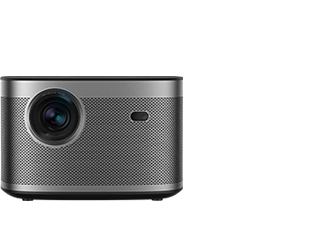
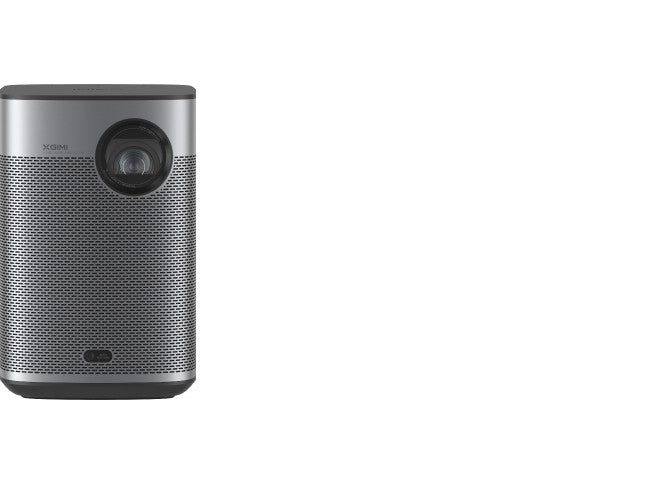
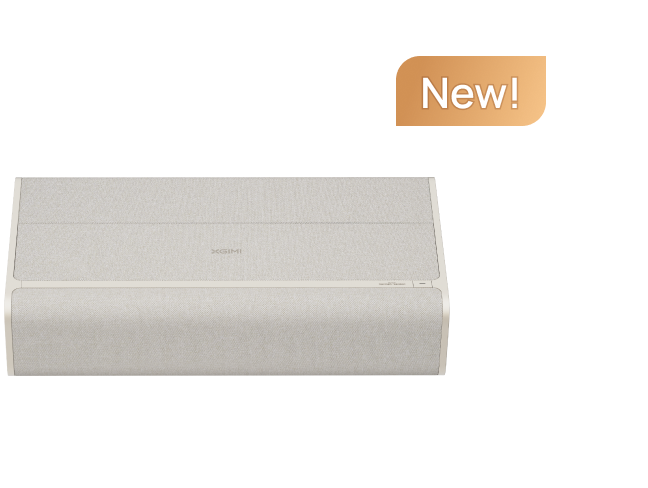
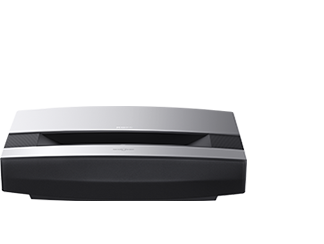
Popular choices include portable options like the MoGo 3 Pro or home theater models like the HORIZON Pro. For more on smart features, explore our guide to What is Projector with Google TV?.
Checklist for your room:
- Measure viewing distance and choose appropriate brightness.
- Confirm Wi-Fi stability in the installation location.
- Test voice recognition in your typical environment (with family chatter or AC running).
- List the smart home devices you want to control together.
- Verify Google account compatibility with your streaming subscriptions.
When Voice Control May Not Be the Best Fit
Voice control adds convenience but is not ideal for everyone. If your household has privacy concerns about always-listening devices, or if you primarily use the projector in very noisy settings, a traditional remote may still be more reliable. Users with speech impairments or those in regions with limited Assistant support may find limited value.
For deeper comparison of smart platforms, read Google TV Projector vs Android TV Projector, Which is Better?.
Conclusion
Google Assistant on compatible smart projectors can significantly reduce friction in your home theater experience when properly configured. It enables natural voice interactions for content, playback, volume, and smart home control—making movie nights more enjoyable and your living room more connected.
Results vary based on your specific projector model, network quality, and linked devices. Start with the basic setup in the Google Home app, test commands in your real environment, and expand gradually to routines and smart home automations. This approach helps you get the most from your XGIMI projector's smart capabilities without over-relying on unproven promises.
This article provides general guidance on comfort and setup. It does not constitute medical, technical, or installation advice. If you experience persistent technical issues or have existing device compatibility concerns, consult the manufacturer's support or a qualified professional.


