













Wireless screen mirroring to a projector often feels frustratingly delayed by 2-3 seconds, especially during fast-paced games, live sports, or time-sensitive presentations. This lag stems primarily from the multiple processing steps required by protocols like AirPlay and Miracast combined with Wi-Fi network conditions, rather than the projector hardware alone. Understanding these causes allows you to apply targeted fixes that can dramatically reduce delay—or decide when native streaming on a smart projector is the better long-term solution. For more on this topic, see How to Choose the Right Projector Screen Material for Different Roo.... For more on this topic, see Why Do Some Streaming Apps Show Black Screen on Projector and How t....

Many users assume the projector is at fault when mirroring lags, but the real bottlenecks usually lie in the wireless transmission pipeline and your network setup. By addressing Wi-Fi congestion, optimizing device settings, and choosing the right connection method for your needs, you can often bring the experience much closer to real-time. This guide explains exactly why the delay happens and provides practical steps to minimize it.
Why Wireless Screen Mirroring to a Projector Lags
Wireless mirroring works by capturing your phone or laptop screen, encoding the video stream, transmitting it over Wi-Fi, then decoding and rendering it on the projector. Each of these steps adds time. As technical literature on wireless displays notes, the source device must capture, encode, and transmit the screen while the projector decodes and renders it, creating inherent delay in the process. For more on this topic, see How to Screen Mirror to Projector When Your Device and Projector Ar....
Network issues compound this. Wi-Fi congestion adds jitter and latency to active video frames, making the stream feel noticeably out of sync. More connected devices or background traffic on the same network further raises latency and reduces responsiveness. Protocols such as AirPlay, Miracast, and Google Cast all rely on these wireless links, so real-world performance varies based on your router, signal strength, and interference. For more on this topic, see How to Fix Projector Image Flickering or Flashing When Connected to....
The lag becomes most obvious in interactive scenarios. Games require split-second timing, live sports lose excitement when action appears delayed, and presentations feel awkward when slides don't advance smoothly. Many community reports confirm that Miracast and similar standards can show noticeable delay depending on device and network quality.

Breakdown of Where the Latency Comes From
To see why totals often reach 2-3 seconds under poor conditions, consider the individual stages:
- Screen capture and encoding on your phone or laptop
- Wireless transmission across the network
- Decoding and rendering on the projector
Congestion or weak signals dramatically increase the transmission portion. The following chart illustrates typical latency accumulation using bounded heuristic ranges. These numbers are illustrative only and meant to show relative contributions rather than precise measurements.
Typical Latency Breakdown in Wireless Screen Mirroring
Illustrative ranges only; not measured data.
View chart data
| Category | Ideal Wireless | Congested Network | Wired HDMI |
|---|---|---|---|
| Capture | 20.0 | 20.0 | 5.0 |
| Encode | 150.0 | 300.0 | 10.0 |
| Transmit | 80.0 | 600.0 | 5.0 |
| Decode | 60.0 | 120.0 | 10.0 |
| Render | 30.0 | 40.0 | 5.0 |
| Total | 340.0 | 1080.0 | 35.0 |
Illustrative heuristic ranges based on the article's pipeline description and general domain knowledge. Values are bounded estimates meant to explain why wireless mirroring can accumulate about 2-3 seconds of lag under congestion; they are not official measurements.
This visualization helps explain why a seemingly simple mirror can feel so sluggish when your network is busy. Reducing traffic or switching bands often helps cut the largest variable—the transmission delay.
Quick Checks and Fixes to Reduce Wireless Casting Delay
Start with the simplest steps before changing hardware. These practical adjustments address the most common causes of projector screen mirroring lag.
Optimize Your Wi-Fi Network
Move your router closer to both the source device and the projector to strengthen the signal. Switch to the 5 GHz band when possible, as it typically offers lower latency than 2.4 GHz despite shorter range. Reduce congestion by pausing downloads, video calls, or other bandwidth-heavy activities on the network while mirroring. As general networking guidance suggests, minimizing background traffic can improve responsiveness for AirPlay-style casting.
Restart your router and ensure no more than a few high-demand devices share the same network. If your router supports Quality of Service (QoS) settings, prioritize the device you're mirroring from.
Adjust Device and Projector Settings
Close unnecessary apps on your phone or laptop to free up processing power for encoding. Update your source device, projector firmware, and casting apps to the latest versions, as updates often include performance improvements.
On the projector, enable any available low-latency or game mode. Lower the mirroring resolution or frame rate if the option exists in your casting settings—this reduces the data that needs to be encoded and transmitted.
Choose the Right Protocol and Test Alternatives
Not all wireless methods perform equally. Test different protocols: some users find Google Cast more stable than AirPlay in certain networks, while Miracast behavior varies widely. Keep devices within 15-20 feet of the router with minimal obstacles for best results.
If lag remains frustrating after these tweaks, consider whether wireless mirroring is the right approach for your use case. Wired HDMI connections almost always deliver far lower latency because they eliminate the encoding, transmission, and decoding uncertainties of wireless paths.
When Wireless Mirroring Still Isn't Enough: Better Alternatives
For gaming, live sports, or presentations where even reduced lag feels unacceptable, native streaming on the projector itself provides the smoothest experience. Smart projectors with built-in Google TV or Android TV let you run apps like Netflix, YouTube, or sports streaming services directly—no phone or laptop mirroring required. This bypasses the entire wireless casting pipeline.
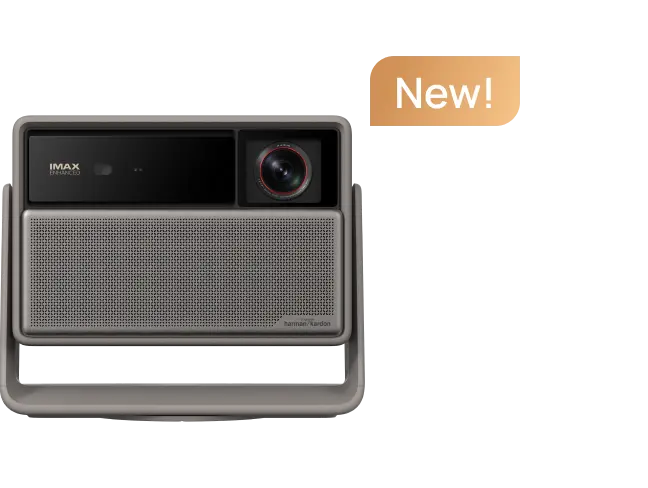
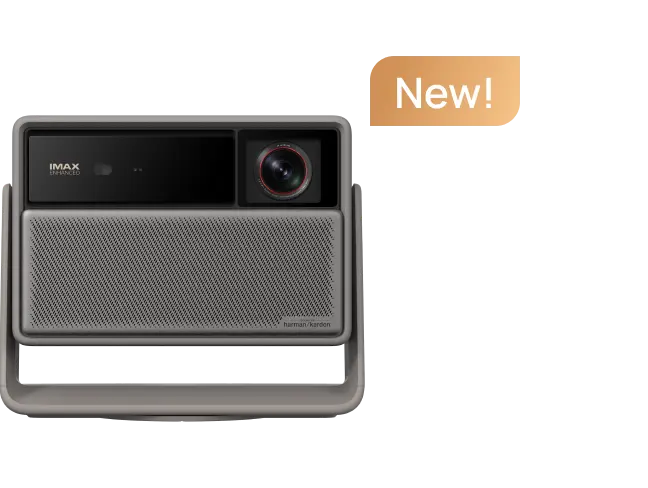
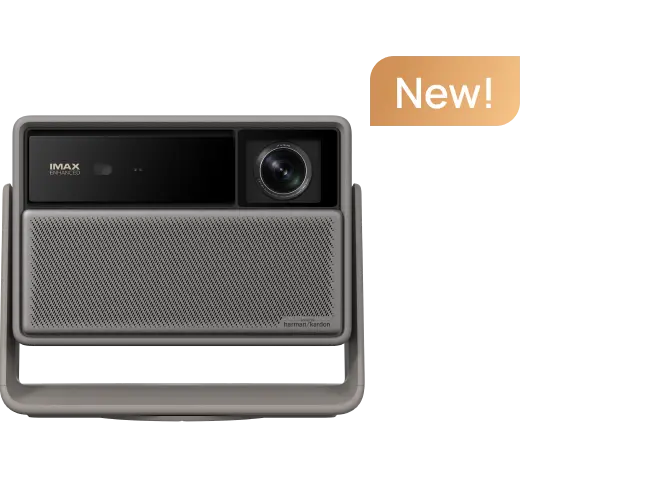
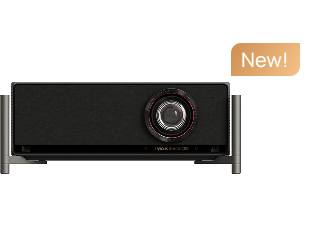
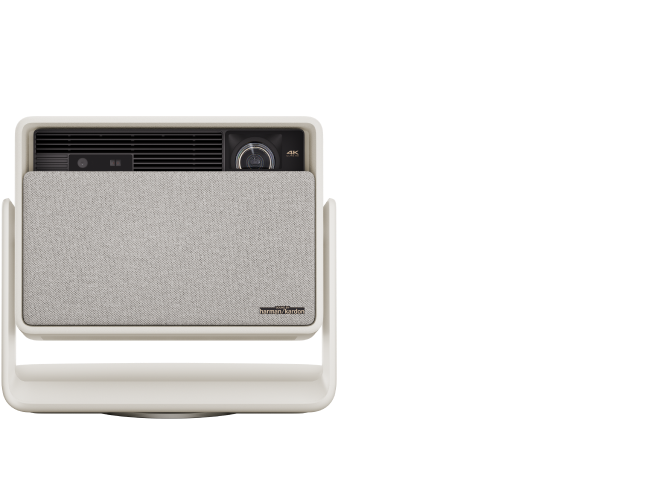
XGIMI projectors with Google TV, for example, support native app streaming that avoids casting delays entirely. Their dedicated low-latency gaming modes further optimize performance when you do connect external devices via HDMI.
Explore our low latency gaming projectors collection or read more about how to improve latency on projector for additional setup tips.
If you primarily mirror for casual viewing, a few targeted network fixes may be all you need. But for the most demanding scenarios, upgrading to a smart projector with strong native capabilities often eliminates the frustration altogether.
How to Choose the Right Approach for Your Room and Usage
Before buying new equipment or making major changes, run this quick self-audit:
- Measure your current lag using a simple test—mirror a stopwatch app and note the difference between the phone screen and projection.
- Check your Wi-Fi: run a speed test near the projector and note how many devices are connected.
- Identify your main use case: gaming and sports demand the lowest possible latency, while movie streaming tolerates more delay.
- Test wired HDMI with the same content to compare the difference directly.
- Consider future needs: if you frequently mirror, a projector with robust built-in streaming apps may save ongoing hassle.
For gamers specifically, look for models designed with input lag under 20ms in game mode. Our guide on choosing a low latency gaming projector provides more details on matching specs to different game types.
Conclusion: Reduce Lag or Switch to Native Streaming
Wireless screen mirroring lag of 2-3 seconds usually results from the combined effects of encoding, network transmission, and decoding rather than a single faulty component. While you can often reduce delay through better router placement, band selection, traffic management, and device optimization, the results depend heavily on your specific environment and hardware.
In many cases, the most reliable fix is minimizing reliance on mirroring altogether. Smart projectors with integrated streaming platforms deliver smoother playback for most entertainment needs. If your current setup continues to frustrate you during games or live events, evaluating projectors with native Google TV and low-latency modes may provide the seamless experience you're looking for.
This article discusses comfort and setup considerations for screen mirroring only and does not constitute technical support or hardware diagnosis. Individual results vary based on network conditions, device models, and environment. For persistent issues with specific devices, consult the manufacturer documentation or a qualified technician.
For more on optimizing your projector experience, check our guide to Android TV projectors or explore low latency options for games and movies.


