

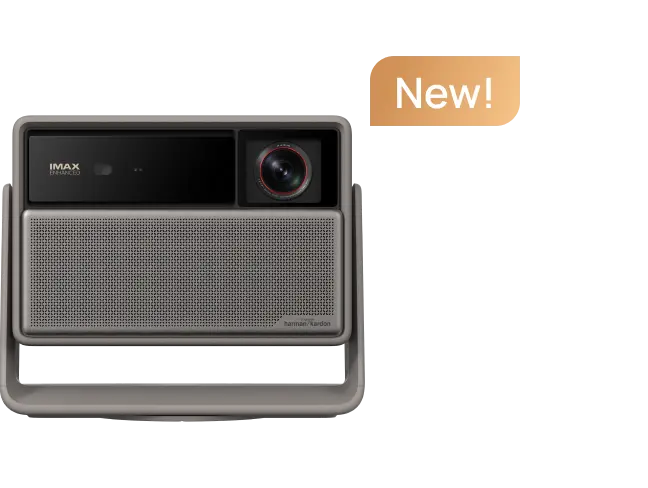











Under 20ms Is the Line — Here's How XGIMI Models Stack Up
The single most important number for gaming on a projector is input lag measured in Game Mode at your actual playing resolution. For the majority of console and casual PC gamers, under 20ms is the practical threshold where gameplay feels responsive and immersive on a large screen.
Here's where current XGIMI models land, based on manufacturer-published specifications under the stated test conditions:
| Model | Input Lag | Test Condition | Best For |
|---|---|---|---|
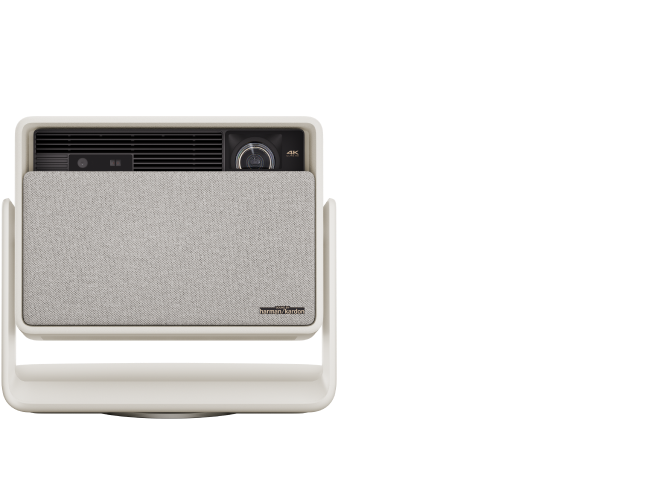
| HORIZON 20 | 1ms | 1080p / 240Hz | Competitive & fast-action gaming |
| HORIZON Ultra | 18ms | 4K / 60Hz | 4K console gaming (PS5, Xbox Series X) |
| HORIZON S Max | 20ms | Game Mode, AK off | 4K casual & action gaming |
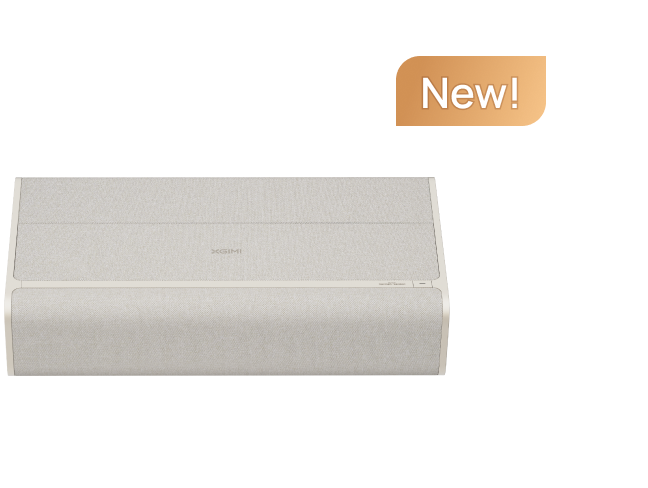
| AURA 2 | 20ms | AK off | Large-screen console gaming (UST) |
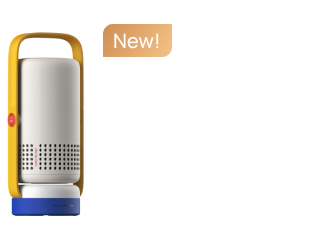
| Halo+ (Original) | 26.5ms | 1080p / 60Hz | Casual portable gaming |
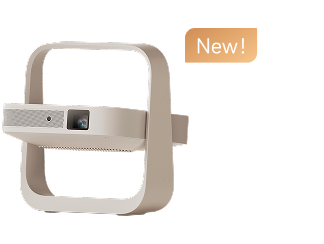
| Elfin Flip | 26.3ms | Game Mode | Bedroom casual gaming |
| HORIZON Pro | 34.6ms | 1080p / 60Hz | Single-player, RPG, turn-based |
| AURA (Original) | 40–45ms | — | Story games, low-action titles only |
Methodology note: All figures above are sourced directly from XGIMI official product pages and reflect measurements under the specific conditions listed. Real-world latency when additional processing features (ISA, auto-keystone, MEMC) are enabled will be higher. Third-party lab measurements may differ. No projector in this lineup should be compared to a dedicated gaming monitor for competitive esports use.

Refresh Rate and Input Lag Are Not the Same Thing
This is the most common spec confusion in gaming projector research, and it leads to expensive mismatches. Refresh rate (Hz) tells you how many frames per second the display can show — a 120Hz projector can render up to 120 frames per second, consistent with definitions used in VESA display timing standards. Input lag (ms) is a completely separate measurement (a concept well-documented by experts at Blur Busters): the time delay between your controller or keyboard sending a signal and the result appearing on screen. For more on this topic, see What Refresh Rate and Response Time Should You Look for in a Gaming....
A projector can be 120Hz and still carry 40ms of input lag. The HORIZON 20 illustrates the other extreme: its 1ms figure is measured at 1080p/240Hz, meaning the display pipeline is optimized for speed at that specific resolution-refresh pairing. Drop to 4K/60Hz on the same unit and the lag figure will differ — which is why the test condition column in the table above matters so much.
For PS5 and Xbox Series X players running games at 4K/60Hz, the relevant benchmark is the 4K/60Hz figure. The HORIZON Ultra's 18ms at that exact pairing is the most directly applicable number for that use case.
Your Game Genre Determines Your Lag Tolerance
Not every game demands the same response time. The frustration many buyers feel comes from applying competitive-gaming standards to casual play, or vice versa. Here's a practical breakdown:
Under 16ms — Competitive FPS and fighting games. Competitive gaming communities and display researchers generally treat this range as ideal for fast-reaction gameplay, as discussed in Blur Busters latency research. Titles like Call of Duty, Valorant, Street Fighter, and Tekken require split-second reactions where even 20ms can feel like a disadvantage against players on gaming monitors. This range is where the HORIZON 20's 1ms spec becomes genuinely meaningful.
16–30ms — Action/adventure, sports, and platformers. God of War, Elden Ring, FIFA, and NBA 2K are all playable and enjoyable in this window. The HORIZON Ultra (18ms) and HORIZON S Max (20ms, AK off) sit squarely here, and most PS5/Xbox players report no perceptible lag in these genres.
30–50ms — Casual RPGs, strategy, and story-driven games. Persona, Baldur's Gate 3, Civilization, and narrative adventures are comfortable at this range. The HORIZON Pro at 34.6ms lives here. Single-player immersion on a 100-inch screen more than compensates for the modest latency.
50ms and above — Generally noticeable across most genres. The original AURA's 40–45ms range starts to push into territory where even casual players may notice a soft "floatiness" in controls. This is a home cinema projector that happens to support gaming, not a gaming-first device.
Rule of thumb: If you primarily play single-player story games, 30–35ms is unlikely to bother you. If you play online multiplayer in any genre, aim for under 20ms. If you compete seriously in FPS or fighting games, a projector is not the right primary display — and this guide is not written for that use case.

What "Game Mode" Actually Does (and What It Doesn't)
The community frustration around Game Mode labels is real. As one user on r/projectors put it: "I enabled Game Mode on my projector thinking it would be like my TV's Game Mode. Big mistake. The picture looked terrible AND I still felt lag." The confusion stems from the fact that "Game Mode" means different things across brands and even across product lines within the same brand.
On XGIMI projectors, Game Mode works by disabling or reducing post-processing stages in the image pipeline. The specific features it bypasses include:
- MEMC (Motion Estimation, Motion Compensation) — frame interpolation that smooths motion but adds processing delay, a trade-off widely discussed in motion interpolation research by RTINGS
- Auto Keystone (AK) — real-time geometric correction that requires continuous image analysis
- ISA (Intelligent Screen Adaption) — the suite of auto-alignment, auto-focus, and obstacle avoidance features
- Noise Reduction and Sharpening — post-processing filters that analyze and modify each frame, adding latency proportional to their intensity setting
The HORIZON S Max's spec sheet is unusually transparent about this: it lists "20ms input lag in Game Mode (AK off)" — explicitly tying the figure to auto-keystone being disabled. The AURA 2 does the same: "20ms latency (AK off)." This is not fine print to ignore. Community reports across r/projectors and r/hometheater consistently flag that buyers enable ISA features for convenience, not realizing they're adding 10–30ms of processing lag on top of the Game Mode baseline.
The practical takeaway: activating Game Mode is step one; manually disabling ISA and auto-keystone is step two. If your projector is wall-mounted in a fixed position, you can afford to turn these features off permanently. If you move the projector between sessions, you'll need to re-run alignment manually each time you want minimum lag.

How to Configure Your XGIMI for Minimum Lag: A Post-Purchase Checklist
Getting to the spec-sheet number requires a specific sequence of settings changes. The smart projector setup features guide covers ISA behavior in detail, but here's the gaming-specific version: For more on this topic, see Setting Up a Portable Gaming Station: Projector and Steam Deck Combos.
Step 1 — Enable Game Mode. Navigate to Settings → Picture → Game Mode. This is the baseline step that disables MEMC and reduces processing.
Step 2 — Disable Auto Keystone. In Settings → Installation, turn off Auto Keystone Correction. Note that XGIMI's auto-keystone handles up to 40° vertical and 30° horizontal correction — if your setup requires more than that, you'll need to physically reposition the projector anyway.
Step 3 — Disable ISA features. For the AURA 2 specifically, Uninterrupted Auto Keystone Correction requires Intelligent Screen Assist to be off. For HORIZON series models, disabling ISA while in a fixed gaming position removes the continuous image-analysis overhead.
Step 4 — Set your console to Game Mode output. PS5 and Xbox Series X both have HDMI output settings that enable ALLM (Auto Low Latency Mode) signals. While projector ALLM support varies by model, manually setting your console to prioritize performance over visual processing ensures the signal chain is optimized end-to-end. For more on this topic, see How to Optimize HDR Settings for PS5 and Xbox on Your Projector.
Step 5 — Use a short, certified HDMI 2.1 cable. Longer or lower-spec cables can force the projector into lower-bandwidth fallback modes, adding latency and potentially dropping you from 4K/120Hz to 4K/60Hz without warning. Keep the cable under 3 meters for the most reliable high-bandwidth handshake.
Step 6 — Check AV receiver or soundbar passthrough lag. If your signal routes through an AV receiver or soundbar before reaching the projector, each device in the chain can add 10–30ms. Connect the console directly to the projector for gaming sessions, or verify that your receiver supports 4K/120Hz passthrough with ALLM.
Step 5 — Verify with a lag test. Apps like "Lag Test" on Android or a simple frame-counting method with a stopwatch can give you a rough real-world confirmation. Don't rely solely on spec-sheet numbers after configuration changes.
Evidence: XGIMI's official setup documentation confirms that digital keystone correction "can reduce effective resolution slightly" and that auto-correction features may fail in complex environments, requiring manual correction. Disabling these for gaming is both a latency and image-quality optimization. Source: us.xgimi.com/blogs/tips-tutorials/smart-projector-setup-features

The Spec Sheet Trap: Why Conditions Matter More Than the Number
A recurring gap in most projector buying guides is the failure to explain why the same projector can show wildly different input lag numbers depending on who measures it and how. The HORIZON 20's 1ms figure is real — but it's measured at 1080p/240Hz with Game Mode on and processing features off. At 4K/60Hz with ISA active, that number will be meaningfully higher.
This isn't unique to XGIMI. It's an industry-wide measurement convention. Manufacturers test at the configuration that produces the best number. Third-party testing labs like RTINGS test under standardized conditions that may not match the manufacturer's setup. Neither number is wrong — they're just answering different questions.
When comparing projectors, always ask: what resolution, what refresh rate, and what features were active during the test? A "16ms" spec measured at 1080p/60Hz on a projector you plan to run at 4K/60Hz is not a useful comparison point for your use case.
Projector vs. TV for Gaming: Where the Real Trade-Off Lives
The honest answer most guides avoid: a 65-inch OLED TV will outperform any projector on input lag, contrast, and HDR peak brightness for gaming, a performance gap commonly observed in independent display testing such as RTINGS input lag benchmarks. That's not the relevant comparison. The question is whether a 100–120 inch projection experience at 20ms is preferable to a 65-inch screen at 6ms — and for single-player and casual multiplayer gaming, many players answer yes.
The immersion argument is legitimate. Playing open-world RPGs, racing games, or sports titles on a 120-inch screen creates a qualitatively different experience that no TV can replicate at a comparable price point. The HORIZON Ultra at 18ms at 4K/60Hz delivers that scale with latency that most action game players won't notice.
Where projectors genuinely fall short: online competitive multiplayer where opponents are on 1ms gaming monitors. That gap is real and not closable with settings. This guide is written for the much larger audience of gamers who play primarily single-player titles, couch co-op, and casual online play — not for esports competitors. For more on this topic, see The Best Projector Settings for Competitive First-Person Shooters.
Matching the Right XGIMI Model to Your Gaming Setup
If you play PS5 or Xbox Series X at 4K/60Hz and want the best balance of lag and image quality: The HORIZON Ultra at 18ms is the most direct fit, with Dolby Vision support and a laser/LED hybrid light source that handles mixed-light gaming rooms better than LED-only models.
If you want the lowest possible lag for fast-action or competitive-adjacent play: The HORIZON 20 at 1ms (1080p/240Hz) is the performance leader in the lineup. Its RGB Triple Laser light source and Google TV platform also make it a strong all-rounder for households that game and stream.
If you primarily play story games, RPGs, and casual titles and want a large-screen upgrade from your TV: The HORIZON Pro at 34.6ms sits in the comfortable range for single-player gaming. Its 4K XPR output, compact 2.9kg body, and 30,000-hour LED light source make it a practical living room upgrade without the premium price of the laser models. See HORIZON Pro specs to confirm it fits your throw distance and room setup.
If you want a UST setup that doesn't require ceiling mounting: The AURA 2 at 20ms (AK off) brings large-screen gaming from 17.8cm away, with Google TV and 4×15W Harman Kardon audio. The trade-off is a fixed placement requirement and the need for a compatible ALR screen for best image quality.
Who This Guide Isn't Written For
If your primary use case is competitive esports — ranked FPS, fighting game tournaments, or any scenario where you're directly competing against players on sub-5ms gaming monitors — no projector in this lineup is the right tool. The physics of projection display pipelines mean that even the fastest gaming projectors carry more latency than a dedicated gaming monitor.
Similarly, if image quality for passive movie watching is your only concern and gaming is an afterthought, the input lag comparisons in this guide are largely irrelevant to your decision. The home projector setup guide covers the cinema-first setup considerations in more detail.


