














Our 3D feature provides profound depth perception and image fusion thanks to DLP cinema-grade tech used in most cinemas worldwide. Read below to learn how to enable this incredible feature so that you can enjoy all the excitement and thrill of your favorite 3D content.
How To Enable The 3D Feature
Step 1: While playing a 3D compatible movie or video, click the “Shortcut” button on your XGIMI remote controller.
Step 2: Select “3D Video Setup”
Step 3: Choose the corresponding 3D mode.
Step 4: When the images combine, and the display blurs, the 3D feature is enabled.
Step 5: Adjust the buttons on your XGIMI 3D glasses until the image clears. Please also ensure that your XGIMI 3D glasses are fully charged.
Tip: For a better viewing experience, it is recommended that you use XGIMI 3D glasses.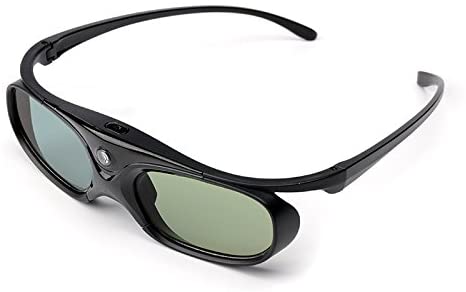
Instructions For The XGIMI 3D Glasses:
|
Actions |
Instructions |
|
Charging Time |
2-3 hours |
|
Powering On |
Press the power button; A green LED light flash means the glasses have been turned on. |
|
Powering Off |
Long press the power button for 3 seconds; the green LED light will flash 3 times, and the glasses will power off. |
|
Standby Status |
After 5 seconds without a 3D signal, the glasses will automatically switch to standby mode; the green LED light will also flash every 5 seconds. |
|
USB Charging |
A red indicator light will appear when the glasses are charging and will automatically shut off once the glasses are fully charged. |
|
Low Battery Mode |
When the 3D glasses are low on battery, the green LED light will flash 5 times, then 2 times every 10 seconds, indicating the need for charging. |
To use the XGIMI 3D glasses:
1. Press once to power them on.
2. Press a second time to adjust the image quality, and continue pressing until the image is clear.
3. When playing videos on your projector, you need to choose the “up/down 3D” or “left/right 3D” effect to ensure an optimized viewing experience.
You may be interested in: MEMC Technology.


