












How to Cast iOS Devices to Projector?
By XGIMI Tech - 2023-07
Mobile IOS devices are standard today, and they possess many exciting features that make them functionally and aesthetically pleasing to customers. One of these qualities is their ability to be cast on a projector screen. You can cast your screen on a projector if you need to do a presentation and have the content on your iPhone or tablet. With your iOS device and a portable projector, you can create an immersive experience in any setting. Let's explore how to cast iOS devices to projector.

Four Methods to Cast iOS Devices to Projector
Depending on the situation you're in and your choice of projector, there are four options you can choose from to cast your iOS devices to a projector.
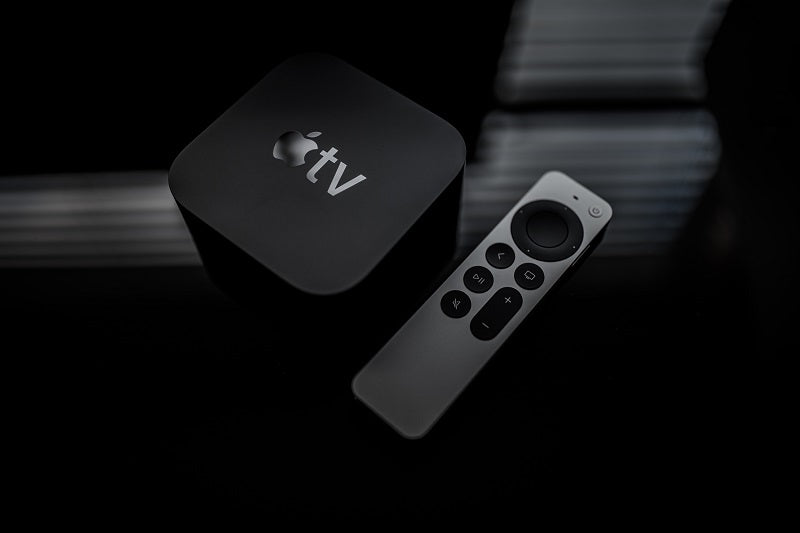
Method 1. AirPlay via Apple TV
If your projector isn't compatible with Airplay, screen mirroring iPhone to the projector will require a streaming device like Apple TV. To connect to Airplay using Apple TV, follow the simple steps below:
1. Connect your Apple TV to the HDMI port on your projector. Confirm that the projector is on and plugged into a power source.
2. Connect the Apple TV and your iOS device to the same local WiFi network.
3. Go to settings on your iOS device and find the control center. Select "Screen Mirroring" and choose the Apple TV from the list of available devices.
4. Once the Apple TV is connected, you can access the content available from your iOS device and project it on the screen.
Method 2. Use AirPlay with AirPlay-compatible Projector
Using Airplay directly may be the most straightforward option to cast your iOS device on a projector wirelessly. It is beneficial for screen mirroring iPhone to the projector.
* Screen mirroring means that when you connect to the projector, you can view whatever is present on your iPhone on the projector screen.
You need a compatible projector to use Airplay without an intermediary app like Apple TV conveniently. At XGIMI, we offer a variety of digital projectors that support the Airplay feature. They allow you to connect your iOS device to your projector easily and cast a mobile view on a large screen. You can enjoy movie or game nights at home with your friends. It's also convenient for a business or formal presentation as well.
Here are a few steps to take when casting your iOS device on a projector using an Airplay-compatible projector:
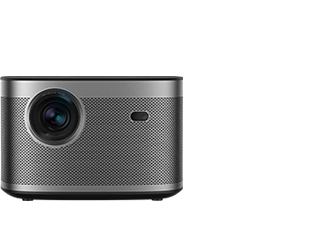
1. The first step is to confirm Airplay's availability on your projector. If you purchase one of our products at XGIMI, like the HORIZON Pro, you won't have to worry about that. It comes with the Airscreen casting feature.
2. The next step is ensuring the projector and your iPhone connect to the same WiFi network.
3. Go to the control center on your iOS device. Click on the icon for screen mirroring, then select the compatible device available.
4. To allow screen sharing, shift your mirroring slide to green.
5. Select done so the screen mirroring can commence and enjoy your large view.


Note that before you cast, ensure you're ready to avoid projecting images or a home screen that you don't want other people to be looking at.
3. Wired Connection via a HDMI Cable or Adapter
Other options are available if you cannot use the wireless option for an iOS cast-to-projector. Wired options offer more stability as you won't worry about lagging or a slow WiFi connection. What you need is some more hardware which includes long cables. You'll be fine if you can track and organize all the components and pieces.
Note: The iOS models that have HDMI output ports include the MacBook Pro, Mac mini, Mac Studio, and Mac Pro. For accurate and up-to-date product details, please refer to the product page.
You can screen mirror your iPhone or any other mobile Apple device to a projector using an HDMI cable and adapter with the following steps:
1. Prepare a HDMI cable, or USB-C to HDMI, or Lightning to HDMI adapter cable according to the output port of your iOS devices.
2. Connect your iOS device to the projector using the HDMI adapter cable. Ensure you ask the right questions when purchasing the cable and adapter to get the appropriate hardware.
3. Select the HDMI as the input source on the projector.
4. Go to the settings on your iOS device to activate screen mirroring.
5. You can select what you wish to view on your iOS device and enjoy it on the large projected screen.
4. USB-C or Thunderbolt Connection
You can perform an iOS cast to the projector with a USB-C or Thunderbolt 3 or 4 connection, especially with newer devices. It would be best if you had a USB-C or Thunderbolt to HDMI adapter for this connection for a direct link.
You can connect your projector to your iOS device using the similar steps above. You'll still select the HDMI input source on your projector and enjoy your view.
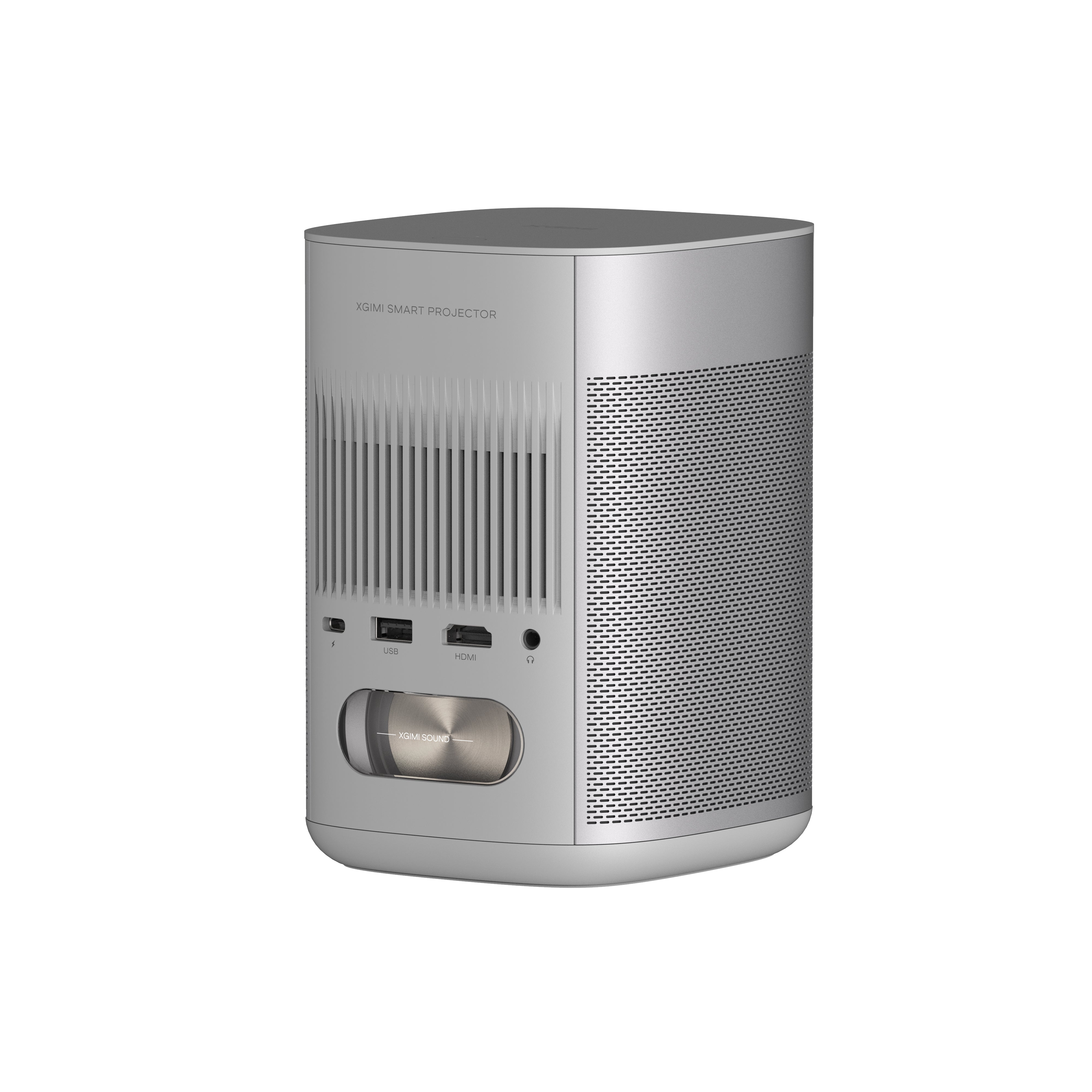
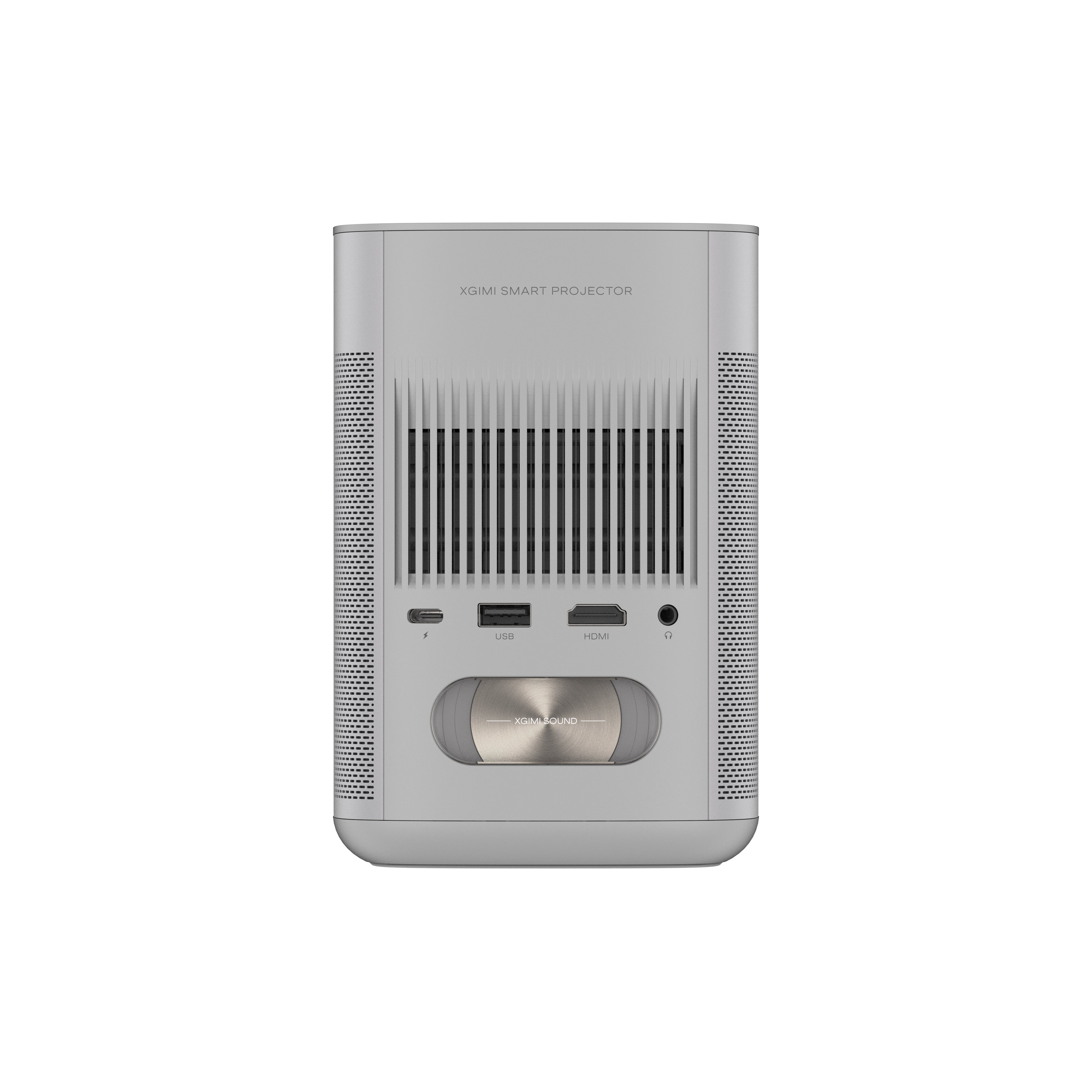
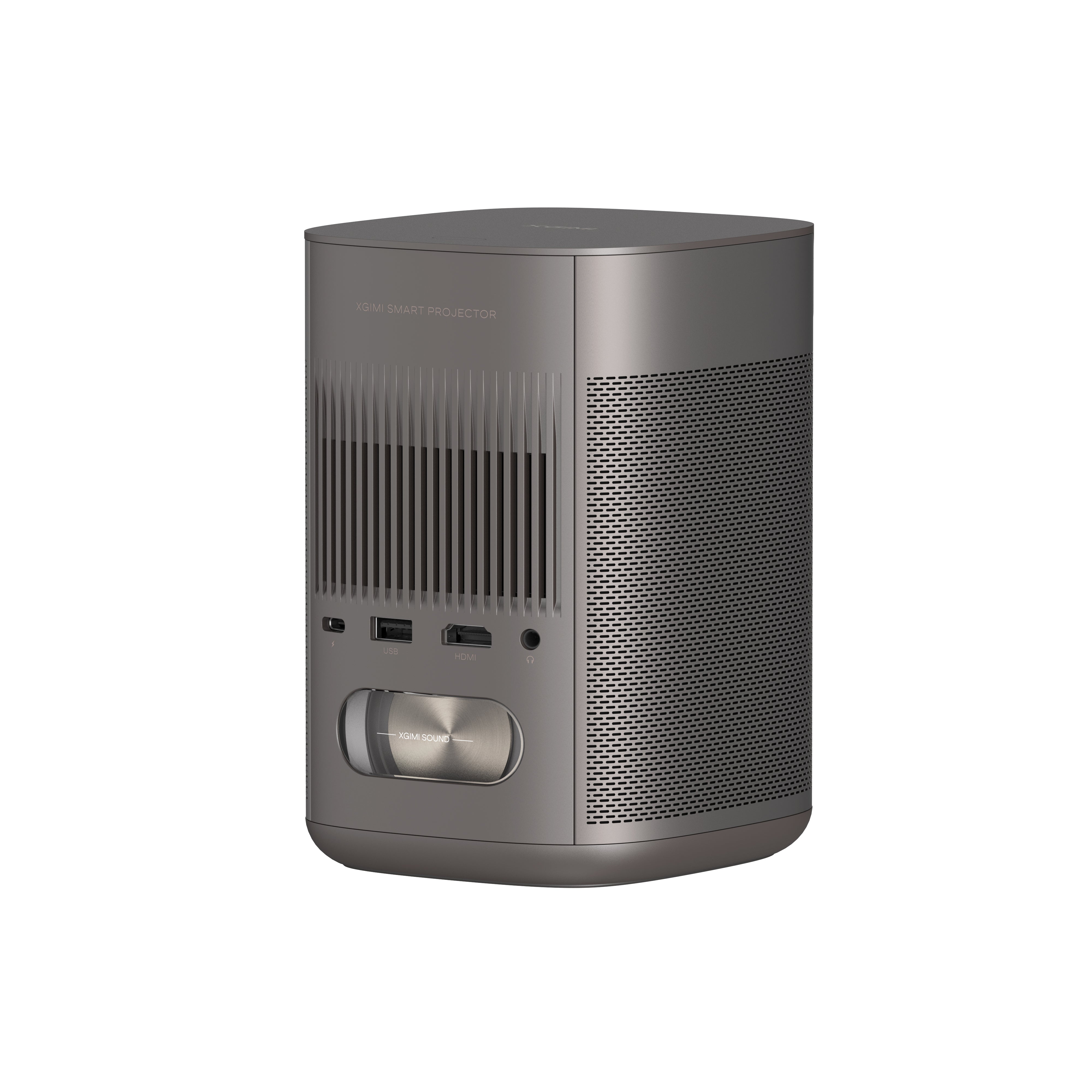
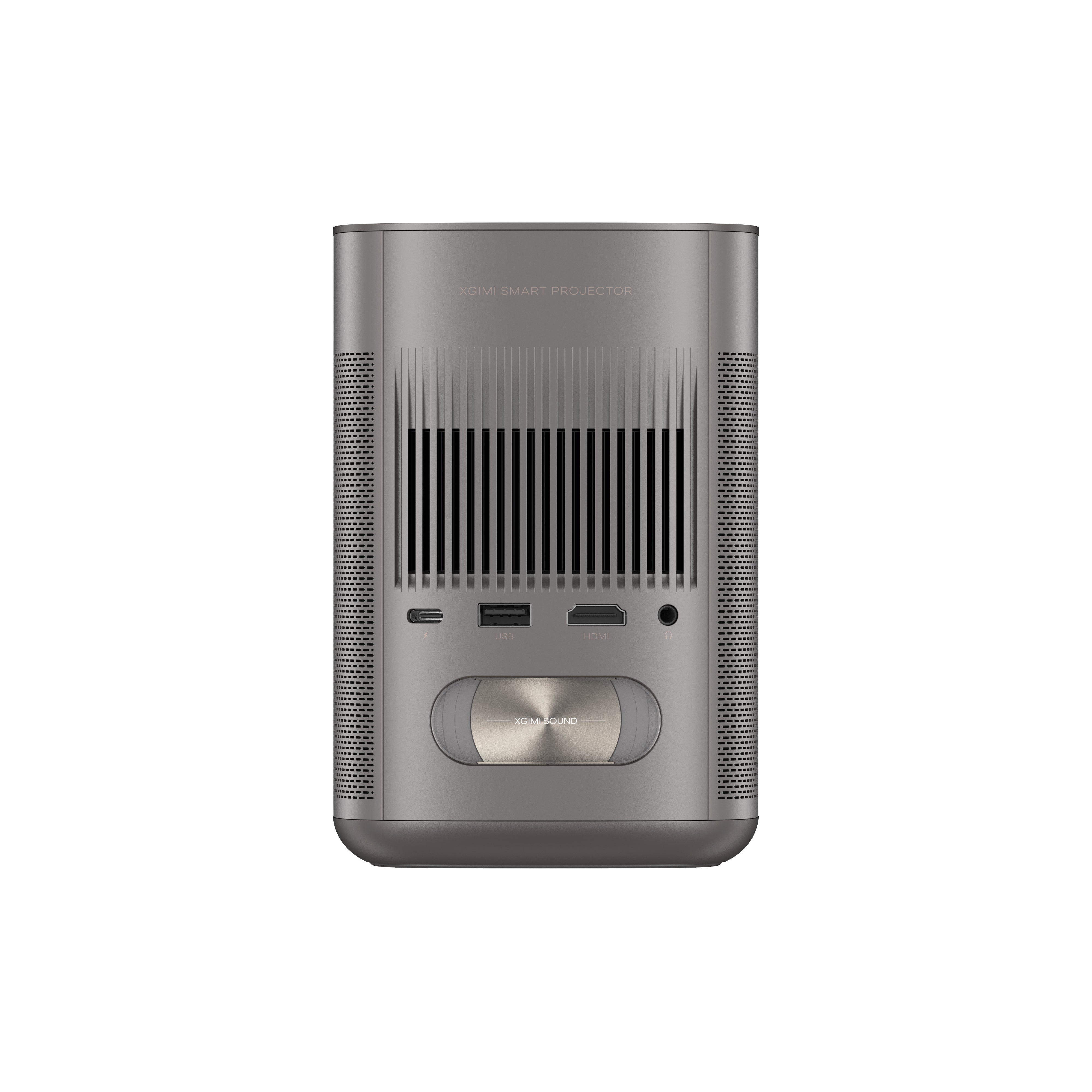
A smart projector like the ones we offer at XGIMI will allow you to connect through any convenient option easily. Whether you choose WiFi or HDMI or USB, you'll find the appropriate ports on our portable projectors. You can cast your iOS device to a projector for entertainment or business presentations and get a satisfactory view.
Eight Tips for Fast iOS Content Casting to Projector
When using a mobile iOS device to cast an extensive view on your projector screen, there are a few tips and practices you should keep in mind to ensure you have a smooth process.
1. Ensuring iOS Device and Projector Compatibility
The first step to getting a seamless connection is ensuring that your iOS device and projector are compatible, depending on the connectivity options that'll be convenient for you. If you prefer cables, you want a projector with the correct ports. You may also need a spot to fix adapters. The same goes for wireless connections. If you favor a wireless connection, you may need to invest in a portable projector compatible with WiFi or Airplay.
2. Verifying Network Connectivity for Airplay-Based Methods
It would help to have a reliable and robust connection for Airplay-based methods. You want a strong network connection to have a consistent, impressive view without interruptions. Confirm that your network provider is trustworthy and will allow you to enjoy online content for as long as you like. You want the network to stay good while trying to enjoy a fun time with your loved ones.
3. Checking for iOS Device and App Updates
Applications on your iOS device will require updates regularly to remain at optimal performance. Check your favorite streaming apps for updates to access new features and enhance your experience. You can go to the Apple store to check for updates or follow an app's prompt when they ask you to update the app. Using the latest version of an application allows you to have the best possible experience.
4. Adjusting iOS Device Settings for Optimal Display and Performance
Before you cast your screen, prepare for an optimal view and display. Adjust brightness and choose a full-screen view to get an optimal display.
5. Charge the Device While Casting the Screen
You want your iPhone battery to stay on track during a business presentation or movie night at home. Ensure you plug your phone into its power source to enjoy your large screen view without interruptions until you're tired.
6. Confirm Your Audio
Ensure your audio is fully functional when casting your screen. For wireless presentations, enable your audion so you don't get a view with no sound. If you'll be using a wired connection, HDMI is your best bet, as it also provides audio. Luckily, our XGMI projectors come with wireless and wired options, so you can choose from whichever is most convenient.
7. Consider a Wired Connection for Gaming
Airplay is an excellent option for connecting iOS devices to a projector but may present a lagging issue for gamers. Consider using wired connections for screen mirroring iPhone to the projector when playing games. This will provide a smooth experience and ensure you can view your actions in real-time.
Also, wireless connections may experience issues with network connectivity. While most network providers may be reliable, unexpected occurrences like weather changes may cause the network to slow down. For an uninterrupted and smooth gaming experience, consider using a wired connection.
8. Sleep Mode
Ensure you turn off your iPhone's sleep mode, especially when giving a presentation. It'll be embarrassing and unprofessional to come across a dark screen while discussing a concept with your audience. Turning off the sleep mode ensures your phone screen remains active and casts a relevant image during your presentation. You can turn the sleep mode back on once you're done with your presentation so your phone screen can rest.
XGIMI Portable Projectors for iPhone, iPad, and Mac
Elevate your entertainment experience with XGIMI portable projectors! Immerse yourself in stunning HD visuals and crystal-clear audio, whether at home or on the go, they support easy wired and wireless connections with your iOS devices.
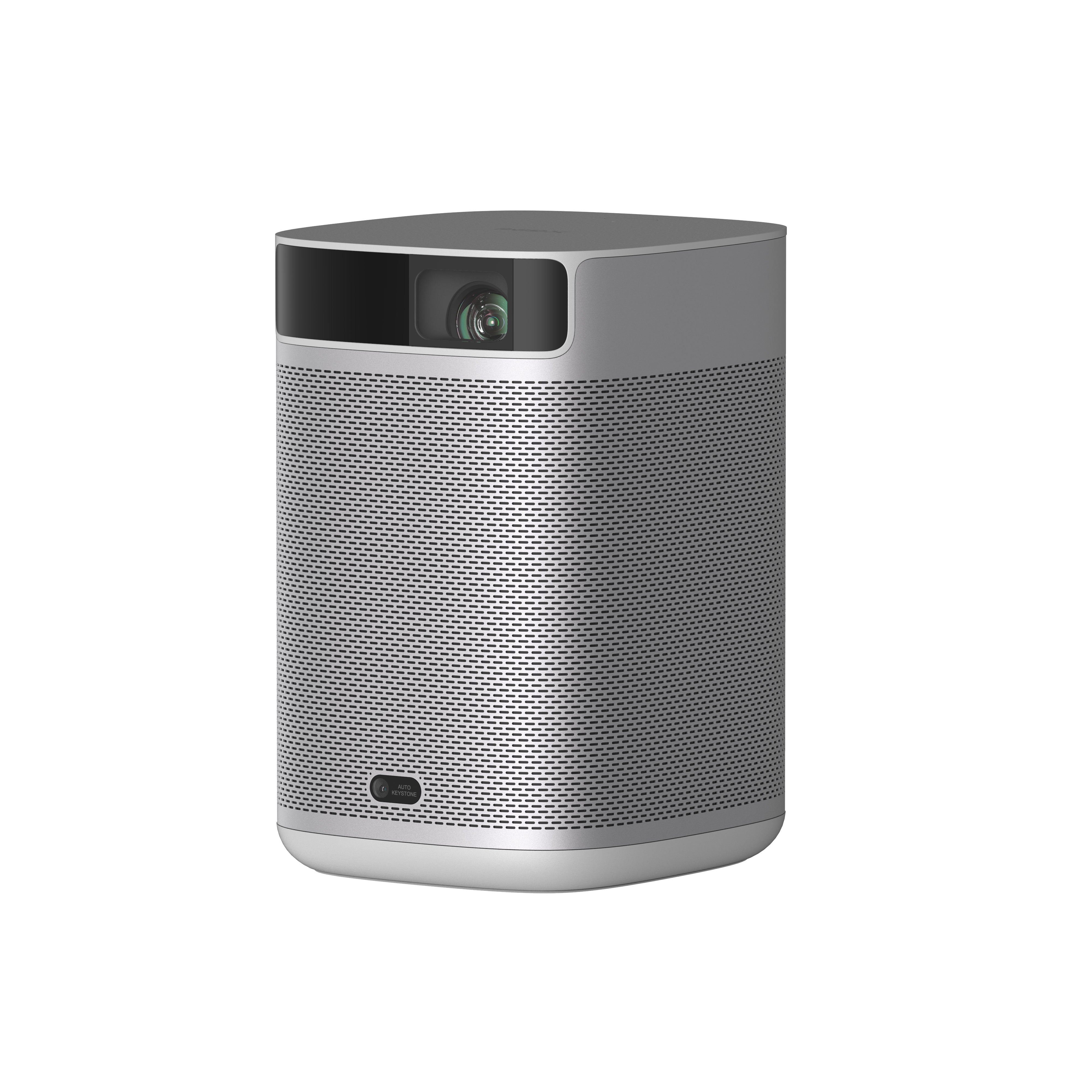
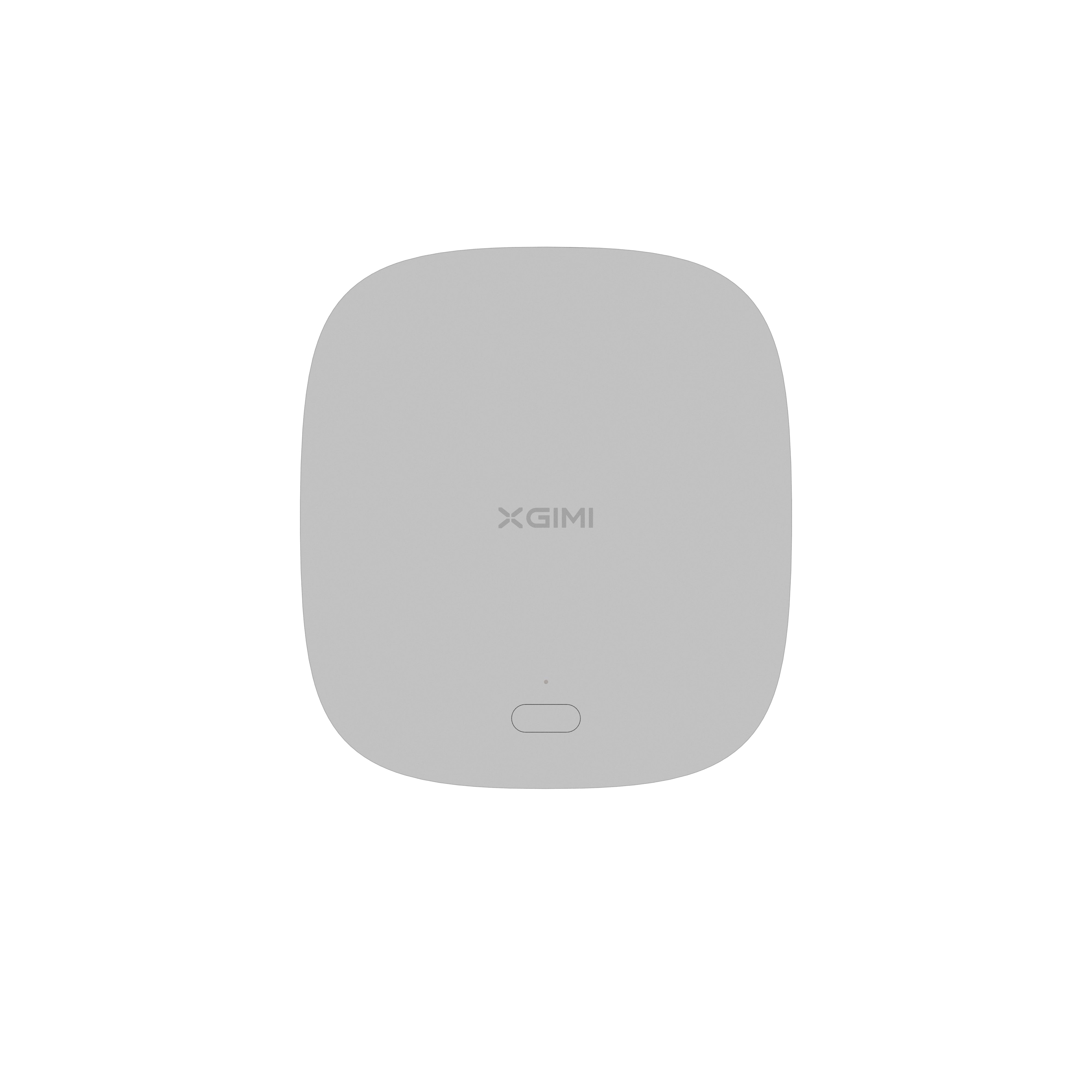
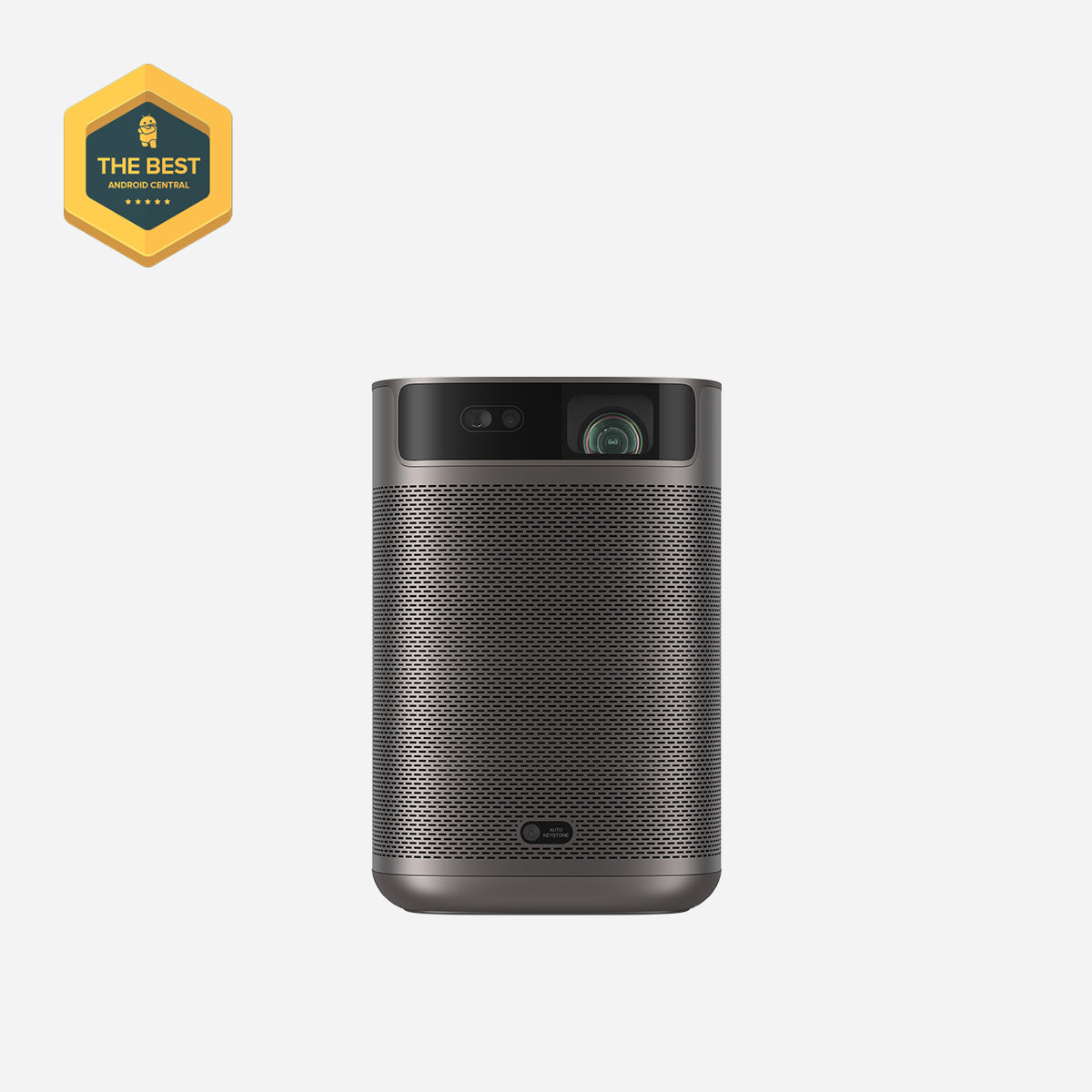
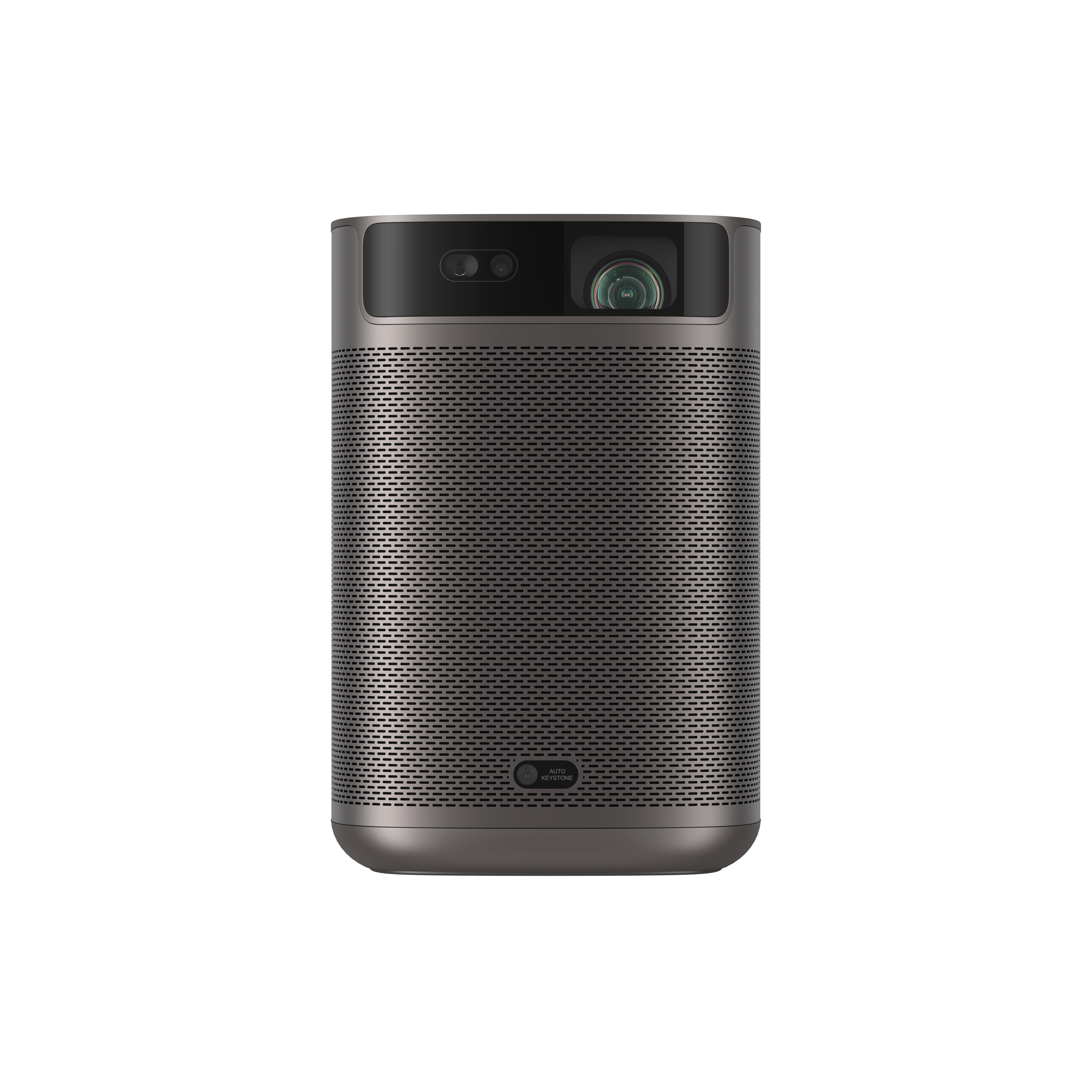
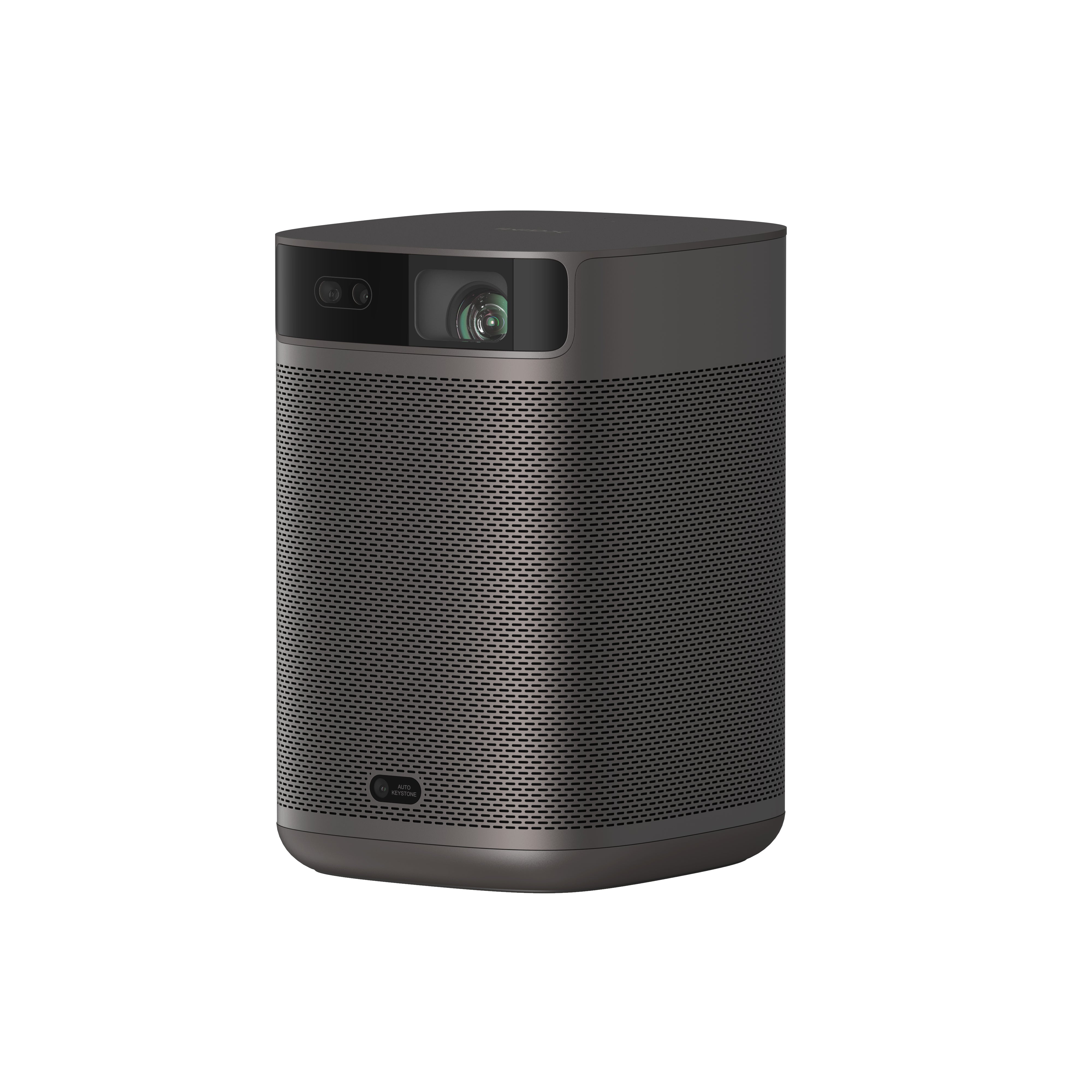
XGIMI MoGo 2 Small 720p Projector
- Cinematic Visuals for Only $399: MoGo 2's 400 ISO lumens, integrated D65 color temperature standard, and 90% DCI-P3 color gamut offer a cinematic big-screen experience with bright, colorful images.
- Plug and Play: Let MoGo 2 do the work for you. With our industry-leading ISA 1.0 technology, enjoy the easiest projector setup experience.
- Movies on the Go: MoGo 2 connects to your power bank and is easy to move to different rooms or during your outdoor adventures.
- 8W Speakers with Dolby Audio: MoGo 2's built-in dual 8W speakers with Dolby Audio provide impressive sound, helping you immerse in your favorite movies, music, and more!
- Android TV 11.0, Thrilling 3D Movies at Home: MoGo 2 decodes 4K video smoothly and supports 3D content. With the upgraded Android TV 11.0, you get the ultimate user-friendly experience.
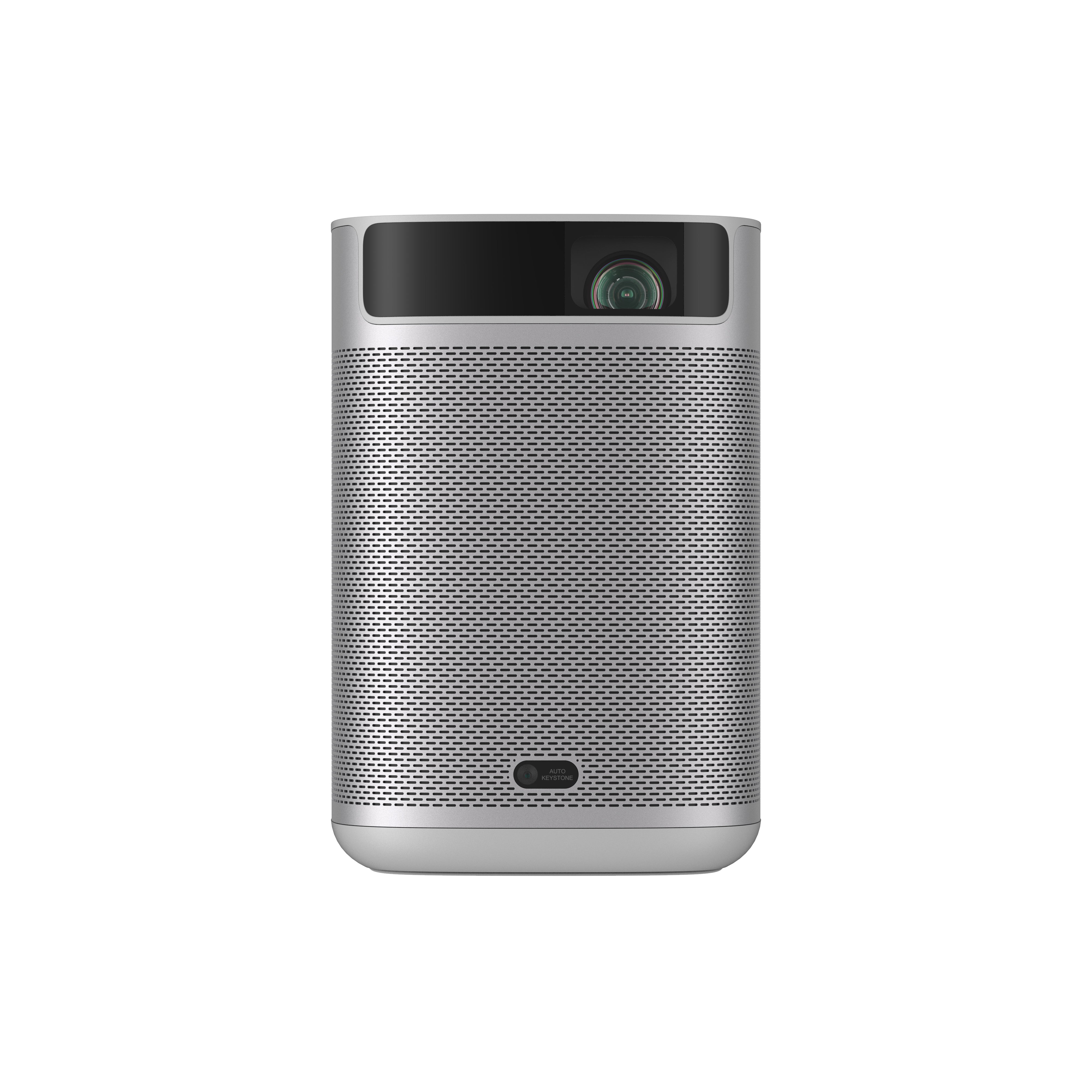
XGIMI MoGo 2 Pro Portable 108p Projector
- Hollywood-Standard Visuals: With 400 ISO lumens, integrated D65 color temperature standard adopted by Hollywood, and a 90% DCI-P3 color gamut, all colors are restored in brilliant, lifelike detail.
- Seamless Setup, Smart Projecting in a Snap: Our new ISA 2.0 technology ensures you never miss a moment of your favorite movies, TV shows, or games.
- 8W Speakers with Dolby Audio: MoGo 2 Pro offers a deeply immersive and cinematic audio experience thanks to its built-in dual 8W speakers with Dolby Audio.
- Smooth Android TV 11.0 and 3D Movies at Home: Decodes 4K video seamlessly and supports 3D content. Moreover, the upgraded Android TV 11.0 provides the ultimate user-friendly viewing experience.
- Movies on the Go: Easily connect MoGo 2 Pro to your power bank, allowing you to move it to different rooms or take it on your next outdoor adventure.
Conclusion
Casting iOS devices to a projector can be achieved through various methods, including using Apple's built-in AirPlay feature or third-party apps.
By connecting the iOS device and the projector to the same Wi-Fi network and enabling AirPlay mirroring or utilizing compatible apps, users can easily display their iOS device's screen on a larger projection screen. This capability allows for convenient presentations, sharing media content, and enhancing the overall multimedia experience for both personal and professional purposes.
However, it is essential to ensure that both the iOS device and the projector are compatible and up-to-date for seamless casting and optimal performance.
Product Recommendations
Just Play,
Your Way
Google TV Smart 1080p Projector On-the-Go

Mini Size,
Maximum Entertainment

Mini Remote Control




Enjoy $10 off Your Next Purchase
Be the first to know about any news and sales!