



How to Connect Phone to Projector with HDMI
To connect a phone to a projector with HDMI, first confirm that the phone supports wired video output. Use a compatible phone-to-HDMI adapter or cable, connect it to the projector’s HDMI input, select that input, and approve any display prompt on the phone. A USB-C connector alone does not guarantee video output.
This guide is for iPhone and Android phone owners who want to show photos, present slides, or watch a movie on a larger screen. Start by checking the necessary equipment, follow the wired connection steps, then use the troubleshooting section if the picture or sound fails. Wireless connections are covered separately for phones without compatible video output.
Check Your Phone and Projector HDMI Compatibility
Choose an HDMI Adapter for Your Phone Model
Find the exact phone model in its settings and check the manufacturer’s display-output documentation. Look for wired external-display support, DisplayPort Alternate Mode (DP Alt Mode) over the USB-C port, or a manufacturer-supported HDMI adapter. A cable cannot add ordinary wired video output to a phone that lacks it.
| Phone or connection type | What to verify | Suitable starting point |
|---|---|---|
| iPhone with USB-C | The exact model supports an external display | Compatible USB-C-to-HDMI adapter or cable |
| iPhone with Lightning | The adapter and intended app support external playback | Compatible Lightning Digital AV Adapter and HDMI cable |
| Android with documented video output | The model supports DisplayPort or another documented wired display method | Manufacturer-supported USB-C-to-HDMI connection |
| Android without documented video output | A compatible wireless receiver and app are available | Supported casting rather than another passive HDMI cable |
| Projector with Micro HDMI | The cable matches the smaller physical input | Correct HDMI-to-Micro-HDMI connection |
Apple’s USB-C iPhone documentation lists supported external-display models and exceptions, including iPhone 16e and iPhone 17e. Check that list instead of applying “USB-C iPhone” as a universal compatibility rule. Supported output resolution also depends on the adapter, display, and content; the connector does not promise a particular picture format.
For Android, support varies across manufacturers and model lines. Google documents wired projection for Pixel 8 and later. Samsung lists compatible devices in its DeX guidance. These are examples to verify against your phone, not evidence that every Android device can output HDMI.

Check the HDMI Port and USB-C Power Requirements
Inspect the projector’s port label and manual. Full-size HDMI and Micro HDMI are different physical connectors. Match the cable to the socket without forcing it, and note which input you will select with the remote.
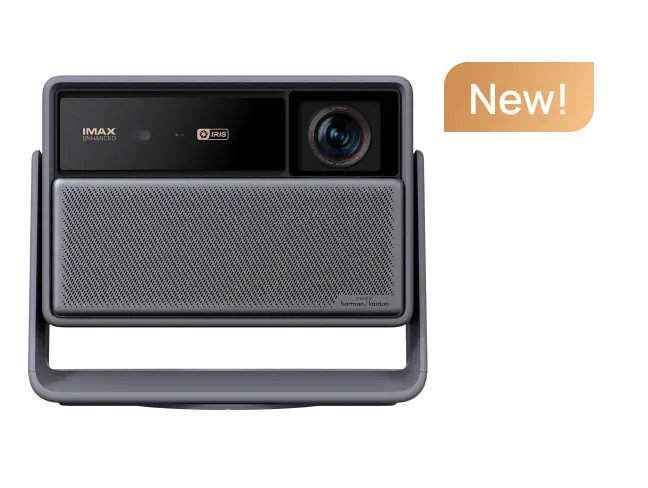
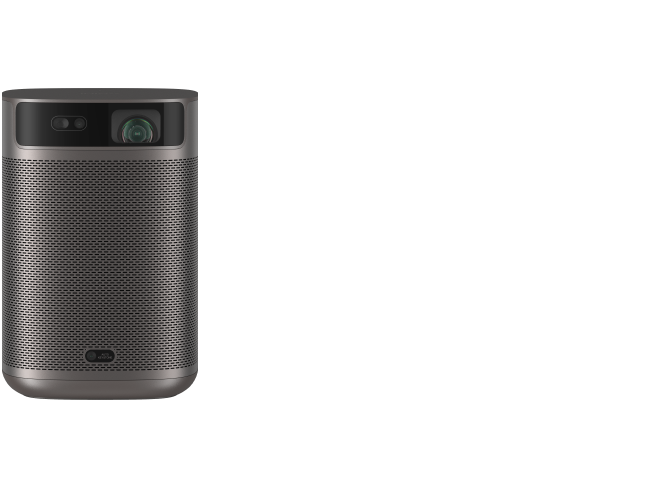
The MoGo 3 Pro specifications illustrate why labels matter. They list a Micro HDMI input and a USB-C charging interface. For a compatible phone’s wired picture, use the HDMI route; do not treat the projector’s USB-C power connector as a direct phone-video input.
A hub may include a separate power-input socket so that a compatible phone can charge during playback. Verify the hub, charger, and phone requirements together. A high wattage printed on a charger is not a promise that the phone will receive that amount, and powering the projector is a separate requirement.
Prepare the Right Cable and Adapter
For the HDMI route, gather a compatible phone, its video adapter, an HDMI cable that fits the projector, and any required power supplies. A USB-C cable intended for charging is not a substitute for a USB-C to HDMI video connection. Check the cable specification and phone support together before buying accessories.
HDMI carries both audio and video. If an older projector has only a VGA port, the HDMI instructions here do not apply unchanged: a supported VGA connection needs its own adapter and separate audio arrangement. Apple’s VGA adapters do not carry audio and are not suitable for content that requires an HDCP digital connection.
Before shopping, write down four items: the phone model, its supported video-output method, the projector input, and the app you want to display. This makes the adapter choice specific. It also gives a retailer or support team enough information to answer a compatibility question without relying on “works with USB-C.”
How to Connect Phone to Projector with HDMI Step by Step
Set Up the HDMI Cable and Wired Connection
- Place the projector on a stable surface and connect its required power supply. Keep the phone within reach so that you can unlock it and accept prompts.
- Plug the HDMI end of the cable into the projector’s HDMI port. If it uses Micro HDMI, use the correctly sized cable end or a compatible adapter.
- Connect the other end to the phone’s compatible video adapter. If the adapter needs power, supply it as directed by its manufacturer.
- Connect the adapter’s USB-C end or Lightning connector to the matching phone port and unlock the phone. Approve a display or desktop-mode prompt if one appears.
- Open the projector’s menu and select the matching HDMI input. Start with the phone’s home screen or a photo before opening a streaming app.
- Play a short local video with sound, then test the exact app and title you plan to use. Check picture, audio, orientation, and playback controls separately.
Keep the cable slack enough that handling the phone does not pull the projector. Position the phone beside the seating area or presentation controls, not hanging from the adapter. For a longer session, test the intended charging arrangement now rather than adding a hub after the picture is working.
If several HDMI inputs are available, select the one physically connected. An ARC label concerns an audio-return feature; it is not a general requirement for sending a phone’s picture into the projector. Avoid changing unrelated audio-return settings just to establish a basic image.

Connect Your iPhone with USB-C or a Lightning Digital AV Adapter
For a supported USB-C iPhone, use a compatible video adapter or cable. For a Lightning iPhone, use the appropriate Digital AV Adapter rather than assuming a charging cable can carry the picture. Follow the adapter’s power instructions if it provides a charging connection.
Apple’s adapter guidance also distinguishes connector compatibility from app compatibility. Establish that a photo or other ordinary screen content appears first. If only one video app fails afterward, investigate that app’s external-display restrictions instead of repeatedly changing the projector’s input.
Rotate the phone when appropriate and check the actual video view. Black bars around portrait content are not automatically a connection fault. Do not stretch people or slides simply to fill the screen. Choose the content’s intended aspect ratio and check that important edges and captions remain visible.
Connect Your Android Phone and Start Screen Mirroring
On a supported Pixel, accept the external-display mirroring prompt when it appears. On a compatible Samsung device, the connection may offer DeX, which presents a desktop-style interface rather than a simple duplicate of the phone’s screen. Follow Samsung’s DeX instructions for the chosen mode and model.
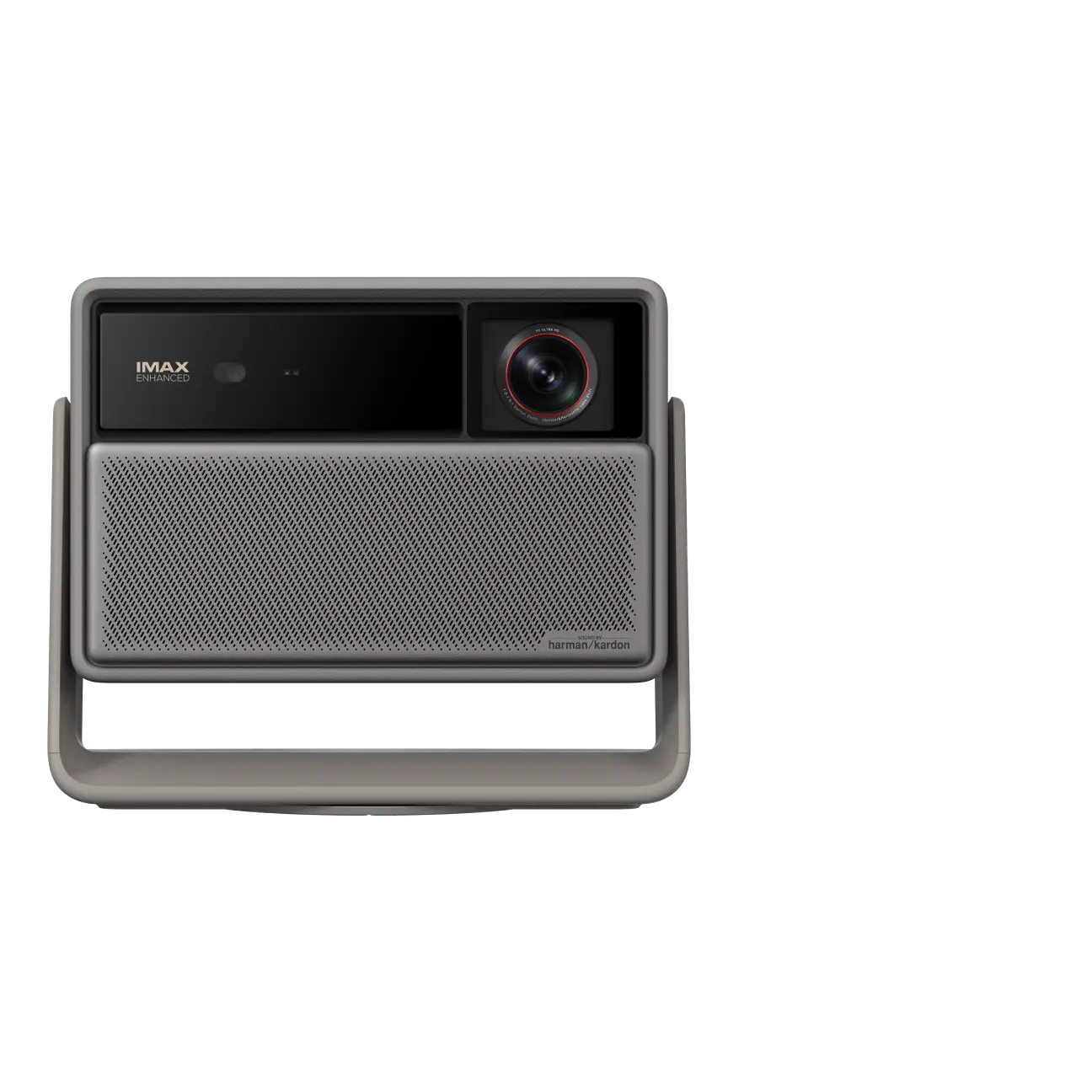
If the phone has no documented wired display support, stop testing interchangeable passive adapters. Decide whether a supported wireless method meets the task instead. For example, XGIMI provides Android screen-mirroring instructions for MoGo 4 using the Google Home app on the same Wi-Fi network. That is a separate wireless route, not a way to make an unsupported HDMI adapter work.
For a presentation, open the actual slides and rehearse moving between them. Check whether speaker notes or notifications appear on the projected view. Turn on the phone’s appropriate notification controls before sharing, and test any change in screen-lock behavior with your intended app rather than assuming that all apps behave alike.

Apply the Connection to a Portable Projector
For a MoGo 3 Pro example, the chain is a phone with verified video output, a compatible phone-to-HDMI adapter, an HDMI connection that fits the projector’s Micro HDMI input, and the projector set to that input. Keep the projector’s USB-C power connection separate. The MoGo 3 Pro beginner guide provides model-specific setup context.
Do not assume every cable needed for this arrangement is supplied with either device. Check the package contents and port shapes before travel. First make the connection work at home using the same accessories, then pack that tested set together. Replacing a cable or hub just before the event introduces another compatibility question.
Fix Phone to Projector HDMI Connection Problems
The Projector Shows No Signal
Check the selected input against the connected socket. Unlock the phone, reseat the cable and adapter, and look for a display prompt. Then recheck the phone’s wired-output support. A charging indicator proves that power is flowing, not that a video signal exists.
Isolate the uncertain component with equipment you already know works. For example, test the projector input with a working HDMI source, or test the phone and adapter on a compatible display. Change one component at a time and record the result. If a laptop works through the same projector input, that narrows the investigation but does not prove the phone adapter is compatible.
Avoid upgrading cable specifications as the first response. HDMI 2.1 is not a universal requirement for phone projection. The connection needs to support the actual output mode across the phone, adapter, cable, and projector. If a display-mode setting is available, choose a mode explicitly supported by both ends rather than forcing a higher resolution.
The Home Screen Appears but a Movie Is Black
This pattern tells you that basic display output works, while the app, protected content, or an HDCP compatibility requirement may be blocking the movie. HDCP is content protection used by compatible equipment; a cable is not a tool for bypassing a service’s playback restrictions.
Check the streaming service’s current device and adapter guidance. Netflix’s mobile connection guidance says AirPlay is unsupported and limits supported casting arrangements. A successful photo mirror does not establish that Netflix or every other subscription app will work through the same route.
Where the exact projector supports a native app for your service and region, use that app with its remote instead of relying on phone mirroring. For example, MoGo 4 offers a Google TV viewing route. Confirm the app, account, internet connection, and title before the session. Native playback changes where the movie runs; it does not turn the phone into an HDMI source.
The Picture Works but the Sound Does Not
Check mute and volume on the phone and projector, then inspect whether the phone is still sending sound to Bluetooth headphones or another device. Play an ordinary local clip to separate an app-specific failure from a broader audio-routing problem.
If you want private listening, decide which device should send audio to the headset and test that route deliberately. The projector headphone connection guide explains the distinction. Do not assume that pairing a headset to the phone controls sound from a native projector app.
Playback Stops or the Picture Looks Wrong
Separate signal loss from an image-layout issue. A disappearing input, a paused app, and black bars around vertical video are different symptoms. Note which one occurs before changing settings. Test whether playback continues when the phone remains unlocked and whether touching the cable triggers the failure.
If the image is stable but small, examine the source’s orientation and aspect ratio before increasing digital zoom. If a hub or adapter is involved, use it according to its power and ventilation instructions. A repeatable failure with the exact same app, time, and connection is useful information for support; “HDMI does not work” is much less specific.
How to Connect Projector to Mobile with Wireless Connections
Connect to a Projector Wirelessly with Google Cast
Connecting to a projector wirelessly is useful when the phone lacks wired video output or a cable would be awkward. It still requires compatible sending and receiving methods. Google Cast, AirPlay, and Miracast are different systems; the presence of one does not establish the others.
For a compatible Cast-enabled app and receiver, connect the devices to the same Wi-Fi network, open the app, tap its Cast icon, and select the projector or receiver. On iPhone, allow Local Network access where required for discovery. Google’s casting instructions describe this process; check the app’s own restrictions as well.
If the receiver does not appear, compare the network names and app permissions before buying a newer router. Guest networks may prevent devices from discovering one another. Do not assume Wi-Fi 6E or Wi-Fi 7 is required simply to establish a supported casting session.
For a model-specific example, follow XGIMI’s MoGo 4 Google Cast instructions with a supported app. Keep the purpose clear: app casting sends supported media, while screen mirroring attempts to show the phone interface. Neither guarantees protected-video playback.
Mirror an iPhone with an Apple TV Receiver
If you already have an Apple TV connected to the projector by HDMI, Apple’s AirPlay screen-mirroring instructions provide another route. Connect the iPhone and Apple TV to the same Wi-Fi network, open Control Center, tap Screen Mirroring, and select the receiver. Enter the onscreen AirPlay code if asked. This mirrors the phone’s screen through the receiver; it does not mean the projector itself has AirPlay built in. App restrictions still apply.

Rehearse the Intended Use Case
For a presentation, verify text size, slide transitions, notification privacy, and audio if your slides contain it. For a movie, test the exact streaming service and sound output. For travel, test the network arrangement you will actually have; a connection that works on home Wi-Fi is not proof that a campsite or hotel network will allow it.
If using HDMI without internet, separate the display connection from the content requirement. The cable itself does not need Wi-Fi, but streaming services and some downloaded-content checks may still need connectivity. Confirm offline playback in the intended app before leaving, and keep the working accessories together.
Frequently Asked Questions
Can Every USB-C Phone Connect to HDMI
No. The exact phone must support a suitable wired video-output method. USB-C describes the connector, not a guarantee of external-display support. Check the manufacturer’s model-specific documentation before choosing an adapter.
Can I Use the Phone Charging Cable
Usually not for the HDMI method described here. You need a supported video connection into the projector’s HDMI input. A USB charging connection or a file-transfer connection is not equivalent to HDMI video output.
Do I Need Wi-Fi for an HDMI Connection
Not for the basic wired display link. You may still need internet for the app or content. Test a local photo first to distinguish the HDMI connection from streaming or account requirements.
Is an HDMI 2.1 Cable Required
Not universally. Match the cable and adapter to the output mode your phone and projector support. A higher cable rating cannot add video-output support to an incompatible phone or remove an app restriction.
Why Does Screen Mirroring Work but Netflix Does Not
Protected-video and app restrictions can differ from ordinary screen sharing. Check the service’s supported connection methods and use a supported native app or playback device when appropriate. Do not interpret a black movie window as proof that the projector cannot display the phone at all.
Is Bluetooth Enough to Connect My Phone for Video
Not for the HDMI or Wi-Fi video methods in this guide. A Bluetooth audio connection can handle sound for supported devices, but it is not a substitute for a compatible video connection.


