




Watching fast-paced sports on a large projector screen can feel like being in the stadium, but only when the picture stays sharp and fluid. Motion blur and judder often spoil the experience during rapid panning in football, basketball, or hockey broadcasts, especially in bright living rooms. The good news is that most modern smart projectors include adjustable motion processing, refresh rate options, and picture modes that can dramatically reduce these issues when tuned correctly. For more on this topic, see How to Reduce Motion Blur in Fast-Paced Games on a Projector.

Proper settings balance smoothness with natural-looking motion, preserve detail in bright conditions, and minimize lag for live events. This guide walks through the key adjustments step by step so you can achieve clear, enjoyable sports viewing without common artifacts.
Why Motion Blur Happens in Projector Sports Viewing
Fast-motion content reveals limitations in how projectors display frames. Traditional film and broadcast sources often run at 24 or 30 frames per second, while rapid camera movement in sports creates visible judder or blurring between frames. Ambient light in living rooms further reduces perceived contrast, making blur more noticeable. For more on this topic, see How Does Light Source Temperature Affect Projector Color Accuracy a....
This lighting guidance document explains how ambient light lowers contrast and readability, which is why sports in brighter rooms demand brighter picture modes and stronger motion handling. Without adjustments, the large screen size common with projectors amplifies these problems compared to smaller TVs.
Enable and Tune MEMC for Smoother Sports Action
MEMC, or Motion Estimation Motion Compensation, is the primary tool for reducing judder. It analyzes frames and inserts intermediate ones to create smoother transitions during fast action.
As Epson's frame interpolation support notes, motion interpolation features like MEMC make fast sports motion look smoother by generating frames between the source ones. Start by locating the MEMC or Motion Smoothing setting in your projector's picture menu—often under advanced image processing or sports mode.
For sports, try a medium setting first. Low may not eliminate enough judder during quick pans, while high can introduce the soap-opera effect where motion looks unnaturally fluid or processed. Test during a live game and adjust until players and balls track cleanly without ghosting or halos.

Keep sharpness moderate alongside MEMC. Excessive sharpness combined with high motion processing often creates ringing artifacts around moving objects. Many users find the sweet spot at MEMC medium with sharpness at 40-60% of maximum.
Choose the Right Picture Mode and Brightness Settings
Sports broadcasts frequently air in well-lit environments, so avoid cinema or movie modes that prioritize deep blacks over brightness. Switch to a brighter preset such as "Bright," "Sports," or "Daylight."
Tune brightness and contrast for your room. In daylight viewing, raise brightness to maintain visible detail in highlights while adjusting contrast to prevent crushed shadows. This peer-reviewed article on visual performance highlights how contrast and luminance conditions affect detail visibility, supporting room-specific tuning over factory presets.
For XGIMI models and similar projectors, enable dynamic contrast or local dimming if available to retain punch without washing out colors. Color temperature around 6500K (standard or cool) often works best for realistic skin tones and grass during daytime games.
Match Refresh Rate and Source Settings
Set your projector to its highest supported refresh rate—typically 60Hz, 120Hz, or higher—when the source allows. Higher rates generally improve motion fluidity when properly matched to the input.
Check your source device: cable boxes, streaming apps like ESPN or YouTube TV, and game consoles may output different frame rates. Enable 60fps or higher output in the app or device settings if possible. HDMI ports should support the full bandwidth; use HDMI 2.0 or 2.1 cables for 4K high-refresh content.
Different sources require individual testing. Streaming apps sometimes cap frame rates, while cable boxes deliver more consistent 60Hz sports feeds. Create separate picture profiles for each if your projector supports them.
Reduce Input Lag for Live Sports
Live viewing benefits from low input lag. High MEMC levels can add processing delay, so medium or low MEMC often strikes a better balance for real-time broadcasts where timing matters.
Switch to a Game or Sports mode that prioritizes responsiveness. Disable unnecessary image processing like noise reduction during sports. Many premium projectors achieve under 20ms lag in these modes, keeping the action responsive.
Consider Ambient Light and Screen Choice
Room lighting significantly affects perceived motion clarity. Use blackout curtains for daytime games when possible, or position the screen to minimize reflections. ALR (ambient light rejecting) screens help maintain contrast in bright rooms, making motion appear sharper.
Brighter projectors (2000+ lumens) perform better for sports without forcing overly aggressive settings that introduce artifacts.
MEMC Level and Refresh Rate Tradeoff for Sports
Illustrative tradeoff map for choosing MEMC and refresh rate in sports viewing.
View chart data
| Series | Motion smoothness | Naturalness | Artifact risk | Input lag risk |
|---|---|---|---|---|
| Low MEMC / 60Hz | 2.0 | 4.0 | 1.0 | 1.0 |
| Medium MEMC / 120Hz | 4.0 | 4.0 | 2.0 | 2.0 |
| High MEMC / 120Hz | 5.0 | 2.0 | 4.0 | 3.0 |
| High MEMC / 144Hz+ | 5.0 | 2.0 | 4.0 | 4.0 |
| MEMC Off / Native Match | 2.0 | 5.0 | 1.0 | 1.0 |
Heuristic 3-level to 5-level comparison based on the article brief: MEMC can reduce judder in fast sports, but higher levels may cause soap-opera effect, artifacts, or extra lag; the best result is usually when refresh rate and source motion cadence are well matched. Scores are illustrative, bounded, and not measured.
The chart above illustrates typical tradeoffs. Medium MEMC at 120Hz often delivers the best balance for most sports viewers.
Settings Checklist for Different Sources
Cable TV, streaming, and consoles behave differently. For cable or satellite boxes delivering 60Hz sports, enable 120Hz output on the projector and medium MEMC. Streaming apps may require enabling higher frame rates in the app settings first.
Game consoles used for sports broadcasts benefit from Game mode with motion processing set low to minimize lag. Always verify the source outputs its highest frame rate and matches the projector's refresh rate.
Common pitfalls include leaving the projector in a film-optimized mode or using maximum MEMC, which can make motion look artificial. Start conservative and adjust while watching actual content.
When to Avoid Aggressive Motion Settings
If your household also watches movies, aggressive MEMC can ruin cinematic content by creating the soap-opera effect. Use separate viewing profiles: stronger smoothing for sports, minimal or off for films.
This scenario-based framework helps decide: sports prioritize tracking fast action even if some unnatural smoothness appears, while movies favor preserving the director's intended 24fps cadence. For mixed-use rooms, models with easy profile switching provide the most flexibility.
Quick Setup Checklist Before Game Day
- Update projector firmware for latest motion processing improvements.
- Select or create a "Sports" picture profile.
- Set MEMC to medium and test during fast action.
- Raise brightness and adjust contrast for room lighting.
- Match refresh rate to source (prefer 120Hz when available).
- Reduce sharpness if halos appear around moving objects.
- Dim room lights or use ALR screen if possible.
- Check input lag in live play-by-play commentary.
These steps typically resolve most motion issues for live sports.
This article discusses comfort and setup advice only. It does not constitute medical advice. If you experience persistent eye discomfort or have existing vision conditions, consult a qualified eye care professional.
With these adjustments, your projector can deliver an immersive, blur-free sports experience that rivals or exceeds traditional TVs. Experiment during actual broadcasts, as every room and content source varies slightly. Premium models with advanced image engines often provide more precise control and better results in challenging lighting.
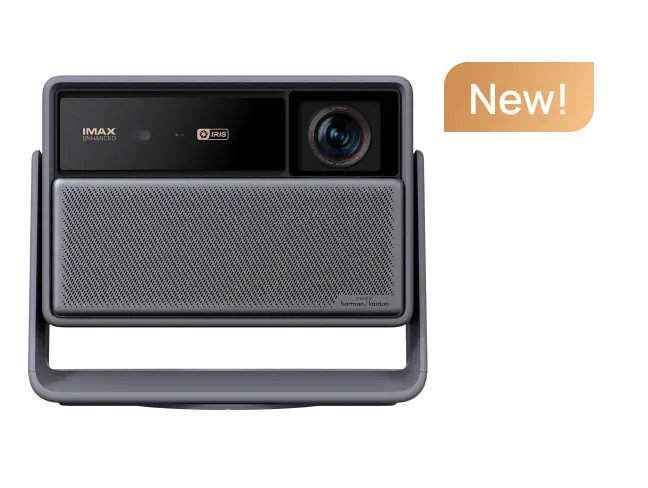
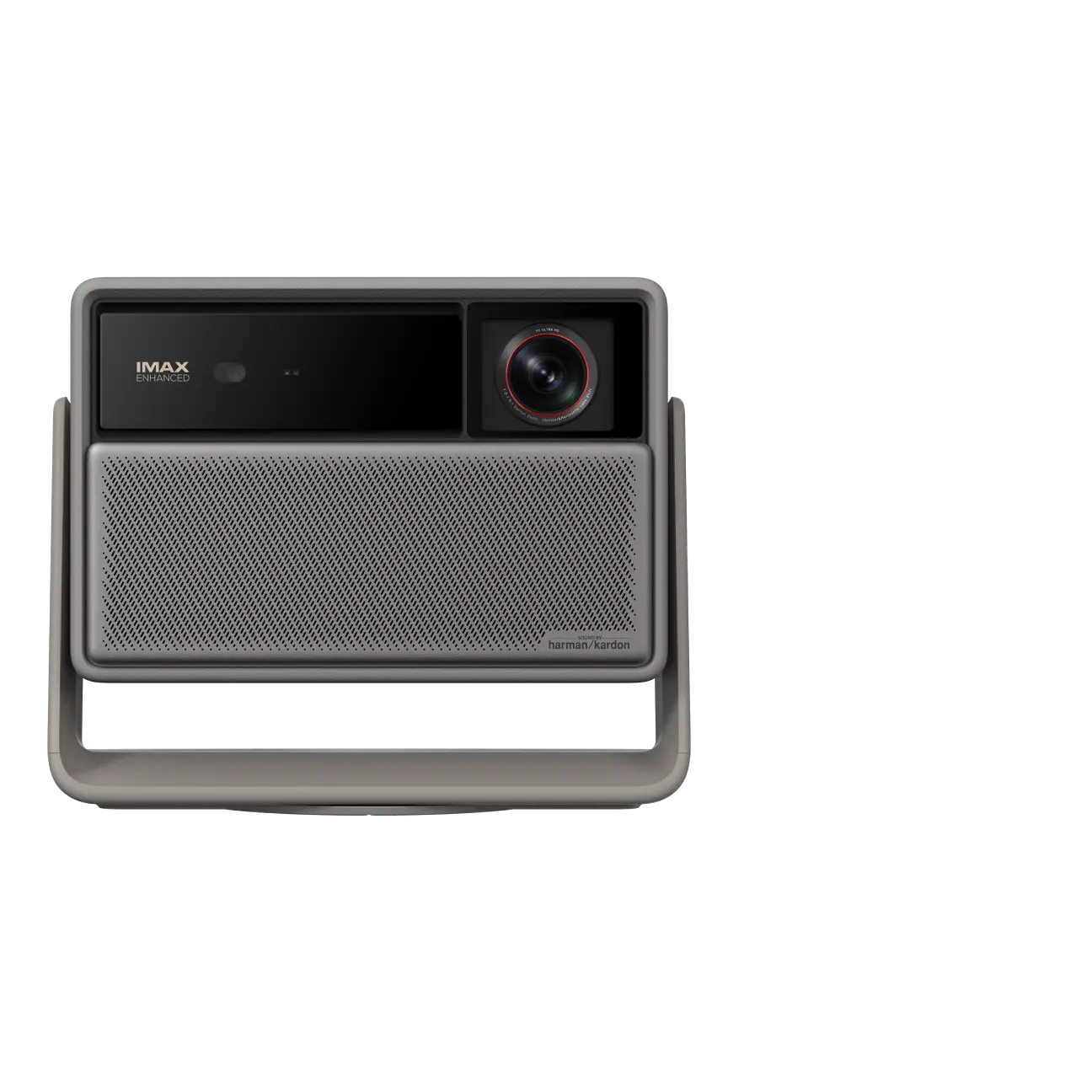
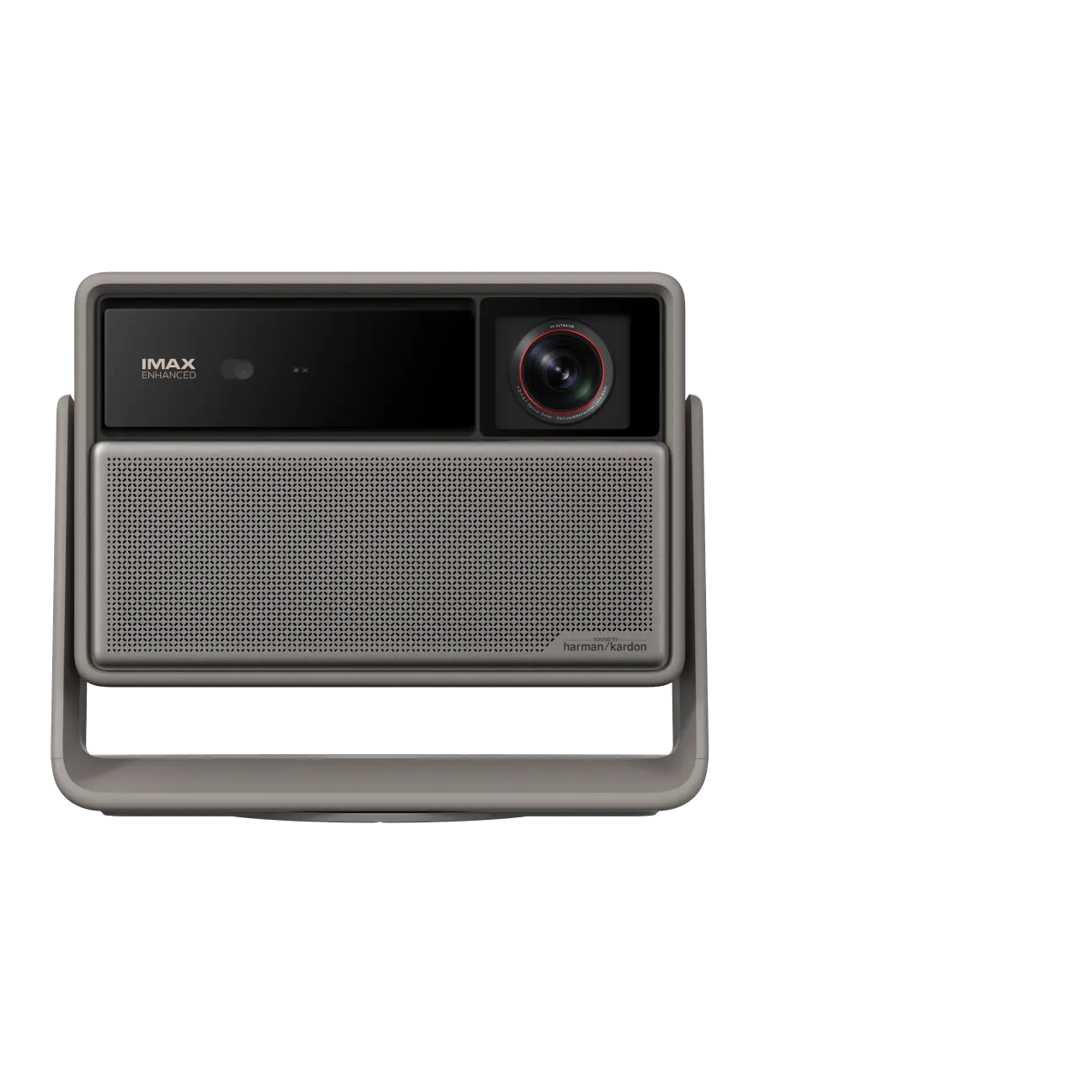
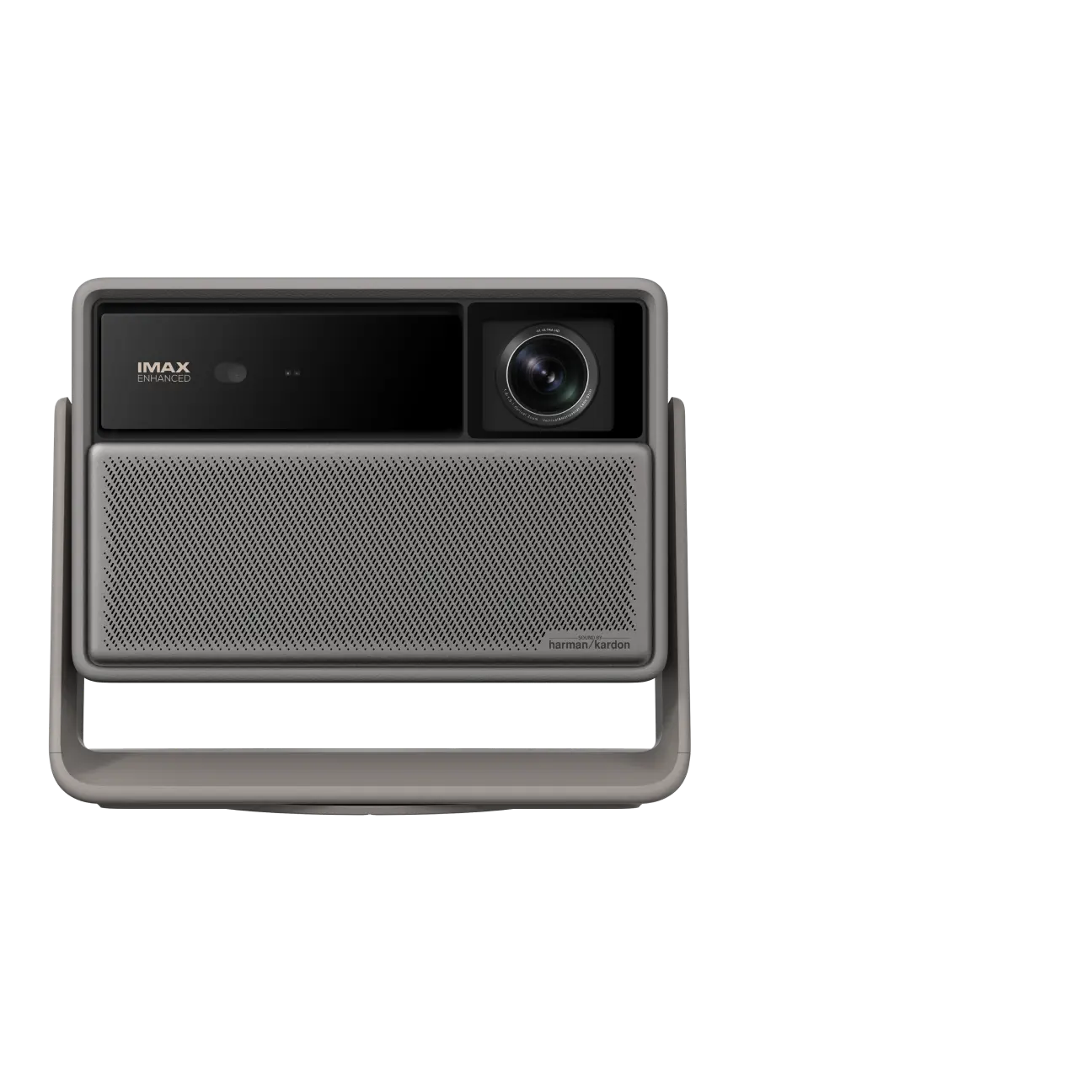
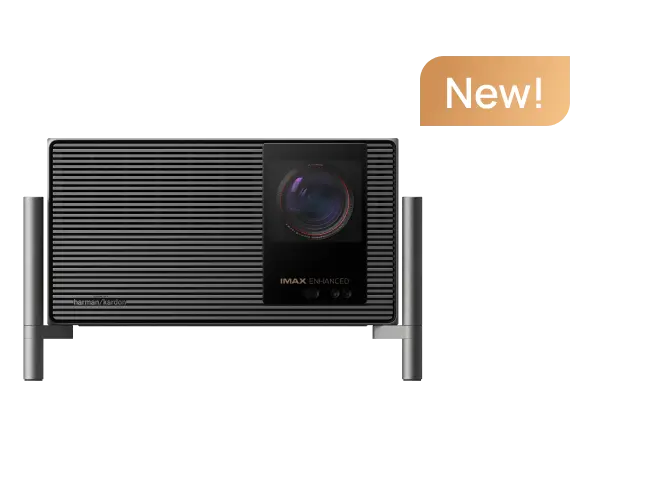
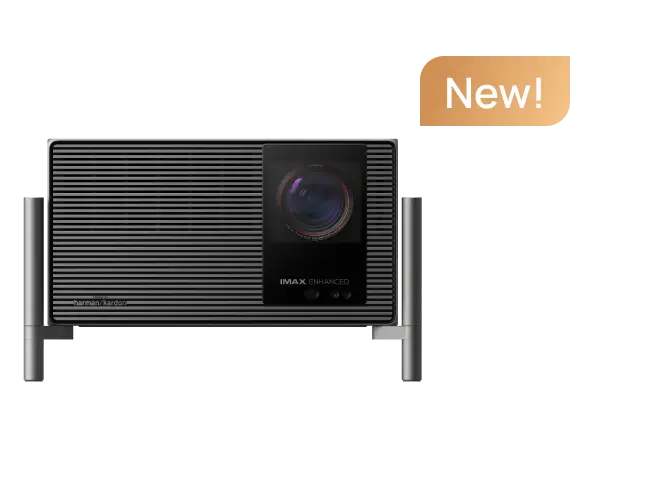
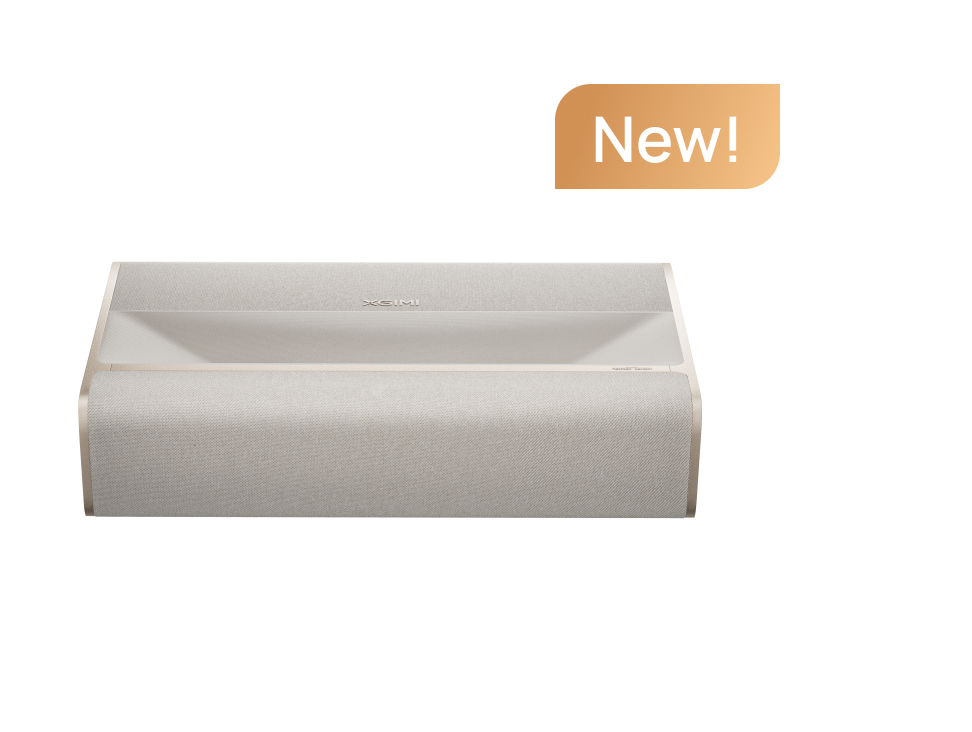
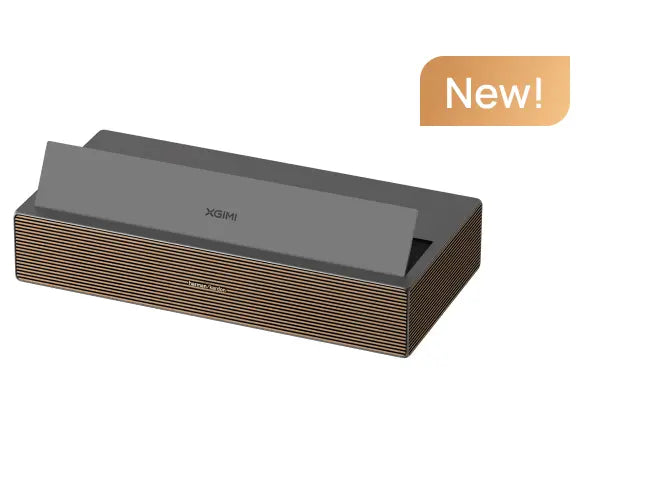
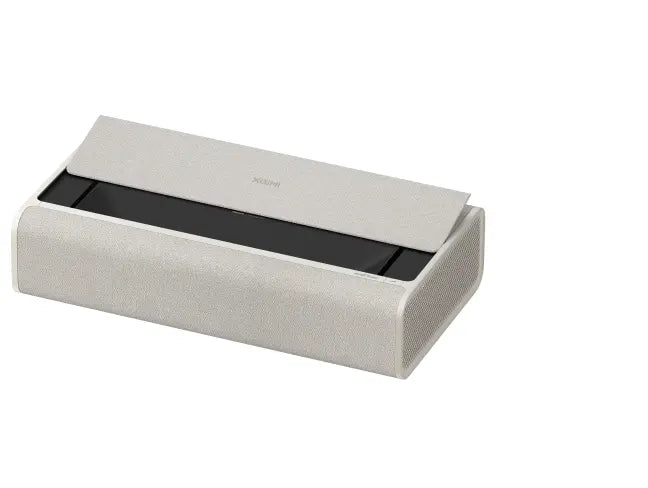
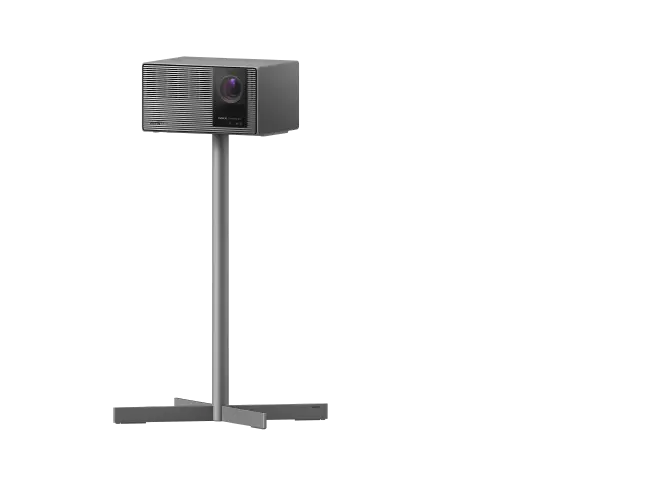
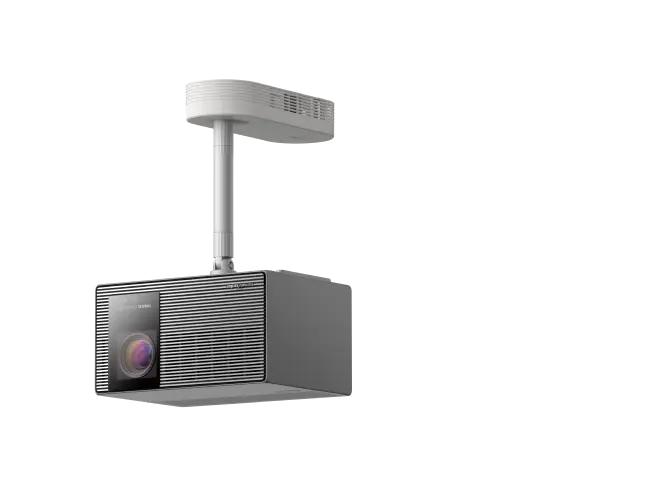
For more on choosing hardware suited to sports, see our guide on selecting the best projector for sports. Models like the HORIZON 20 Max or HORIZON S Max offer high brightness and capable motion processing ideal for live events.
Learn more about the technology behind smooth motion in our article explaining why MEMC technology is a must-have for your projector.


