




Fast camera pans in competitive games can turn crisp action into a smear that costs you reaction time and creates eye strain during long sessions. The good news is that most projectors offer accessible settings to improve motion clarity, but the key is choosing the right combination of game mode, MEMC (motion estimation motion compensation), refresh rate handling, and source device tweaks while understanding the inevitable trade-offs between smoothness and responsiveness. For more on this topic, see 120Hz Projectors: Do You Need High Refresh Rate for Gaming?.

Reducing motion blur on a projector for fast-paced games usually starts with enabling a dedicated low-latency or game mode, turning off or lowering aggressive motion smoothing, ensuring your console or PC outputs the highest stable frame rate the projector can handle, and adjusting your seating distance and room lighting to minimize perceived persistence issues. Results depend heavily on your specific projector model, the game genre, and whether you prioritize competitive timing or casual visual comfort. For more on this topic, see How to Adjust Projector Settings for Fast-Motion Sports Without Mot....
How Motion Blur Appears in Projector Gaming
Motion blur during rapid movement on a projector typically stems from a mix of display persistence (how long each frame stays visible), the projector's processing delay, the source device's frame rate stability, and your viewing distance. Unlike TVs with very fast pixel response times, many projectors rely on light modulation that can leave faint trails during quick pans in FPS titles, racing games, or sports simulations. For more on this topic, see Ultrawide Gaming Monitor vs. 4K Projector: Which Is Better for Sim .... For more on this topic, see Why 1080p at 240Hz Might Be Better Than 4K at 60Hz for Projector Ga....
In practical terms, blur becomes noticeable when the projector cannot refresh the image fast enough relative to the on-screen action. This is compounded if the projector applies heavy image processing that introduces additional lag or if the source is outputting frames at a rate mismatched to the projector's refresh capability. Understanding this helps you avoid chasing a single "magic" setting and instead focus on a layered approach that addresses the dominant cause in your setup.

Quick Checklist: First Steps to Reduce Blur
Before diving into advanced adjustments, run through these practical checkpoints that resolve the majority of reported motion issues for gamers:
- Switch to Game Mode or Low Latency Mode immediately – this bypasses most image processing that creates delay and can noticeably sharpen perceived response.
- Set your console or PC to output the highest frame rate your projector supports (60 Hz minimum, 120 Hz preferred for fast titles).
- Disable or set MEMC/motion smoothing to its lowest or off position initially, as it often adds latency that hurts competitive play.
- Verify HDMI cable quality and use a high-speed HDMI 2.0 or 2.1 cable capable of carrying the required bandwidth without signal degradation.
- Sit at least 1.5–2 times the screen width away to reduce how much your eyes must track ultra-fast peripheral motion.
- Lower room ambient light or use a screen with higher gain if brightness is insufficient, since dim images can make blur feel more pronounced.
These steps often deliver the largest improvement with the least effort. If blur persists after checking them, move on to fine-tuning the motion-specific features below.
Understanding MEMC and Motion Smoothing for Gaming
MEMC technology interpolates additional frames between the original ones to create smoother perceived motion. While this can make camera pans in movies or sports broadcasts look cleaner, its usefulness in interactive gaming is more limited and often comes with caveats.
Many gamers find that enabling MEMC introduces visible artifacts such as halos around fast-moving objects or a slight soap-opera effect that feels unnatural in games. More importantly, the processing required can increase input lag, making precise timing in competitive titles feel sluggish. For this reason, the common advice is to keep MEMC off or at a minimal setting during fast-paced gameplay and reserve stronger smoothing for non-interactive content.
That said, some modern projectors implement lighter versions of motion compensation that add only modest latency. If your model offers adjustable strength levels, test the lowest non-zero setting during a single-player session to see whether the clarity gain outweighs any added delay in your particular game.
The Critical Role of Low Input Lag and Game Mode
Input lag is the delay between pressing a button and seeing the result on screen. For fast-paced games, keeping total system lag under 30 ms is generally preferred for comfortable play, while competitive players often target under 20 ms.
Game Mode on projectors is designed precisely to minimize this by disabling or reducing non-essential image processing. Activating it is usually the single most effective step for reducing both perceived sluggishness and motion-related visual fatigue. If your projector lists specific low-lag performance numbers, cross-reference them with your chosen resolution and refresh rate, as some models only achieve their best latency at 1080p 60 Hz rather than 4K.
Remember that the full chain matters: even the best projector game mode cannot compensate for high lag coming from the console or PC settings. Always enable performance modes in the game itself and disable any unnecessary background applications on a gaming PC.
Refresh Rate, Frame Rate Matching, and Source Device Settings
Matching your source device's output to the projector's native refresh capabilities is essential. A 120 Hz capable projector paired with a console outputting 120 fps will generally show cleaner motion than the same setup locked at 60 fps.
On PC, use your graphics control panel to lock frame rates to values the projector can handle without dropping frames, and enable VRR (variable refresh rate) if both your graphics card and projector support it. This helps eliminate stuttering that can be mistaken for blur. Consoles should be set to their highest performance output mode, and you should disable any automatic resolution or frame rate scaling that might introduce inconsistency.
Trade-offs: Clarity vs Responsiveness
Improving motion clarity almost always involves balancing competing priorities. Aggressive motion smoothing can reduce visible blur but risks adding latency and artifacts. Conversely, prioritizing the lowest possible lag often means accepting some natural persistence blur inherent to the display technology.
Here is an illustrative comparison of typical trade-offs reported across common settings approaches:
Illustrative Comparison: Motion Blur Reduction Trade-offs in Fast-Paced Games
Illustrative comparison based on typical reported behavior; not measured data.
View chart data
| Series | Motion Clarity | Responsiveness (Low Lag) | Artifact Risk | Eye Comfort | Suitability for FPS |
|---|---|---|---|---|---|
| Game Mode | 4.0 | 5.0 | 2.0 | 3.0 | 5.0 |
| MEMC On | 5.0 | 2.0 | 5.0 | 4.0 | 1.0 |
| Source Settings | 3.0 | 4.0 | 1.0 | 3.0 | 4.0 |
Illustrative heuristic only, based on typical reported behavior and the article's scenario matrix / myth-vs-reality guidance. Threshold context: ~20 ms is generally considered very responsive, while ~40 ms becomes noticeably laggier for fast-paced play. No brand-specific claims or measured benchmark data are included.
This radar chart is a heuristic illustration only and not measured benchmark data. It shows why many competitive gamers default to game mode or source-side optimizations rather than heavy MEMC for titles where timing matters most.
Myth vs Reality: Common Misconceptions
Several widespread beliefs about projector gaming motion can lead to disappointing results if followed without nuance:
- Myth: MEMC always makes games look better. Reality: While it can reduce perceived blur in some slower content, it frequently adds latency or artifacts that make competitive fast-paced play feel worse rather than better.
- Myth: A higher refresh rate completely eliminates motion blur. Reality: Higher refresh rates help, but residual blur can still appear due to how the projector holds each frame and the source content's own rendering behavior.
- Myth: Enabling game mode solves all motion issues. Reality: Game mode primarily reduces input lag; it does not magically remove all sources of visual smear and should be combined with proper frame rate matching.
- Myth: If the specs look good on paper, blur will be unnoticeable. Reality: Real-world performance depends on the full setup, room conditions, and personal sensitivity—always test with your actual games.
Practical Decision Framework by Game Type
The optimal settings often change depending on the genre you play most:
For FPS, fighting, or rhythm games, prioritize the lowest possible latency. Use game mode, disable MEMC, and lock the source to the highest stable frame rate. Any added smoothing is usually detrimental to precision.
For racing or action-adventure titles where you have slightly more tolerance for minor delay, test a light MEMC setting if available. Many players find a middle-ground configuration works well here, especially in single-player campaigns.
Sports games fall in between: treat them primarily as interactive experiences first (favor low lag), but if you also watch real sports broadcasts on the same projector, save a separate picture profile with moderate smoothing enabled for those non-gaming sessions.
Casual or co-op gaming from a greater viewing distance often tolerates more motion processing because small timing differences are less critical. In these scenarios, moderate MEMC can provide a more cinematic feel without ruining the experience.
Comfort and Eye Strain Considerations
Prolonged exposure to blurry or stuttering motion can contribute to visual fatigue, headaches, or discomfort during extended gaming sessions. While projectors themselves are not medical devices, optimizing for clearer motion and lower latency often leads to subjectively more comfortable viewing.
Take regular breaks, ensure proper room ventilation, and adjust brightness and contrast so the image is neither too dim nor overly harsh. If you experience persistent eye strain or discomfort, consult a qualified eye care professional, as this article provides only general setup guidance and is not medical advice.
Choosing the Right Projector for Low-Blur Gaming
When shopping for a new projector specifically for gaming, look for models that advertise low input lag (ideally under 20–30 ms in game mode), support for 120 Hz at your preferred resolution, and HDMI 2.1 features if using newer consoles or high-end PCs. Portable options can also deliver strong gaming performance when they include dedicated low-latency modes. For more on this topic, see Gaming Projector Low Input Lag: What Every Console and PC Gamer Nee....
For current recommendations on low-lag gaming projectors, refer to our 2026 Guide to Low Input Lag Gaming Projectors. If you are considering 4K models, the Best 4K Gaming Projector: What to Look For provides additional detail on key specifications.
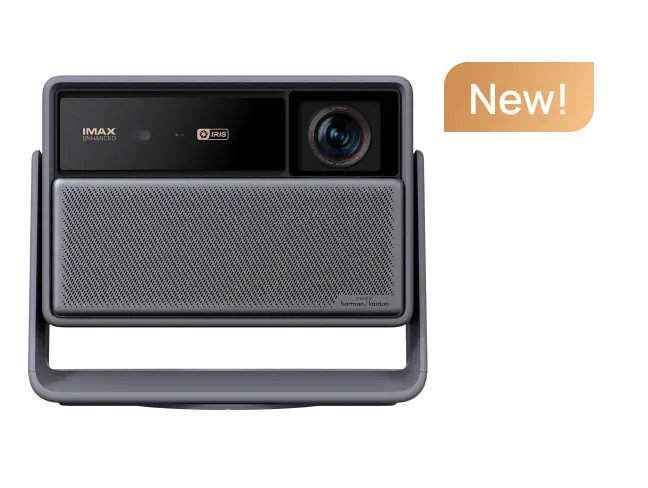
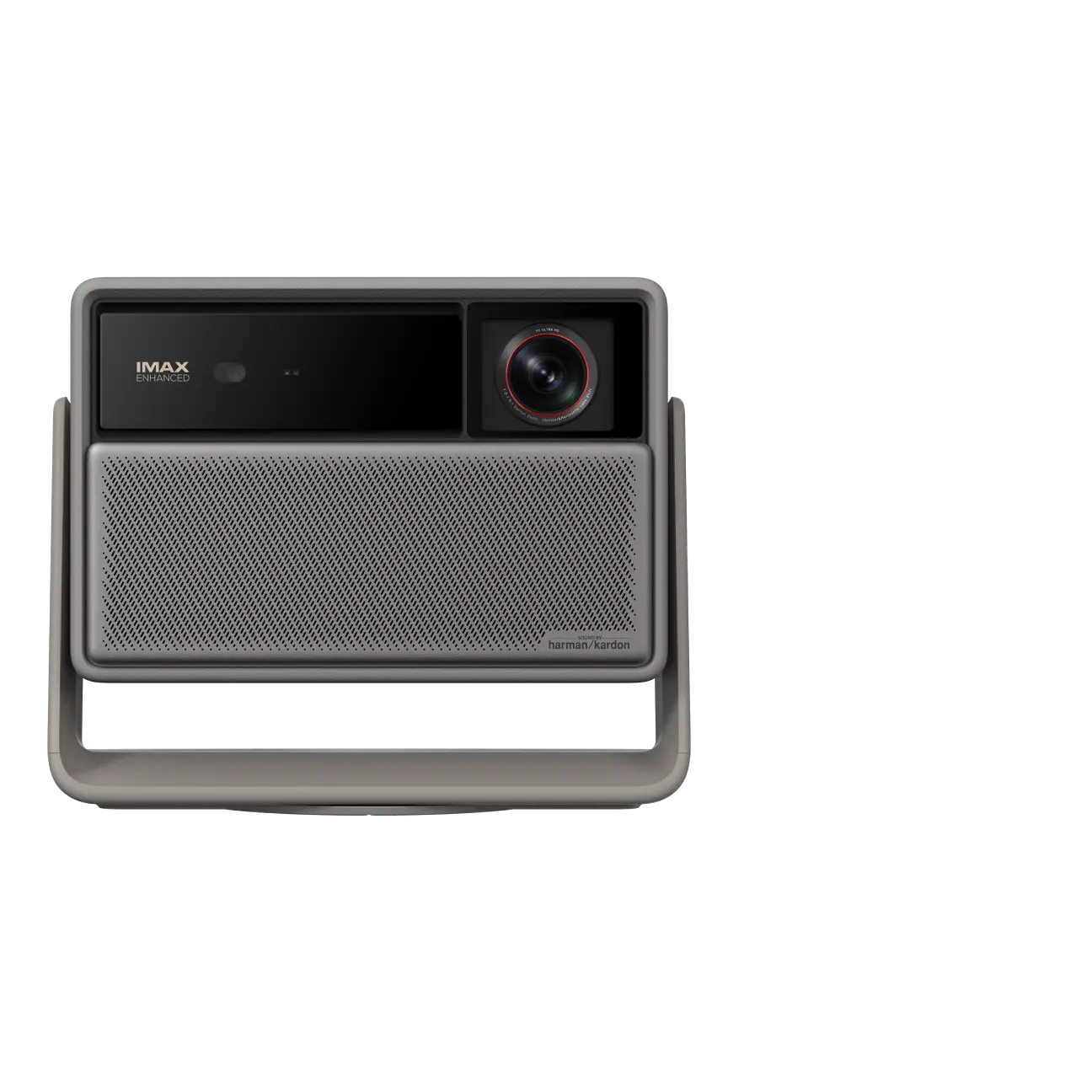
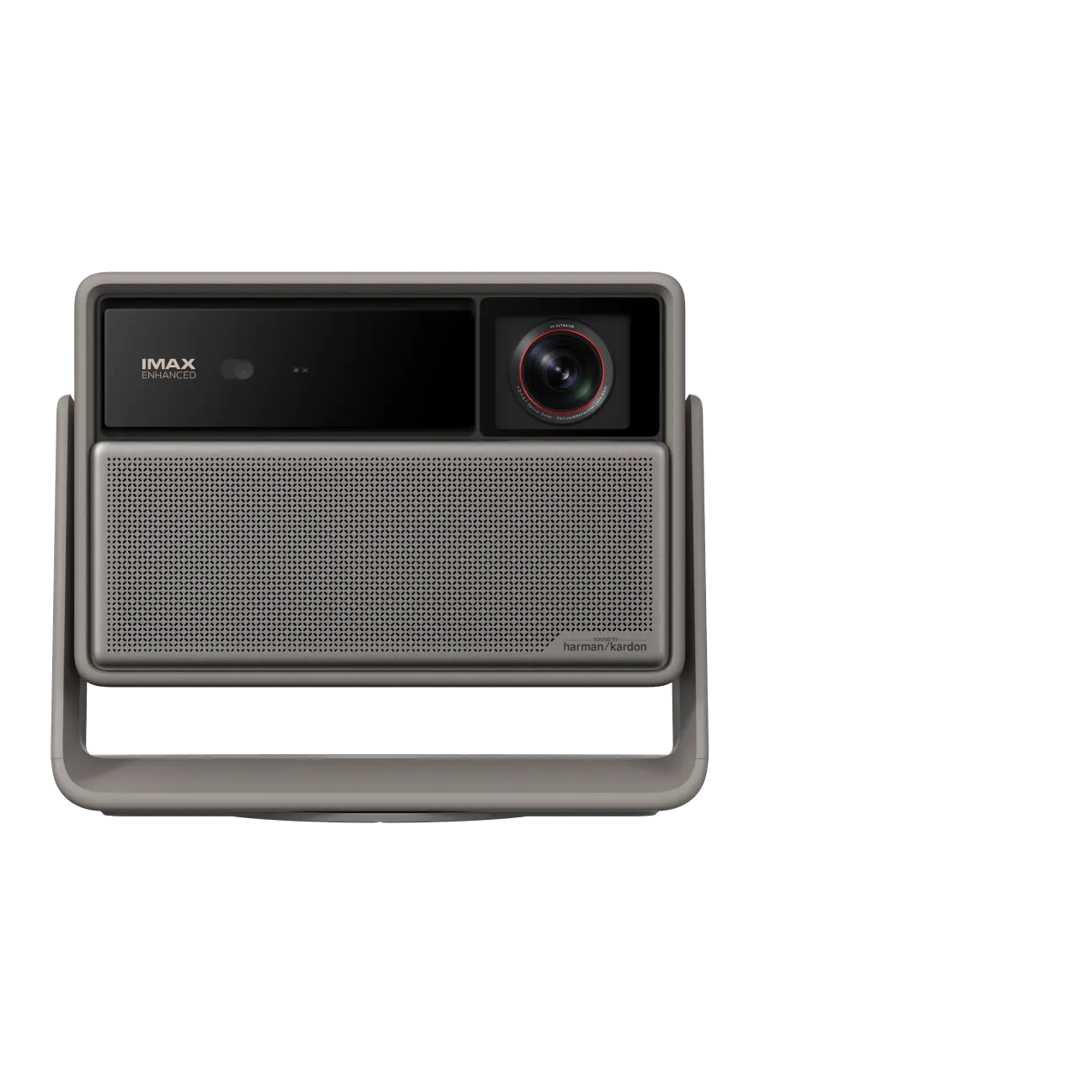
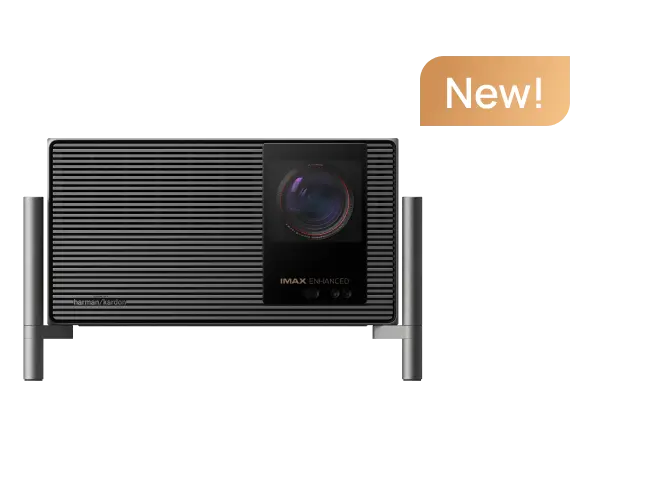
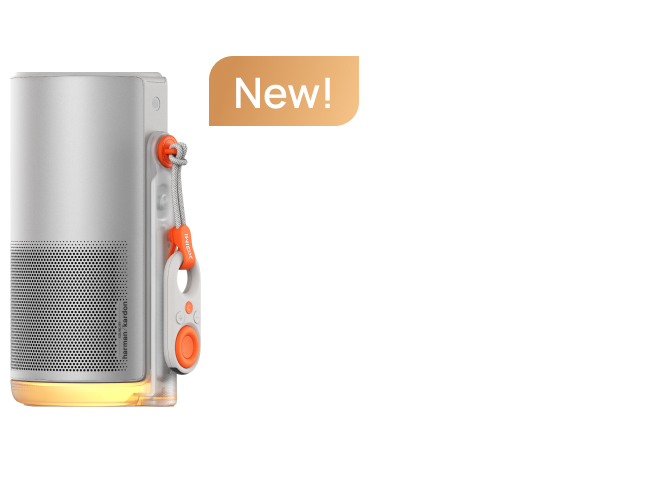
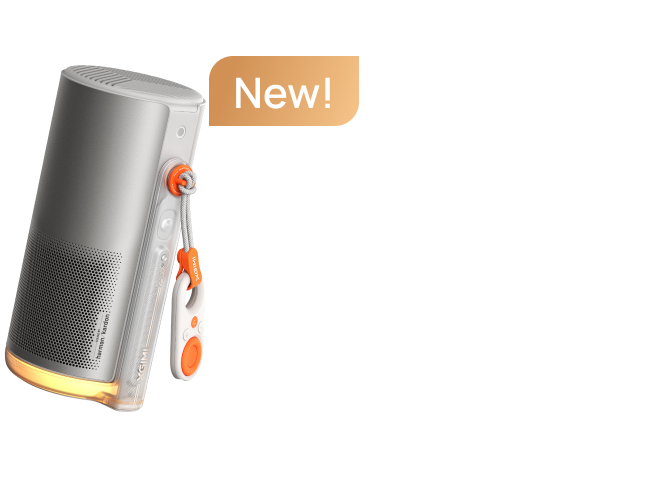
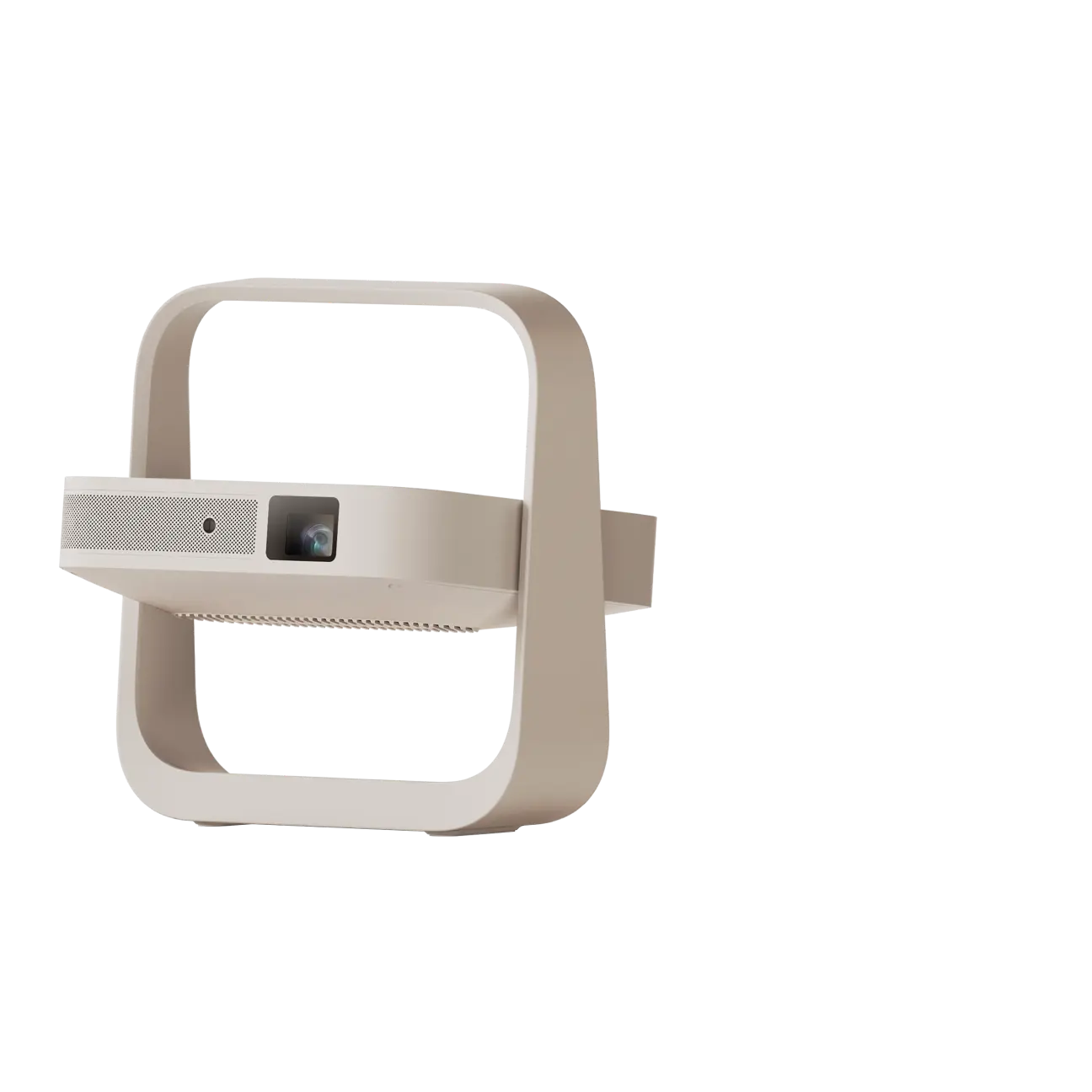
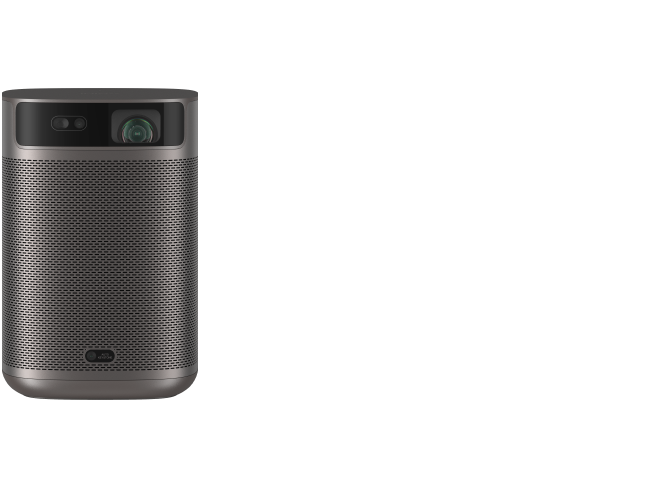
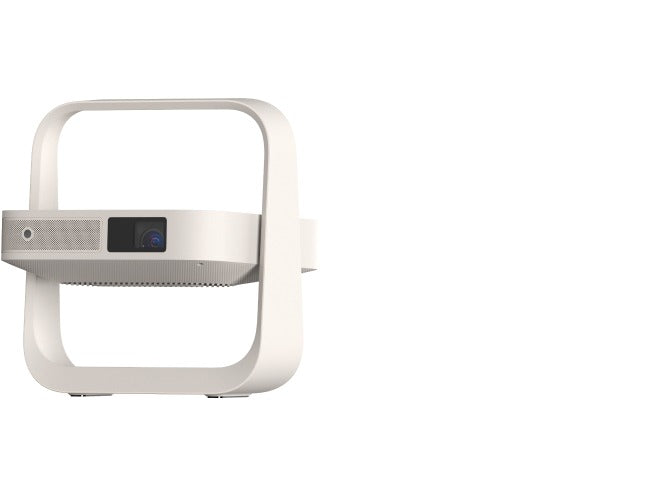
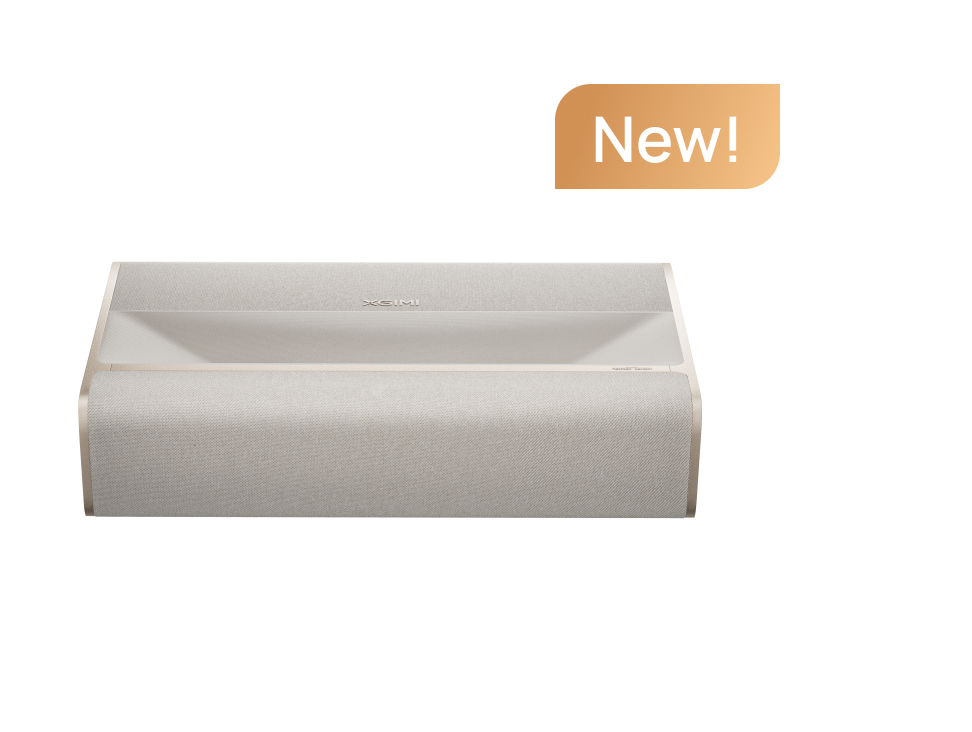
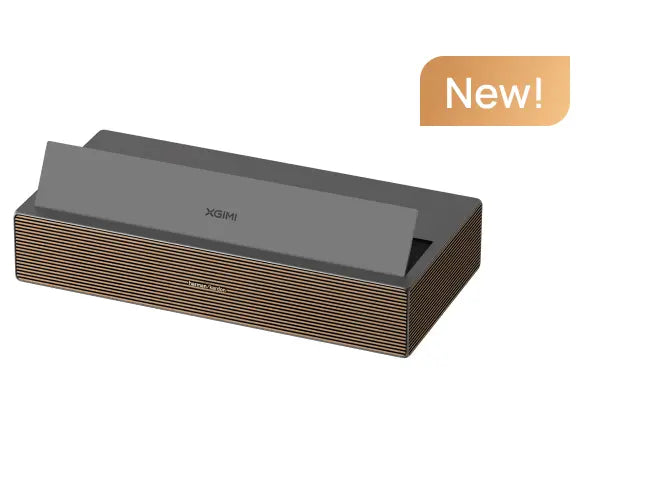
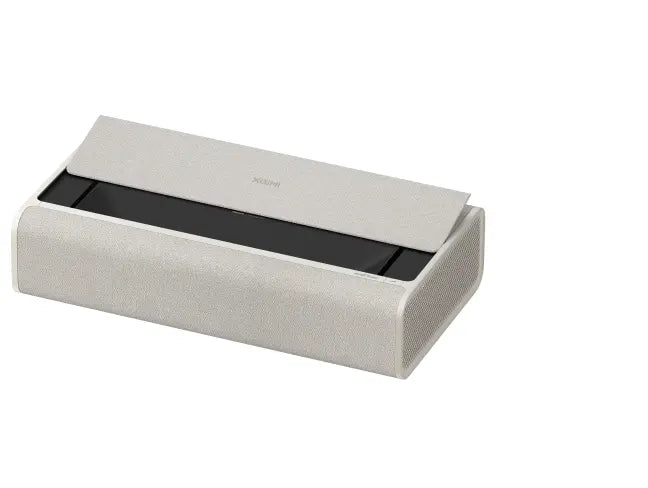
XGIMI's own lineup includes several options well-suited to gaming environments. The HORIZON 20 Pro offers 1 ms low input lag alongside bright, clear imaging, while the AURA 2 (New) combines strong performance with 20 ms gaming latency in a lifestyle-friendly form. For more portable play, consider models from the Portable Projectors collection.
Final Tips and What to Test Yourself
After applying the main adjustments, spend time in your actual games testing different combinations rather than relying solely on menu previews. Record short clips of fast pans with and without each setting to compare objectively, or simply play a few ranked matches and note whether reaction times or comfort improve.
Remember that no single setting completely eliminates motion blur on every projector. The goal is to reach a balance where the image feels clear enough for your play style without introducing distracting side effects. If you continue to experience significant issues, the limitation may lie in the projector's underlying panel technology or your room setup rather than a missed menu option.
This article discusses comfort and setup advice for projectors only. It does not constitute medical advice, diagnosis, or treatment. If you have persistent visual discomfort or existing eye conditions, please consult a qualified professional.
By methodically working through game mode, source settings, and cautious use of motion features, most gamers can achieve noticeably clearer fast-paced action on their projector setups.


