


































You've plugged everything in, and the cables look fine. But your projector screen stays blank with those two words: "No Signal." This frustrating issue affects nearly every device that connects via HDMI. Gaming consoles, streaming boxes, and laptops all encounter the same problem. The causes vary, but the solutions are surprisingly straightforward once you understand what's happening. For related guidance, see How to Screen Mirror to Projector When Your Device and Projector Ar.... For related guidance, see Why Does Wireless Screen Mirroring to Projector Have 2-3 Second Lag.... For related guidance, see Does HDMI 2.1 Really Matter for Projector Gaming? A Technical Break....
Why Projectors Show "No Signal" + Quick Fixes for Any Device
A "no signal" message means your projector isn't receiving valid video data through the HDMI connection. Several issues cause this breakdown.
Note: Solutions may vary by model. For the most accurate guidance, always refer to your projector’s user manual or the support team/helpcenter.
Common Causes:
- Loose or damaged cable connections
- The wrong input source was selected on the projector
- Source device not configured to output video
- Incompatible resolution settings
- HDMI handshake failure between devices
Before troubleshooting specific devices, try these universal fixes:
Verify Input Source
Most projectors have multiple HDMI ports. Grab your remote and cycle through each input (HDMI 1, HDMI 2, etc.) until you find the correct one. This simple mismatch causes about 30% of connection issues. For related guidance, see How to Connect Multiple Bluetooth Speakers to Projector Simultaneou.... For related guidance, see Casting vs HDMI for Projectors: Quality, Lag, and Reliability.
Reseat All Cables
Unplug the HDMI cable from both ends. Wait 10 seconds. Reconnect firmly until you hear a click. A loose connection blocks signal transmission entirely.
Power Cycle Everything
Turn off your projector and source device completely. Unplug both for 30 seconds. This resets the HDMI handshake. Plug back in, then power on the projector first, followed by your source device.
Test a Different Cable
HDMI cables fail more often than people realize. Internal wire damage or worn connectors can block signals. Try a different cable, preferably one rated HDMI 2.0 or higher for 4K content.
These four steps resolve roughly 60% of all HDMI problems. The remaining cases require device-specific solutions.
PS5 No Signal: Safe Mode Video Reset + 1080p Baseline
The PlayStation 5 outputs advanced video formats that some projectors can't process. When the console sends a signal that the projector doesn't support, you get a black screen despite a solid connection.

Access Safe Mode for Video Reset
Safe Mode forces the PS5 to output basic 1080p video that nearly every projector accepts.
Steps to Enter Safe Mode:
- Turn off your PS5 completely (not rest mode)
- Press and hold the power button
- Wait for the first beep, then continue holding
- Release after the second beep (about 7 seconds total)
- Connect your controller via USB cable
- Press the PlayStation button
Select "Change Video Output" from the menu, then "Change Resolution." The PS5 will cycle through supported formats. When an image appears on your projector, select that resolution.
Start with 1080p Baseline
Establish a working connection at 1080p first. Once stable, you can gradually increase resolution through Settings > Screen and Video > Video Output. Test 4K 60Hz before attempting 4K 120Hz.
Temporarily Disable HDCP
Navigate to Settings > System > HDMI and turn off HDCP. This copy protection technology sometimes interferes with display detection. Disable it just long enough to establish a connection, then re-enable for streaming apps.
Cable Quality Matters
The PS5 ships with an HDMI 2.1 cable. If you need a longer cable for your projector setup, buy a certified Ultra High Speed HDMI cable. Budget cables can't maintain the 48Gbps bandwidth required for advanced features.
Nintendo Switch No Signal: Dock + Power Adapter + HDMI Order Matters
The Switch converts its USB-C port into an HDMI output through a docking station. The connection sequence is critical for proper signal transmission.

Follow This Exact Order
Many users plug cables randomly, then wonder why nothing appears. The correct sequence matters:
- Open the back panel of your Switch dock
- Connect the AC adapter to the top port (labeled "AC Adapter")
- Plug the HDMI cable into the bottom port (labeled "HDMI Out")
- Close the back panel
- Plug the AC adapter into the wall outlet
- Connect the HDMI cable to your projector
- Insert the switch into the dock (screen facing the front panel)
The Switch screen goes black when properly docked. Video redirects to the projector automatically.
Inspect the Dock's HDMI Port
Look for bent or damaged pins inside the dock's HDMI connector. The port sits recessed in a plastic housing, making it vulnerable to angled cable insertion. Even slight pin damage blocks the signal completely.
Use Official Nintendo Equipment
Third-party docks create compatibility problems. Nintendo designs its docks with specific voltage regulation and video conversion chips. Aftermarket alternatives skip these components, causing intermittent connections.
The Switch needs adequate power to activate video output mode. Use only the official Nintendo Switch AC adapter (HAC-002) (model HAC-002). Generic USB-C chargers don't provide the required wattage.
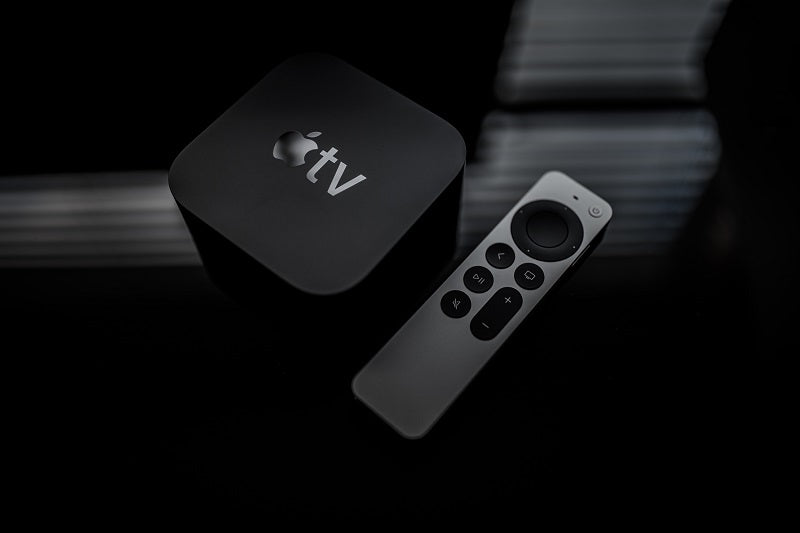
Apple TV No Signal/Black Screen: Restart + Video Format Settings
Apple TV boxes attempt to auto-detect projector capabilities. This detection sometimes fails or selects formats that the projector can't handle.
Force Resolution Reset
Press and hold Menu + Volume Down for six seconds. Release both buttons. The Apple TV cycles through every supported resolution, spending 20 seconds on each. When an image appears, press OK to lock that resolution.
Can't find the remote? Unplug the Apple TV power cord, wait 30 seconds, and plug it back in. This triggers fresh automatic detection.
Adjust Match Content Settings
Navigate to Settings > Video and Audio > Match Content. These toggles make Apple TV change formats based on content type. Sounds helpful, but creates brief black screens during transitions.
Recommended Settings:
- Turn OFF "Match Dynamic Range"
- Turn OFF "Match Frame Rate"
You'll sacrifice some optimization but gain stability. Alternatively, manually set output to 4K SDR 60Hz, which most projectors support.
Try Different HDMI Ports
Some projectors label one port "HDMI/ARC" for audio return functionality. Apple TV sometimes struggles with these combination ports. Switch to a standard HDMI input if available.
Laptop No Signal: Duplicate/Extend Display + USB-C to HDMI Adapter Issues
Laptops treat external displays as optional accessories. You must explicitly configure the operating system to send video through HDMI.

Windows Setup
Press Windows + P simultaneously. A sidebar appears with display options:
- PC Screen Only
- Duplicate (same image on both screens)
- Extend (projector as additional workspace)
- Second Screen Only
Choose Duplicate or Extend. If the projector doesn't appear, click "Detect" to force Windows to scan connected displays.
Mac Setup
Open System Preferences > Displays > Arrangement tab. Check "Mirror Displays" to duplicate your screen. If the projector doesn't appear, click Detect Displays while holding the Option key.
Update Graphics Drivers
Open Device Manager (Windows), expand Display Adapters, right-click your graphics card, and select "Update Driver." Mac users receive driver updates through system updates.
USB-C Adapter Compatibility
Not all USB-C ports support video output. Your laptop needs DisplayPort Alternate Mode capability. Budget laptops sometimes include USB-C for data/charging only, without video support.
What to Look For:
- Explicit "4K 60Hz support" specification
- "DisplayPort 1.4" compatibility
- Positive reviews mentioning your laptop model
Hubs combining USB-C charging with HDMI output work more reliably than simple adapters. These prevent power management conflicts, causing detection failures.
When Streaming Apps Go Black: HDCP Explained in Plain English
Video works fine until you open Netflix. Then the screen goes black. Audio continues, but the picture disappears. This points to HDCP compatibility issues.
What is HDCP?
High-bandwidth Digital Content Protection verifies that every device has permission to display protected content. Streaming services use HDCP to prevent unauthorized recording.
How It Works:
Your device sends encrypted signals through HDMI. The projector must respond with authentication keys. If the projector lacks HDCP support, the handshake fails, and services block video transmission.
The Weak Link Problem
HDCP requires every component to comply:
- Source device (Apple TV, PS5, etc.)
- HDMI cable
- Any intermediate equipment (soundbars, receivers)
- Projector
A single non-compliant link breaks the entire chain.
Test and Fix HDCP Issues
- Direct Connection Test: Connect your source directly to the projector, bypassing soundbars or receivers. If streaming works suddenly, your intermediate device lacks HDCP support.
- Power Cycle Reset: Turn off all devices, unplug for 30 seconds, then power on in this order: projector first, then source device. This forces fresh authentication.
- Use Dedicated Streaming Devices: Screen mirroring from phones often fails with protected content. Netflix blocks AirPlay and Miracast to prevent recording. Use Roku, Fire TV, Chromecast, or Apple TV boxes instead.
Fix It with the Right HDMI Gear
Cable quality directly impacts connection reliability. Here's what you need:
Cable Types by Use Case
| Purpose | Required Specification | Bandwidth |
| Basic 1080p | High Speed HDMI | 10.2 Gbps |
| 4K HDR Streaming | Premium High Speed | 18 Gbps |
| 4K 120Hz Gaming | Ultra High Speed (HDMI 2.1) | 48 Gbps |
Cable Length Considerations
Standard passive cables work reliably up to 15 feet. Longer distances require active HDMI cables with built-in signal amplification. Fiber optic HDMI cables handle up to 100 feet without quality loss.
Adapter Requirements
USB-C to HDMI: Must state DisplayPort Alternate Mode support. Specify maximum resolution (4K 60Hz minimum recommended).
Take Action Now to Fix Your HDMI No Signal Issue
Now that you have a clear understanding of how to tackle the "HDMI No Signal" problem, from checking cables to adjusting device settings and troubleshooting HDCP issues, you're equipped to resolve it. Whether it’s your PS5, Switch, or Apple TV, follow these steps and get your signal back on track. Don’t let simple connection issues disrupt your entertainment—take action now and enjoy seamless viewing!
FAQs

Q1. Can a damaged HDMI port cause a “No Signal” error?
Yes, a damaged HDMI port on your projector can prevent a proper connection, leading to a "No Signal" issue. Physical damage, bent pins, or accumulated dust inside the port can block signal transmission, requiring repair or replacement.
Q2. Does using an HDMI splitter affect signal quality?
Yes, using an HDMI splitter can sometimes degrade signal quality, especially when sending 4K content to a projector. Some splitters may not support high resolutions or introduce lag, so ensure you're using a high-quality splitter that supports your needs.
Q3. Will using a longer HDMI cable reduce signal strength?
Yes, longer HDMI cables can lead to signal degradation, which is a common issue when a projector is mounted far from the source. For distances over 15 feet, consider using an active HDMI cable or fiber optic HDMI to ensure your projector receives a stable signal.
Q4. Can HDMI signal issues be caused by outdated firmware?
Yes, outdated firmware on your projector, TV, or device can result in compatibility issues, including "No Signal" errors. Regularly update your devices’ firmware to ensure they support the latest HDMI standards and resolve potential glitches.
Q5. Does connecting an HDMI to a USB-C port work for video output?
It depends. Not all USB-C ports support video output to a projector. To transmit video, your USB-C port must support DisplayPort Alternate Mode. Many modern devices with USB-C ports, such as MacBooks and business laptops, support this mode, but older models or non-video-enabled USB-C ports may not. Always check your device’s specifications before attempting to use a USB-C to HDMI adapter.


