













An Android cell phone can be used as a storage device for a projector, enabling you to broadcast all kinds of content. To put it to good use, it's important to connect it to the projector. Several methods are available for this purpose. They can be divided into two categories: wireless and wired. Non-wired methods enable you to connect an Android phone to a projector without a connection cable. Wired methods, on the other hand, require cables. In this article, we'll show you how to connect an Android phone to projector.
How to Connect Android Phone to Wireless Projector?
Various wireless methods are available, and you can use them to connect an Android phone to your projector. These include Chromecast and streaming from the portable projector manufacturer. Both of these methods are highly efficient, allowing you to take advantage of your projector's various features at any time. They are also compatible with smart portable projectors.

Method 1. Chromecast
This method is not only a safe option, but it also works with most smartphones. It's a tool that allows you to view different types of content, including videos and images. Chromecast only works via an HDMI port, so this option is only viable if your projector has one. If this is not the case, you'll need to consider other methods. You also need a very good Wi-Fi Internet connection. This will enable you to send content from your Android phone to your projector. This is achieved by establishing a direct connection between the two devices, via Chromecast. Here are the steps you need to follow to use this method:
● Connect your Chromecast to your projector via its HDMI port;
● Connect your Android phone and your Chromecast to the same Wi-Fi network;
● Download and install the "Google Home" application on your phone;
● Go to the "Google Home" application menu and select the name of your Chromecast.
Once this last step has been completed, your Android phone will be automatically connected to your smartphone. You can then view all the content you want.
Method 2: Streaming from the manufacturer
The advent of smarty projectors means that content can be streamed directly without a special cable. These projectors connect to devices such as Android cell phones using modern connection features such as Bluetooth or Wi-Fi.
Want to see your Android phone’s screen on a large display? You can easily connect it to a projector using Bluetooth. Just turn on Bluetooth on both your phone and your projector. Then, look for your projector’s Bluetooth name on your phone and tap it to pair them. Now you can enjoy your phone’s content on the projector.
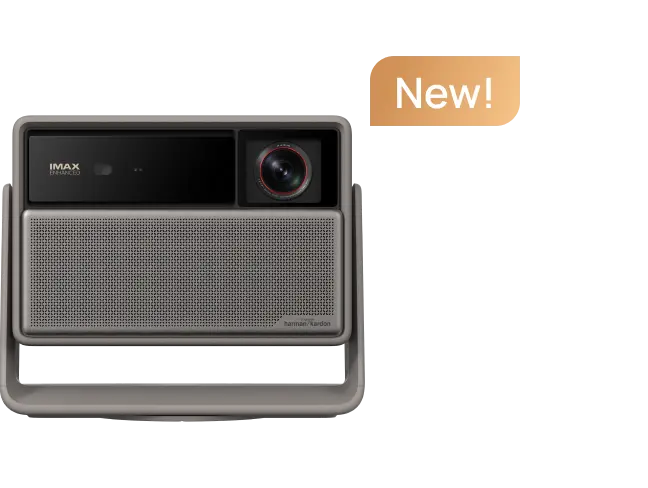
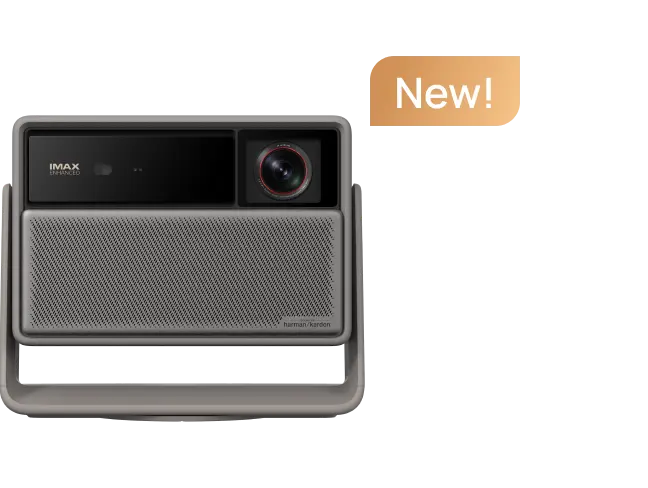
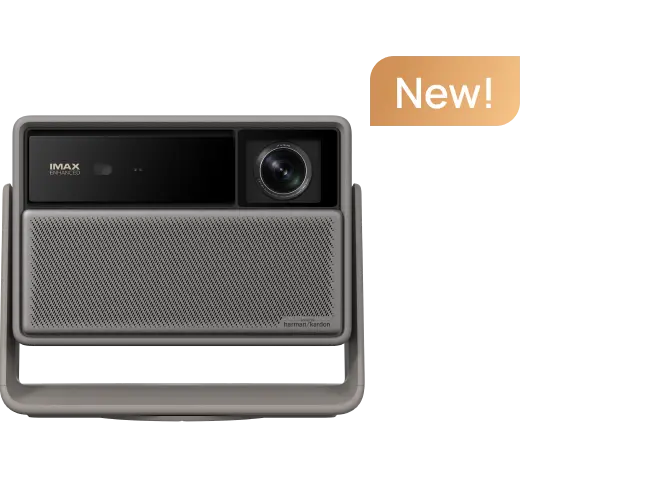
To establish a connection between your smartphone and a projector using Wi-Fi, you need a good Wi-Fi connection source. Then connect both devices to the same connection source. Alternatively, you can share your smartphone's Wi-Fi connection with your portable projector to link the two devices. Note that not all projectors offer this feature. You can check whether your projector has this feature by searching on the Internet. You can do this using the device's serial number. Note that XGIMI projectors have this feature.
How to Connect an Android Device to a Projector via Ware?
Unlike XGIMI projectors, many projectors don't have the functionality to connect to an Android phone without a cable. That's why several wired methods can help you to connect these two devices. These include HDMI, MLH, and USB cables.
Method 1. HDMI
This method is not only a safe option, but it also works with most smartphones. It's a tool that allows you to view different types of content, including videos and images. Chromecast only works via an HDMI port, so this option is only viable if your projector has one. If this is not the case, you'll need to consider other methods. You also need a very good Wi-Fi Internet connection. This will enable you to send content from your Android phone to your projector. This is achieved by establishing a direct connection between the two devices, via Chromecast. Here are the steps you need to follow to use this method:
● Connect your Chromecast to your projector via its HDMI port;
● Connect your Android phone and your Chromecast to the same Wi-Fi network;
● Download and install the "Google Home" application on your phone;
● Go to the "Google Home" application menu and select the name of your Chromecast.
Once this last step has been completed, your Android phone will be automatically connected to your smartphone. You can then view all the content you want.
Method 2: Streaming from the manufacturer
The advent of smarty projectors means that content can be streamed directly without a special cable. These projectors connect to devices such as Android cell phones using modern connection features such as Bluetooth or Wi-Fi.
Want to see your Android phone’s screen on a large display? You can easily connect it to a projector using Bluetooth. Just turn on Bluetooth on both your phone and your projector. Then, look for your projector’s Bluetooth name on your phone and tap it to pair them. Now you can enjoy your phone’s content on the projector.
To establish a connection between your smartphone and a projector using Wi-Fi, you need a good Wi-Fi connection source. Then connect both devices to the same connection source. Alternatively, you can share your smartphone's Wi-Fi connection with your portable projector to link the two devices. Note that not all projectors offer this feature. You can check whether your projector has this feature by searching on the Internet. You can do this using the device's serial number. Note that XGIMI projectors have this feature.
Method 3. MHL
MHL, also called "Mobile High Definition Link", is a high-end interface that provides connection between various consumer portable electronic devices. As with the connection via an HDMI cable, you will also need an MHL to HDMI adapter to associate your Android phone with your video projector.
To use this wired method, you must perform a number of checks beforehand. First, check if your projector's HDMI port has the MHL label. If this is not the case, then this option is not an option. Similarly, you should also make sure that the MHL cable you buy is compatible with your Android phone. The ideal would be to bring your smartphone when you go to buy said cable.
Other than simply completing the connection with the correct cable, there is not much you need to do to connect your Android phone to your video projector. Once you've done that, the final step would be to connect the input to the HDMI-MHL port on your projector and pair the other end to your smartphone to project its screen.
Method 4.USB
It is generally the most reliable and commonly used way of connecting an Android phone to a video projector. Many projectors feature a built-in UBS port, enabling a smartphone to be used as a storage device in the same way as a USB stick or hard drive. How do you connect an Android phone to a projector via a USB cable?
● First, check that your projector has a USB port;
● Use your charger cable, or any other cable that fits the charging port of your phone, to hook up your smartphone to the projector.
The connection will happen when you plug in the USB cable. Now you can enjoy the content on your phone screen.
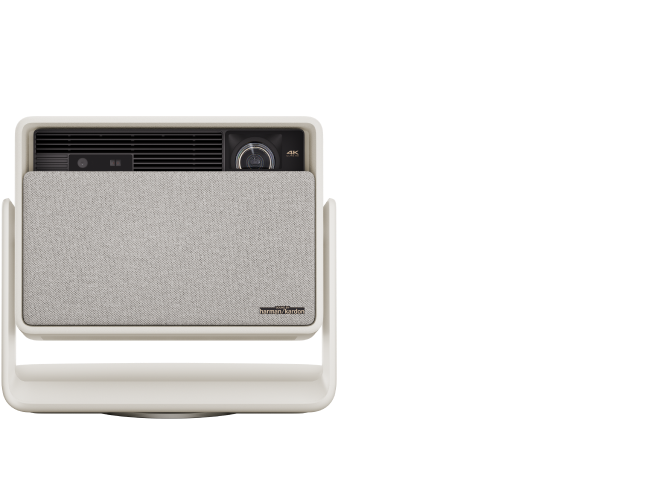
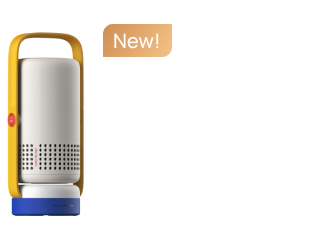
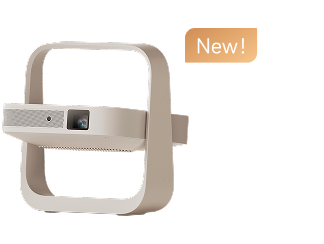
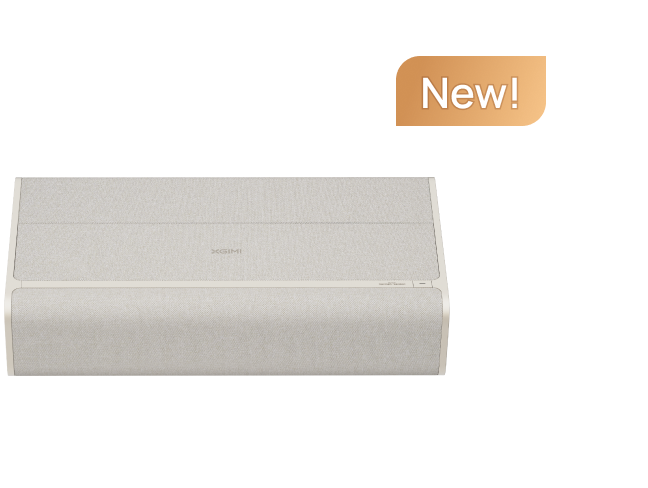
Smart Projector for Home Recommendations
article_product1
article_product2
article_product3
Conclusion
In this article, find the answers to the following question: how do I connect a cell phone to a projector? There are several ways to connect an Android phone to a projector. It's simple and generally falls into two categories. On the one hand, there are wired tips, which require connection cable usage. These include USB, HDMI, and MHL cables. Before using these wired methods, your projector ports must be compatible with them. On the other hand, there are non-wired methods such as Chromecast and streaming from the projector manufacturer. These methods are often compatible with intelligent projectors such as those from XGIMI.


