





In the fast-evolving tech landscape of 2026, our smartphones have officially transcended their role as mere communication devices. They are now powerful creative workstations and high-definition media servers capable of outputting 4K HDR content. However, even the most vibrant 6.9-inch smartphone screen cannot compete with the immersive grandeur of a 200-inch projection.
Whether you are hosting a backyard movie night, delivering a high-stakes corporate presentation, or engaging in competitive mobile gaming, knowing how to seamlessly bridge the gap between your phone and your projector is essential.

Part 1. Why the Connection Landscape Changed in 2026
Before diving into the "how," it is critical to understand the "what." Since 2024, the tech industry has undergone a massive shift toward hardware unification.
The USB-C Revolution: With the universal adoption of USB-C across all major smartphone brands (including the entire iPhone lineup from the 15 onwards), the days of proprietary "Lightning" cables are fading. This shift has simplified wired connections immensely.
Wireless Standards: The arrival of Wi-Fi 7 and Bluetooth 5.4 has significantly reduced the latency that used to plague wireless mirroring.
Projector Intelligence: Modern XGIMI projectors now feature ISA 3.0 (Intelligent Screen Adaptation). Once your phone connects, the projector automatically handles focus, keystone correction, and wall color calibration.

Part 2. Wired Connections: The Professional’s Choice
When performance is non-negotiable—such as when streaming a 4K Blu-ray rip or playing a fast-paced shooter like Genshin Impact—a wired connection remains the gold standard. It eliminates signal interference and guarantees zero input lag.
2.1 USB-C to HDMI: The Modern Standard
If you own a modern Android flagship (Samsung Galaxy S-series, Google Pixel, etc.) or an iPhone (15, 16, or 17), your device likely supports DisplayPort Alternate Mode (DP Alt Mode) via its USB-C port.
The Setup Process:
- Select the Right Cable: You need a high-quality USB-C to HDMI 2.1 cable. Ensure it supports 4K/60Hz to match the output capabilities of your XGIMI projector.
- Physical Connection: Plug the USB-C end into your phone and the HDMI end into the projector’s HDMI 1 (ARC/eARC) port.
- Source Selection: Use your XGIMI remote to navigate to the "Input" menu and select "HDMI."
- Audio Routing: Modern XGIMI projectors will automatically take over the audio, utilizing their built-in Harman Kardon speaker systems for a vastly superior soundstage compared to your phone’s internal speakers.
2.2 Using a Multi-port USB-C Hub
For power users, a simple cable might not suffice. If you are presenting for several hours, your phone's battery will inevitably drain.
The Solution: Use a USB-C Hub with Power Delivery (PD). This setup allows you to connect an HDMI cable to the projector while simultaneously fast-charging your phone (up to 100W on supported models).
2.3 Legacy Connections (Lightning to HDMI)
If you are still using an iPhone 14 or an older model, you will need the official Apple Lightning Digital AV Adapter.
Note: Be wary of cheap third-party Lightning adapters. Many lack the HDCP (High-bandwidth Digital Content Protection) chips required to stream platforms like Netflix or Disney+, resulting in a frustrating Black Screen error.

Part 3. Wireless Connections: The Future of Mobility
Wireless is about freedom. It allows you to pass the "virtual remote" around the room, enabling friends to share their favorite YouTube clips or vacation photos without exchanging physical cables.
3.1 Chromecast Built-in (Google Cast)
Because XGIMI projectors are powered by Google TV and Android TV, Chromecast Built-in is the most integrated wireless method for Android users and many iOS apps.
How it Works: Unlike standard mirroring, casting sends a URL to the projector. The projector then streams the video directly from the internet, freeing up your phone for calls or texts without interrupting the playback.
Steps:
- Connect both devices to the same Wi-Fi 6E/7 network.
- Open a compatible app (e.g., YouTube, Hulu, Spotify).
- Tap the Cast icon and select your XGIMI Projector (e.g., "Living Room HORIZON Ultra").
3.2 AirPlay 2 for iOS
For iPhone and iPad users, AirPlay 2 remains the smoothest way to mirror your entire screen or stream high-fidelity audio.
- Preparation: Open the AirScreen app on your XGIMI projector (available via the Google Play Store) if native AirPlay is not pre-enabled.
- Activation: Swipe down to access your iPhone’s Control Center, tap "Screen Mirroring," and select your projector.
- Optimization: AirPlay 2 fully supports 4K streaming, but ensure your router is not congested to avoid stuttering.
3.3 Wi-Fi Direct and Miracast
For Windows users or older Android devices, Miracast allows for a direct peer-to-peer wireless connection without the need for a Wi-Fi router. This feature is particularly useful for business travelers in hotels where local network security protocols might block standard casting features.

Part 4. The "Black Screen" Problem: Understanding DRM
One of the most frequent support tickets involves this scenario: "I can see my phone screen, but when I open Netflix, the video goes black while the audio continues to play."
The Culprit: HDCP and DRM
Streaming giants like Netflix, Max (formerly HBO), and Disney+ utilize Digital Rights Management (DRM) to prevent piracy. Screen mirroring is often detected by these apps as an unauthorized "recording attempt," prompting them to instantly block the video feed.
The 2026 Solutions:
- Use Native Apps: XGIMI projectors feature an optimized built-in app store. Always utilize the native projector apps rather than mirroring them from your phone.
- Wired Connection: Using a certified USB-C to HDMI cable compliant with the HDCP 2.3 specification will typically bypass this issue, as the projector is recognized as a secure secondary display rather than a recording mirror.
- Media Dongles: If you prefer a specific interface, plugging a streaming device like a Fire TV Stick 4K Max or Chromecast with Google TV into the back of your XGIMI projector ensures flawless app compatibility.

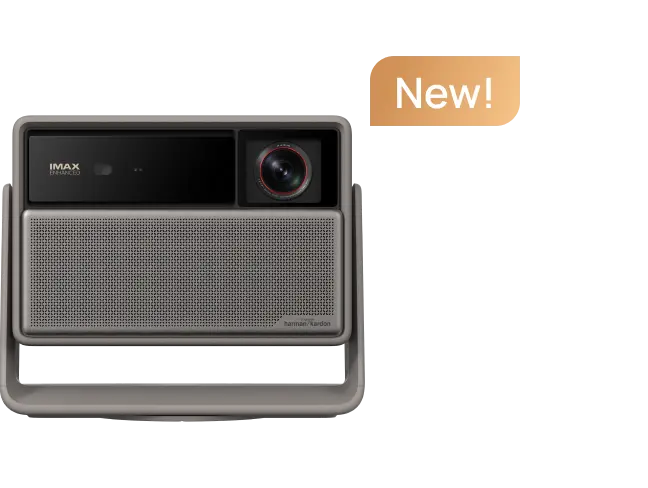
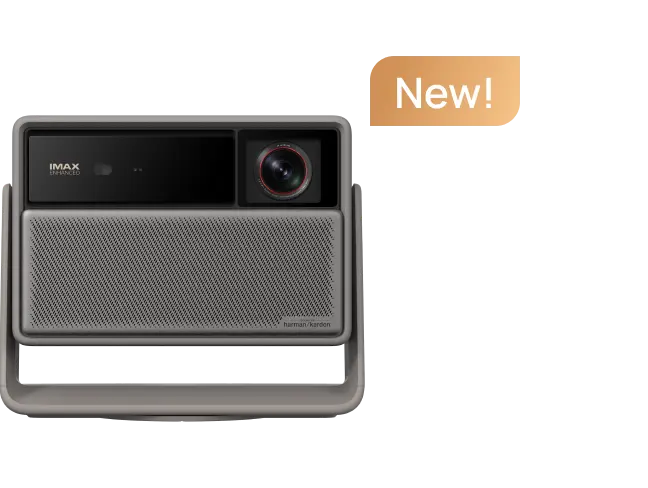
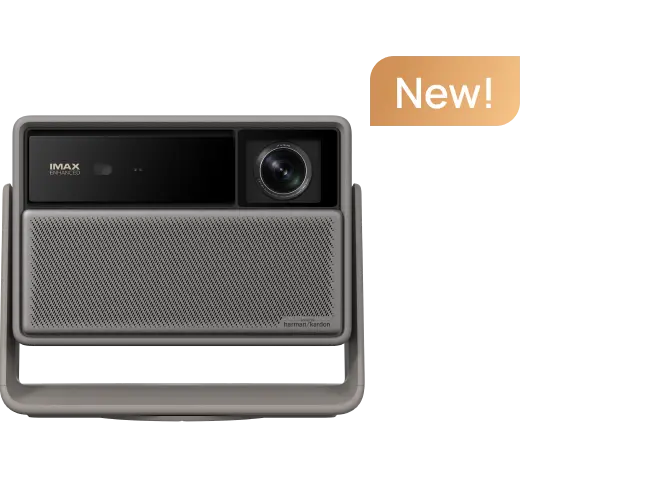
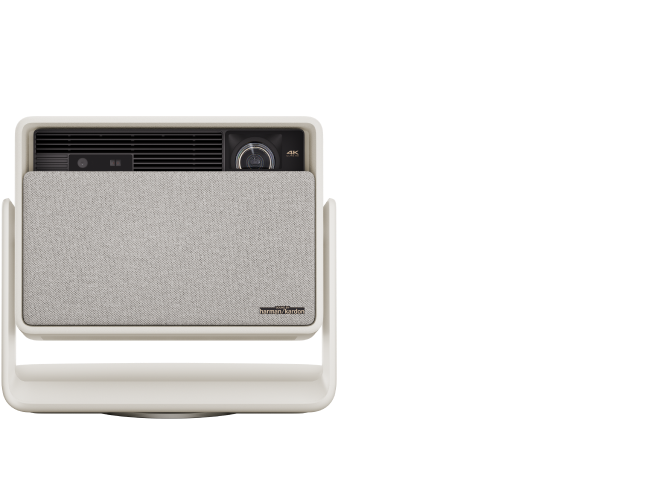
Part 5. Advanced Feature Spotlight: XGIMI HORIZON Ultra & MoGo 3 Pro
XGIMI has engineered its 2026 hardware lineup with a "Smartphone First" philosophy. Here is how our advanced features elevate your mobile content:
5.1 Dual Light 2.0 Technology
Modern smartphone cameras capture breathtaking HDR (High Dynamic Range) photography and video. Displaying these formats accurately requires a projector with exceptional brightness and color depth. The HORIZON Ultra utilizes Dual Light 2.0 (Laser + LED) technology to achieve 2300 ISO Lumens, ensuring your mobile captures look as vivid on the wall as they do on your OLED phone display.
5.2 ISA 3.0: Set It and Forget It
One of the biggest historical pain points of connecting a phone was manually repositioning the projector. With ISA 3.0, XGIMI projectors leverage 3D ToF (Time of Flight) sensors to instantly configure your image:
- Auto-Focus: Keeps the image razor-sharp automatically.
- Auto-Keystone: Instantly corrects the skewed "trapezoid" look if the projector is placed at an off-center angle.
- Intelligent Obstacle Avoidance: Automatically scales the image to avoid picture frames, plants, or light switches on your wall.

Part 6. Performance Comparison Table
| Feature | Wired (HDMI 2.1) | Wireless (Wi-Fi 7) | Wireless (Wi-Fi 5/6) |
| Max Resolution | 4K @ 120Hz | 4K @ 60Hz | 1080p @ 60Hz |
| Input Lag | < 10ms (Elite) | ~30ms (Good) | > 80ms (Noticeable) |
| Stability | Perfect | High | Moderate |
| Best Use Case | Competitive Gaming | Movie Streaming | Casual Browsing |
Part 7. Frequently Asked Questions (FAQ)
Q1: Can I connect my phone to a projector via Bluetooth?
No, not for video output. Bluetooth 5.4 lacks the bandwidth required to transmit high-definition video signals. However, you can pair your phone to your XGIMI projector via Bluetooth to utilize the projector as a high-fidelity standalone speaker for your music.
Q2: My phone doesn't have a USB-C port (iPhone 14 or older). What do I do?
You will need a Lightning to Digital AV Adapter. Nevertheless, we highly recommend upgrading to a wireless solution or utilizing the projector’s native apps for a far superior viewing experience.
Q3: How do I reduce lag when playing mobile games on my projector?
Follow two critical steps: 1) Use a high-bandwidth wired USB-C to HDMI cable. 2) Enable "Game Mode" in your XGIMI projector settings. This feature bypasses unnecessary image processing to lower latency to the absolute minimum.
Q4: Will connecting my phone frequently damage the projector’s lamp?
Not at all. Modern XGIMI projectors utilize highly durable LED or Laser light sources rated for over 25,000 to 30,000 hours of use. Connecting an external device like a phone is a standard operation and has no negative impact on the hardware's lifespan.

Final Takeaway
Connecting your smartphone to a projector is the ultimate way to unlock your device's full potential. In 2026, the choice between wired and wireless setups depends entirely on your specific environment and use case.
Choose wired connections for professional presentations and competitive gaming.
Choose wireless connections for social gatherings and casual media streaming.
Backed by XGIMI’s industry-leading ISA 3.0 technology and Dual Light 2.0, your mobile content will look sharper and more vibrant than ever before. Ready to go big? Explore the latest XGIMI Projector Lineup and transform your pocket-sized screen into a cinematic masterpiece today.


