












Many Android projectors let you install apps that are unavailable in the official store by sideloading APK files, but the process requires careful attention to security settings and compatibility to avoid issues. Sideloading is possible on most Android TV and Google TV-based projectors after you enable installs from unknown sources, yet it comes with elevated security checks from Google Play Protect and may not deliver the same smooth performance as officially supported apps. For more on this topic, see How to Update Your Smart Projector's Firmware for Optimal Performance. For more on this topic, see How to Set Up Parental Controls on Your Smart Projector.
This guide provides a practical, step-by-step process tailored for projector users while highlighting the real limitations and safer alternatives. Following these instructions can help you access missing streaming services or utility apps, but only after verifying the source of any APK and understanding the trade-offs.
Why Apps May Be Missing from the Official Store
App availability on Android projectors often varies by region, device certification, and licensing agreements. A popular streaming service or specialized tool may simply not appear in your projector's app store due to these restrictions. In some cases the app exists for mobile phones but lacks official optimization for the TV-style interface used by projectors.
According to Google support documentation, certain apps may be unavailable for Chromecast with Google TV and similar devices for compatibility reasons. This does not always mean sideloading will succeed, but it explains why users frequently encounter the problem.
What Sideloading Means on Android Projectors
Sideloading refers to installing applications from sources other than the official Google Play Store. On Android TV and Google TV devices, this becomes possible only after you allow installs from unknown sources or unknown apps in the device settings, as explained in Google's official guidance on protecting your TV from harmful apps.
The process itself does not void your warranty in most cases, but it does increase the chance of seeing Play Protect warnings because Google treats unknown-source installs as higher risk. Even after installation, Play Protect may scan the app and prompt you about potential issues.
Prerequisites Before Sideloading
Before attempting to sideload any app, confirm your projector runs Android TV or Google TV and has sufficient storage space. You will also need a reliable way to transfer the APK file, such as a USB drive, a file-sharing app on your phone, or a computer connected to the same network.
Download APKs exclusively from reputable sites like APKMirror or the developer's official website. Avoid random third-party repositories, as they significantly raise malware exposure. Google Play Protect exists specifically to help flag risky unknown apps.
For XGIMI projectors and similar models, check that your firmware is up to date, since newer versions sometimes improve sideloading stability and security controls.
Step-by-Step Guide to Enable Unknown Sources
The exact menu path can differ across projector brands and firmware versions. On many devices you will find the setting under Apps, Security & restrictions, or a similar section.
- Open the Settings app on your projector.
- Navigate to Apps or Security depending on your model.
- Look for "Unknown apps," "Install unknown apps," or "Security & restrictions."
- Select the browser or file manager you plan to use for installation.
- Toggle the permission to allow installs from that source.
On some Android TV devices, you may need to enable Developer options first by tapping the build number several times in the About section. If the toggle appears greyed out, this extra step often resolves it, based on common community reports.
After enabling the permission, your projector will allow APK installation from the chosen source.
How to Transfer and Install APK Files
Transfer methods include:
- USB drive: Copy the APK to a formatted USB stick, insert it into the projector, and use the built-in file manager to locate and open the file.
- Network transfer: Use apps like Send Files to TV or a web-based file transfer tool from your phone or computer.
- Direct download: Some projectors allow downloading APKs through their web browser, though this is slower on larger files.
Once the file appears in the file manager, select it and follow the on-screen prompts to install. The projector will warn you about the unknown source—review the requested permissions carefully before proceeding.
After installation, you can usually find the new app in your app library or All Apps section. Test it immediately to confirm functionality.

Model-Specific Notes for XGIMI and Other Projectors
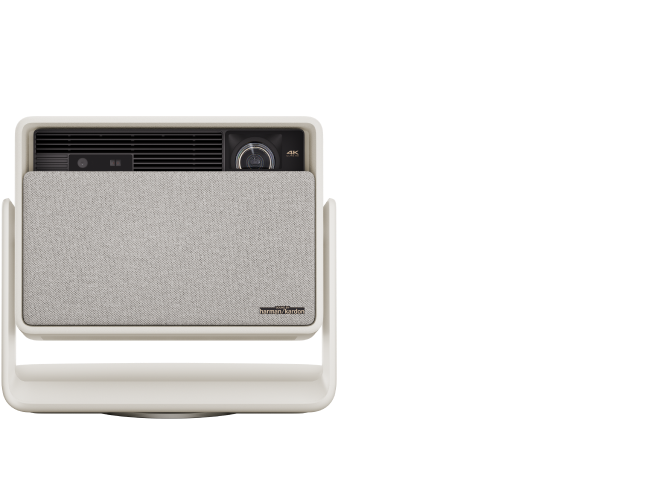
XGIMI Android projectors such as the HORIZON Ultra, MoGo 3 Pro, and AURA 2 generally follow standard Google TV sideloading procedures. Many users successfully install additional media players or utilities this way. However, licensed streaming apps like Netflix often perform better when installed through official channels or accessories.
For best results with XGIMI devices, consider the TV Stick 4K as a dedicated streaming solution that avoids sideloading entirely for mainstream services. This approach maintains cleaner security and update paths.
Other brands may have slightly different menu labels, so consult your user manual if the unknown sources option is not immediately visible.
Risks and Important Safety Considerations
Installing apps from outside the Play Store increases security risk and may trigger Google Play Protect warnings, as stated in official Google documentation. Some sideloaded apps may install successfully but behave inconsistently if they were not designed for Android TV, leading to missing remote controls, poor navigation, or playback problems.
This article discusses only comfort and setup practices for projectors. It does not constitute advice on software security, medical concerns, or device modifications. Sideloading carries inherent risks including potential malware exposure and reduced official support eligibility for any resulting issues.
If you experience persistent problems or have concerns about your projector's security, consult a qualified technician or the manufacturer support team. Always keep Google Play Protect enabled and scan any sideloaded apps.
When Sideloading Is Not Recommended
Avoid sideloading if your projector is used in a shared household, by children, or in a business environment. The added security prompts and potential for unstable apps make a dedicated streaming device a safer choice in these scenarios.
The decision often flips toward a streaming stick when you need reliable mainstream apps, automatic updates, and minimal troubleshooting. Sideloading makes more sense for private use with niche utilities where you are comfortable managing permissions and occasional updates yourself.
Sideloading vs. Streaming Stick: Relative Decision Factors
Illustrative comparison for decision support; higher scores mean better fit or lower risk depending on the factor.
View chart data
| Category | Sideload on Projector | Use Streaming Stick |
|---|---|---|
| Security risk | 1 | 4 |
| App compatibility | 2 | 4 |
| Maintenance burden | 2 | 4 |
| Shared/kids suitability | 1 | 5 |
| Setup consistency | 2 | 5 |
Heuristic ratings derived from the provided evidence and common device-usage judgment: sideloading can raise security risk and Play Protect warnings, app support on Android TV may be inconsistent, device menus vary, and shared/kids/high-support environments favor simpler alternatives. Scores are illustrative (1-5), not measured statistics.
This chart offers a visual decision framework based on typical user priorities. Higher scores indicate better suitability or lower risk for that factor. Streaming sticks generally score higher in shared or low-maintenance setups.
Troubleshooting Common Sideloading Issues
- Toggle is missing or greyed out: Enable Developer options or check under a different menu such as Security & restrictions.
- Installation fails: Verify the APK is compatible with Android TV architecture (usually arm64). Try clearing cache or restarting the projector.
- App crashes or lacks controls: The app may not be optimized for projectors. Look for TV-specific versions or use an alternative app.
- Play Protect warnings: Review the alert details. You can choose to install anyway if the source is trusted, but keep the app updated.
- Missing Netflix or major services: These often require official certification. Consider using a TV Stick 4K or checking the specific guide for your model such as how to use Netflix on the HORIZON Ultra.
If problems persist, resetting app preferences or performing a factory reset may help, though you will need to reconfigure settings afterward.
Safer Alternatives to Sideloading
Before sideloading, explore these options:
- Use a dedicated streaming device like the XGIMI TV Stick 4K for full access to certified apps.
- Check whether a web version or casting method works for the desired content.
- Screen mirror from a phone or tablet that already has the app installed.
- Look for official updates to your projector's firmware that might add the missing app.
Our guide on how to get content for your projector covers multiple legitimate ways to access media without third-party APKs.
For casting files directly, see how to cast your files with a smart projector.
Final Checklist Before You Sideload
- Confirm the APK comes from a trusted developer or mirror site.
- Read all permissions the app requests.
- Enable unknown sources only for the specific installer you are using.
- Keep Google Play Protect active and review any warnings.
- Test the app thoroughly and uninstall immediately if it behaves strangely.
- Document your steps in case you need to contact support later.
Sideloading can unlock useful functionality on your Android projector, but it works best as an occasional solution rather than a primary strategy. For most users seeking reliable streaming, a certified streaming stick or official app updates provide a smoother and more secure experience.
By understanding the risks and following the steps outlined here, you can make an informed choice that matches your specific setup and comfort level with technical tweaks. If your projector is relatively new, first verify whether the desired app has become available in a recent store update before proceeding with sideloading.


