














Why Projector Settings Matter More in Competitive FPS
Competitive FPS players are often highly sensitive to input lag and motion blur. A projector that introduces noticeable delay or softens fast camera pans can make tracking targets feel sluggish. Unlike cinematic experiences, competitive shooters reward settings that prioritize speed and clarity over visual "polish."
If brightness or contrast is poorly configured, enemies may blend into dark corners, potentially impacting reaction times. Many projectors ship with picture modes designed for high-contrast films, which often include heavy processing. For FPS optimization, a common strategy is to treat extra processing as a potential source of latency until tested within your specific setup. For more on this topic, see 120Hz Projectors: Do You Need High Refresh Rate for Gaming?.
Enable Game Mode First
Most modern projectors feature a dedicated Game Mode or Low Latency Mode. This preset is designed to bypass or reduce video processing steps—such as noise reduction and motion interpolation—that add time to the signal path.

Activating Game Mode is typically the most effective first step. In many cases, this single adjustment can lead to a substantial reduction in input lag by removing the overhead of complex image processing. After enabling it, a practical way to test responsiveness is to jump into a practice match and perform quick 180-degree turns. If the movement feels "connected" to your hand, you have a solid foundation.
For the most stable connection, a wired HDMI setup is generally preferred. Wireless casting or certain adapters can introduce variable delay that menu settings cannot easily fix. Using high-quality, high-speed HDMI cables is a standard recommendation to ensure signal integrity.
Disable Non-Essential Image Processing
Even with Game Mode active, some secondary features might remain on. To maximize responsiveness, consider disabling the following:
- Noise Reduction: Can cause "smearing" during fast movement.
- Dynamic Contrast / Local Dimming: While it improves black levels, the real-time calculation can occasionally introduce minor lag on certain hardware.
- Motion Smoothing (MEMC): This is a primary cause of input lag and should almost always be off for gaming.
- Aggressive Sharpness Filters: Can create visual artifacts (halos) around moving targets.
- Eco Modes: Some power-saving settings may inadvertently affect refresh rate stability.
Disabling these features often results in a "rawer" but more responsive image. If your projector allows it, save these settings to a custom user profile so you can quickly toggle between "Movie" and "FPS" modes.
Target the Right Refresh Rate and Resolution
Higher refresh rates generally reduce perceived motion blur. If your console or PC supports it, setting the output to 120Hz is often preferable to 60Hz, provided the projector can natively handle the signal.
Resolution involves a known trade-off. While 4K provides sharper detail, the processing load can sometimes increase latency on entry-level or older models. A common observation among competitive players is that 1080p at 120Hz often feels more fluid and responsive than 4K at 60Hz. It is worth testing both configurations to see which offers the best balance of clarity and "feel" for your specific game.
Optimize Brightness, Contrast, and Black Level for Visibility
In titles like Call of Duty or Apex Legends, visibility in shadows is a tactical advantage. The goal is to ensure enemies are visible in dark areas without "washing out" the entire image.
- Brightness: Adjust this so that dark corridors show detail rather than appearing as solid black blocks.
- Contrast: Increase this until highlights (like muzzle flashes) are distinct, but stop before they "bloom" and hide nearby details.
- Gamma/Black Level: If available, use these to lift the shadows slightly. This can help enemy silhouettes stand out against dark backgrounds.
- Color Temperature: A "Neutral" or "6500K" setting is often recommended. Overly "Cool" (blue) or "Warm" (red) settings can sometimes make it harder to distinguish player models from the environment.
Calibration is best done in the lighting conditions you actually play in. Use in-game calibration tools or a dark map to fine-tune these by eye.
FPS Projector Settings: Priority and Practical Thresholds
Heuristic/practical guide for competitive FPS tuning; not a measured benchmark.
View chart data
| Category | Priority | Threshold fit |
|---|---|---|
| Low-latency mode | 5 | 5 |
| Disable processing | 4 | 5 |
| Input lag target | 5 | 4 |
| Refresh rate target | 4 | 4 |
| Brightness / contrast | 3 | 3 |
| Motion processing | 2 | 2 |
| Black level / shadow visibility | 3 | 3 |
Heuristic/practical guide synthesized from decision snapshot and threshold table. The chart uses relative scores to show tuning priority and threshold fit for competitive FPS projector setup; it does not claim measured performance data.
The chart above outlines a general hierarchy of settings. Prioritizing low-latency modes and disabling processing typically yields the most immediate performance gains.
Reduce Motion Blur and Smear
If you notice "ghosting" or smearing during fast pans, check for specific motion handling features that do not add lag. Some projectors offer "Fast Motion" settings that use black frame insertion or high-speed scanning to sharpen the image.
Enable these only if they do not noticeably increase input lag. Avoid any "smoothing" effects that create a "soap opera" look, as these almost always rely on frame interpolation which is detrimental to competitive play. Additionally, ensure your screen size is appropriate for your viewing distance; an oversized image can sometimes make inherent panel blur more distracting.
Common Myths About Projector Gaming Settings
- "Game Mode fixes everything": While helpful, some projectors still have higher baseline latency than others. Game Mode reduces lag relative to the projector's own processing, but it doesn't change the hardware's physical limits.
- "Higher resolution is always better": In competitive FPS, frame timing and refresh rate usually take priority over pixel count.
- "Brightness is just for aesthetics": In gaming, brightness and black level are functional tools for spotting hidden opponents.
- "Processing makes the game look better": While it might look "prettier" in a screenshot, processing often softens the image during movement, which can hinder your aim.
Checklist: 10-Minute FPS Projector Tune-Up
- Physical Check: Ensure a direct HDMI connection (avoiding unnecessary splitters).
- Mode Select: Switch to "Game Mode" or "Fast" preset.
- Processing Strip: Turn off Motion Smoothing, Noise Reduction, and Dynamic Contrast.
- Signal Check: Confirm the console/PC is outputting the highest supported refresh rate (e.g., 120Hz).
- Shadow Detail: Adjust Brightness until dark areas are visible but not gray.
- Highlight Check: Adjust Contrast so bright areas don't "clip" or lose detail.
- Color Check: Set Color Temperature to a neutral/standard preset.
- Field Test: Play a 5-minute practice round to verify the "feel" of the controls.
When Hardware Limits Are Reached
If movement still feels "heavy" after these optimizations, the projector's internal hardware may be the bottleneck. For a truly competitive experience, enthusiasts often look for projectors with a rated input lag of under 30ms (a common benchmark for responsive play) and support for 120Hz or VRR (Variable Refresh Rate).
Home cinema projectors designed for color accuracy and deep blacks may not always match the speed of gaming-centric models. If you find yourself consistently limited by the display, it may be time to evaluate hardware specifically built for low-latency performance.
Final Takeaway
Optimizing a projector for competitive FPS is about removing obstacles between your actions and the screen. By prioritizing low-latency modes, stripping away unnecessary processing, and calibrating for visibility, you can significantly improve your gaming experience. For more on this topic, see Projector vs TV for Gaming: Lag, Size & Experience.
Note that results will vary based on your specific model and environment. If you experience persistent eye strain or discomfort during long sessions, remember to take regular breaks. This guide is intended for technical setup and does not constitute medical advice.
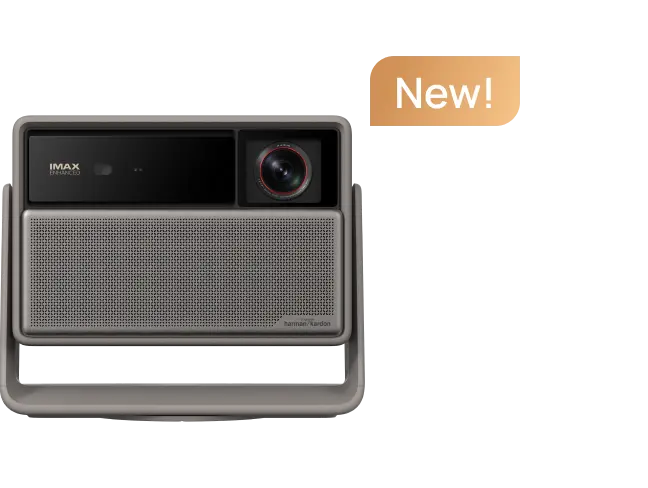
For more on reducing latency, see our guide on how to improve latency on projectors. If you are looking for high-performance hardware, explore the HORIZON 20 Pro or our selection of low latency projectors designed for modern gaming.


