












Connecting your phone to a projector via USB-C can feel like a simple plug-and-play process, but many users encounter the frustrating "not detected" or "no signal" error. The most common causes are a cable that only supports charging, a phone that lacks DisplayPort Alt Mode support for video output, or an incorrect input source selected on the projector. By following a systematic troubleshooting sequence—starting with cable and phone compatibility checks—you can quickly identify the issue and either resolve the wired connection or pivot to reliable wireless casting options available on many modern projectors.

This guide provides clear, step-by-step fixes based on standard USB-C video behavior, helping you avoid unnecessary returns and get back to enjoying big-screen content from your phone whether for movies at home or quick presentations.
Why Your Phone May Not Be Detected by the Projector via USB-C
USB-C is a versatile connector, but it does not automatically support video output. As explained in the official DisplayPort over USB-C documentation, your phone must specifically support DisplayPort Alternate Mode (DP Alt Mode) for the port to transmit video signals alongside power and data. Without this hardware capability, no amount of troubleshooting on the projector side will make the wired connection work.
Even when both the phone and projector use USB-C ports, the full chain—including the cable and any adapters—must be compatible with the Alternate Mode path. The USB Type-C System Overview highlights that compatibility depends on the entire hardware configuration, not just matching connector shapes.
A frequent culprit is using a charge-only cable. Many USB-C cables handle power and basic data but lack the wiring or certification needed for video. The official DisplayPort cable guidance warns that not every USB-C cable can carry video, making this one of the top reasons for detection failures.
Common Myths About USB-C Phone-to-Projector Connections
Several misconceptions lead users to blame the projector when the real limitation lies elsewhere. One widespread myth is that "any USB-C cable works" for screen mirroring. In reality, a charging-only cable will prevent detection even if the phone and projector are otherwise compatible.
Another misleading claim is that "all modern phones support video out over USB-C." Support varies widely by model and manufacturer—some flagship Android devices include it, while many mid-range phones and current iPhones do not offer native wired video output through the USB-C port. Assuming universal support often leads to frustration.
Finally, many assume "if it doesn't work, the projector is faulty." Evidence from user reports shows that phone-side limitations, cable mismatches, or simple configuration errors are far more common than defective projector hardware.
Myth vs Reality Quick Reference:
- Myth: Any USB-C cable works → Reality: Must be rated for video/DP Alt Mode.
- Myth: All phones support wired display output → Reality: Check your specific model specs first.
- Myth: Projector is always the problem → Reality: Start troubleshooting with the phone and cable.
Step-by-Step Troubleshooting to Fix Phone Not Detected
Follow these steps in order. Most issues resolve within the first three checks.
1. Verify Your Phone Supports Video Output Over USB-C
Before anything else, confirm your phone model supports DP Alt Mode or wired display output. Look up your exact model on the manufacturer's site or user manual. Many phones list supported display modes in their specifications under "USB" or "Connectivity."
If your phone does not support video over USB-C, a wired connection will not work regardless of the projector or cable. In this case, plan to use wireless screen mirroring instead.
2. Use the Correct USB-C Cable or Adapter
Replace your current cable with one explicitly rated for video output or DP Alt Mode. Test with a known-good USB-C to HDMI adapter or cable if your projector uses HDMI input.
Avoid cheap no-name cables, as they often lack the necessary pins for video transmission. A reliable cable or adapter is frequently the difference between "no signal" and successful detection.
3. Check and Switch the Projector Input Source
Even with perfect hardware, the projector must be set to the correct input. Many projectors default to HDMI 1 or another source and will show "no signal" if not manually switched to the USB-C or corresponding HDMI port.
Use your projector's remote to cycle through input sources until you reach the one connected to your phone. This simple step resolves a surprising number of cases.
4. Inspect Adapters, Dongles, and Connections
If using a USB-C to HDMI dongle or hub, it may be the weak link. Try bypassing it by testing a direct cable or a different adapter. Some third-party dongles introduce compatibility issues even when the phone supports video output.
Ensure all connections are secure and that the projector and phone are powered on before connecting.
5. Adjust Phone Settings and Permissions
On Android devices, check Display settings, Developer Options, or connected devices menu for any prompts about external displays. Some phones require enabling "USB debugging" or selecting a display mode.
Restart both the phone and projector, then reconnect. Ensure your phone's OS and the projector's firmware are up to date, as updates often improve compatibility.
Visualizing Common Failure Points
Common Failure Points When a Phone Is Not Detected by a USB-C Projector
Relative, not statistical, ranking of the most common failure points to check first when a phone is not detected by a projector over USB-C.
View chart data
| Category | Relative likelihood / troubleshooting priority |
|---|---|
| Wrong cable | 5.0 |
| No DP Alt Mode on phone | 5.0 |
| Incorrect input source | 4.0 |
| Bad adapter | 3.0 |
| OS/settings issue | 2.0 |
Heuristic ranking based on the requested troubleshooting sequence and common USB-C projector detection failure patterns; values are illustrative, not measured statistics.
This heuristic chart illustrates the relative priority of checks. Start at the top for the fastest resolution in most cases.

When Wired USB-C Simply Won't Work: Pivot to Wireless
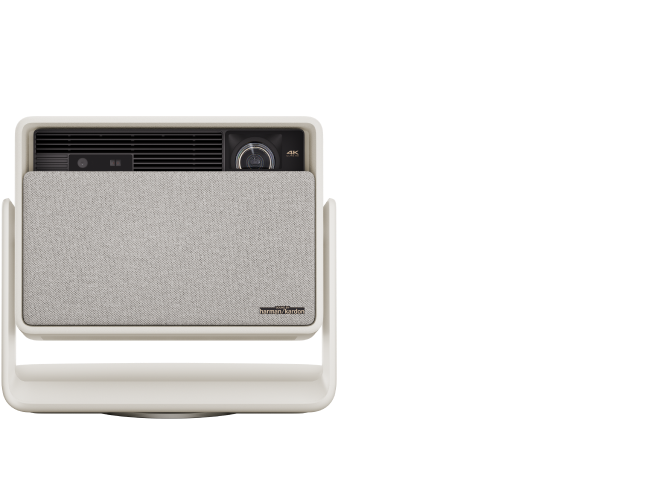
If your phone lacks DP Alt Mode support or repeated tests fail, accept the hardware limitation and switch to wireless options. Many XGIMI projectors include built-in Chromecast or support Google Cast and other wireless protocols for seamless screen mirroring without cables.
Wireless casting often provides a more reliable experience for phones that cannot output video over USB-C. Check our detailed guide on How to Screen Mirror on Projectors: Phones, Tablets, PCs for step-by-step instructions on wireless methods that work well with both Android and iOS devices.
For XGIMI users, explore the Utilizing XGIMI Projector Ports To Enhance Your Viewing Experience to understand all available connection options beyond USB-C.
Setup Checklist Before Connecting Your Phone
Use this practical checklist to avoid common pitfalls:
- Confirm your specific phone model supports video output over USB-C in its official specifications.
- Select a certified USB-C cable or adapter rated for video (look for DP Alt Mode or HDMI compatibility markings).
- Power on the projector and manually select the correct input source matching your connection port.
- Test the phone's output on another display (like a TV or monitor) if possible to isolate whether the issue is phone-side.
- Update both phone OS and projector firmware to the latest versions.
- Have a wireless backup ready using your projector's casting features.
Following this checklist before important presentations or movie nights can save significant time and frustration.
Health and Comfort Note
This article discusses setup and comfort related to display connections only. It does not constitute medical advice. If you experience eye strain, headaches, or other discomfort while using projectors or screens, consult a qualified healthcare professional.
Choosing the Right Approach for Your Needs
Wired USB-C connections can offer low latency and stable performance when all components are compatible—ideal for presentations requiring precision. However, for most home entertainment and casual use, wireless casting provides greater convenience and works across a wider range of phones.
If you frequently connect different phones or travel with your projector, prioritize models with strong wireless features like those in XGIMI's portable lineup. Consider browsing Portable Projectors or the Cables and Adapters collection to find accessories that match your setup.
For larger home cinema experiences, explore Home Projectors that emphasize easy wireless integration.
Final Thoughts
A phone not being detected when connecting to a projector via USB-C is usually not a defect but a compatibility or configuration issue. By checking phone support, using the right cable, and selecting the correct input, most users can resolve the problem quickly. When wired connection is not supported by your phone, wireless casting offers a dependable and often simpler alternative.
Take time to verify your device's capabilities before setup, and remember that successful connections depend heavily on matching the right hardware and settings to your specific phone and projector. With these steps, you can minimize frustration and enjoy reliable big-screen viewing from your smartphone.


