













Having to sort out wires and cables when connecting the devices you need for a movie night or a presentation can be stressful. Bluetooth technology is one feature that most devices today can hardly do without and is an obvious alternative for wire connections.
What Is Bluetooth?
Bluetooth is a wireless short-range communications protocol that connects devices over short distances by building personal network areas and using UHF radio waves in the ISM bands, between 2.40 GHz and 2.48 GHz. Bluetooth facilitates file transfer and data sharing between connected devices and is mostly used within the 10m range.
Higher Bluetooth versions like Bluetooth 5.0 can support device connections over distances up to 400m. Smartphones, computers, audio devices, gaming consoles, and mobile projectors are some devices that offer Bluetooth technology. These devices support radio broadcasts, which is the technology that Bluetooth is built on, and this is the reason Bluetooth connections do not need devices to be in a visual line of sight.
Understanding Bluetooth Compatibility
Before attempting to connect a projector with Bluetooth, it's important to understand the different types of Bluetooth and their compatibility with various devices. There are several versions of Bluetooth, including Bluetooth 1.0, 2.0, 3.0, 4.0, 5.0, and 5.1. The most recent version is Bluetooth 5.2, which was released in 2019.
In general, most Bluetooth-enabled projectors support Bluetooth 4.0 and above. This means that if you have a device with Bluetooth 4.0 or later, you should be able to connect it to your projector with ease. However, it's important to note that not all Bluetooth devices are compatible with each other, even if they are both using the same version of Bluetooth. This is because different devices may use different profiles, which dictate how they communicate with other Bluetooth devices.
How to Connect Bluetooth Devices to A Projector
Connecting Bluetooth devices to a projector is a simple process that can be completed in a few easy steps. Here's how to do it:
- Turn on your Bluetooth-enabled device and the projector.
- Go to the Bluetooth settings on your device and search for available devices. The projector should appear on the list of available devices.
- Select the projector from the list of available devices.
- Follow any prompts that appear on your device to complete the connection process.
- If prompted, enter a pairing code. The pairing code is typically included in the projector's user manual.
- Once the connection is established, you should be able to start streaming audio or video content to the projector via Bluetooth.
Bluetooth And WiFi — How They Differ From One Another
Bluetooth and WiFi are both wire-replacement communication technologies but are largely different in terms of their fundamentals. They both facilitate data transfers and data sharing functions, local network setups, and printing.
WiFi eliminates the need for cable connections to give devices or computers network access— a Wireless Local Area Network (WLAN). WiFi facilitates communication between connected devices, or between devices and the local area network. While WiFi connects devices in a client-server structure, Bluetooth connections are between two Bluetooth devices.
Bluetooth replaces wire connections in devices and for other functions like calls, audio streaming, etc. You can create a Wireless Personal Area Network that allows you to share data and functions between your devices in your home or office. You can also stream music on your phone and listen to it through a Bluetooth headset, make or receive calls, and manage smart home functionalities.
What Are The Benefits Of Using Bluetooth?
Firstly, if Bluetooth is preinstalled in your devices, you get to use it at zero cost— streaming data and audio over a Bluetooth connection without paying a dime. If the Bluetooth standard is not preinstalled on your device, then you might need an adapter.
Bluetooth has a wide range of adoptions. Gaming consoles connect to computers via Bluetooth, you can stream audio to a Bluetooth headset from your phone or computer, make or receive calls, and so much more. Webcams, printers, car systems, and other devices/accessories also support Bluetooth technology. You can move around freely with your Bluetooth-enabled devices, and reduce the need for more wires in and around your workspace.
Since Bluetooth connection is via a radio frequency, devices can easily connect regardless of obstacles. You do not need a clear line of sight between the connected devices. For instance, you can connect the phone in your pocket to the Bluetooth speakers of the XGIMI Halo+, and the fabric will not impede the connection.
Bluetooth permits both data and voice sharing or transfer, which means you can send or receive files, and also share audio between two connected devices. Finally, Bluetooth connections are generally designed to consume less power.
 How To Use Bluetooth With Your XGIMI Halo+ Portable Projector
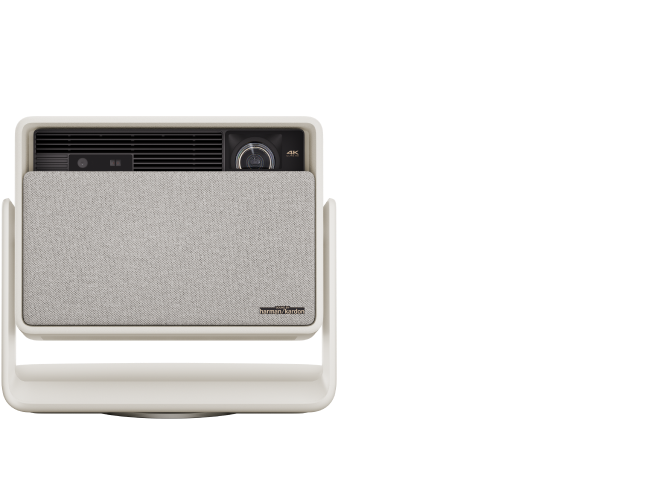
XGIMI Halo+ is a typical example of a Bluetooth phone projector. Halo+ comes with the Bluetooth 4.2/5.0 standard and can be used in a two-way function— you can connect your Bluetooth devices to the projector, or you can use the projector's speakers as a Bluetooth speaker outlet.
The XGIMI Halo+ is fitted with Harman Kardon speakers that provide excellent sound in any outdoor or indoor setting. You can connect your Bluetooth audio devices, like your headset or Bluetooth speaker, to Halo+ if you do not want to stream sound through its speakers. Halo+ also supports a Bluetooth 4.2/5.0 connection that gives you a variety of options for your audio experience. Follow the steps below to connect your XGIMI projector to an external Bluetooth audio device:
-
Power on your device and make sure it is ready for pairing.
-
On your XGIMI projector, go to 'System Setup' and open.
-
Click on 'Remote & Accessories' and select the 'Add Accessory' option.
- Add your device and enjoy.
XGIMI projectors are fitted with a 3.5mm audio port for headphones, soundbars, or other external speakers. If you need wired audio connections, you can connect through the audio port.
The Harman Kardon speakers built into XGIMI Halo+ can also serve you on karaoke nights or for 'audio only' purposes, as it can double as a Bluetooth speaker. The following steps will guide you on connecting the XGIMI projector to your device, e.g. smartphone, for Bluetooth streaming:
-
Power on your XGIMI projector.
-
Pair your device (say, iPhone) with the projector via the 'Bluetooth' section. XGIMI projectors are excellent Bluetooth projectors for iPhones.
-
On your XGIMI remote, click the 'Power' button.
- Select 'Display Off' and you are good to go.
Product Recommendation
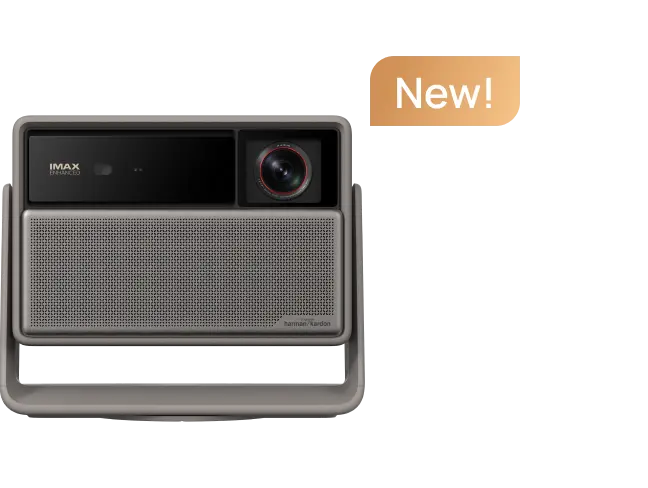
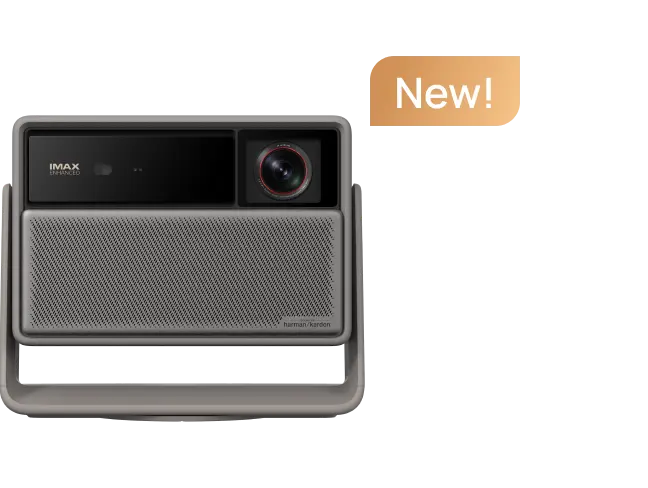
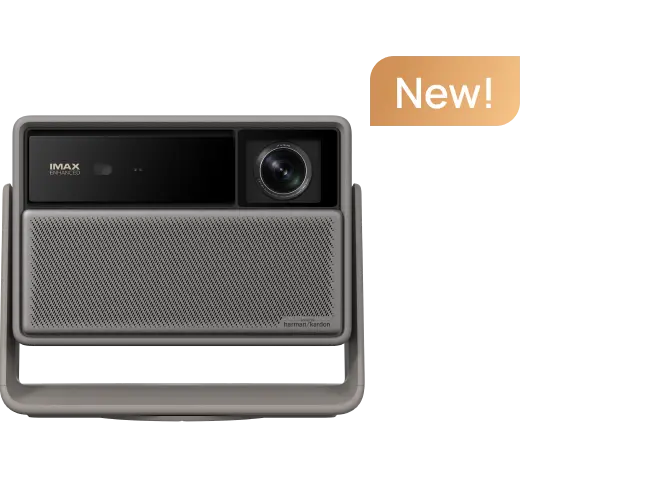
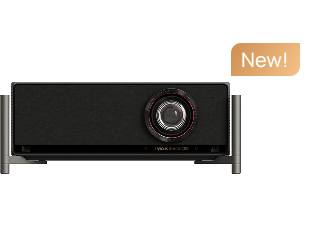
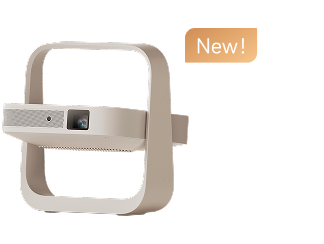
If you are looking for a portable projector that provides excellent value for your money, the XGIMI Halo+(New) is an excellent choice. It comes with a variety of features that promise user satisfaction, and ease of use.
article_product1
Conclusion
Bluetooth connectivity brings a whole new edge to portable projectors, making them even more versatile. You can stream audio from your projector to a connected Bluetooth speaker, or use the projector's built-in speakers as a Bluetooth audio device. Bluetooth connections consume less power, do not need a visual line of sight, and can be your own personal private network.


